How customers buy from your Sendd store
See exactly what shoppers experience from browsing your storefront through to order confirmation.
Category: Selling and orders
Understanding the buying experience helps you set expectations for customers and troubleshoot questions they might have. This guide walks through your storefront from the moment a shopper arrives to the moment they receive their confirmation email.
What the storefront and checkout are
Your storefront is your public shop window, living at sendd.store/your-handle. Checkout is the process shoppers go through once they are ready to pay. Together they form the entire customer-facing purchase journey, and neither requires you to do anything manually once your store and payment provider are set up.
When customers see this flow
Any time someone visits your storefront link, whether from a social post, a shared link or a marketplace listing, they land on this same experience. It runs the same way for every visitor and every product.
The storefront experience
Steps a customer follows:
- They visit your storefront at sendd.store/your-handle and see your logo, description, social links and a product grid.
- Each product card shows an image, title, price and an
Add to cartbutton. - Selecting
Add to cartopens the cart drawer, showing quantity, totals and any free-shipping progress. - They select
Checkoutfrom the cart drawer to proceed.
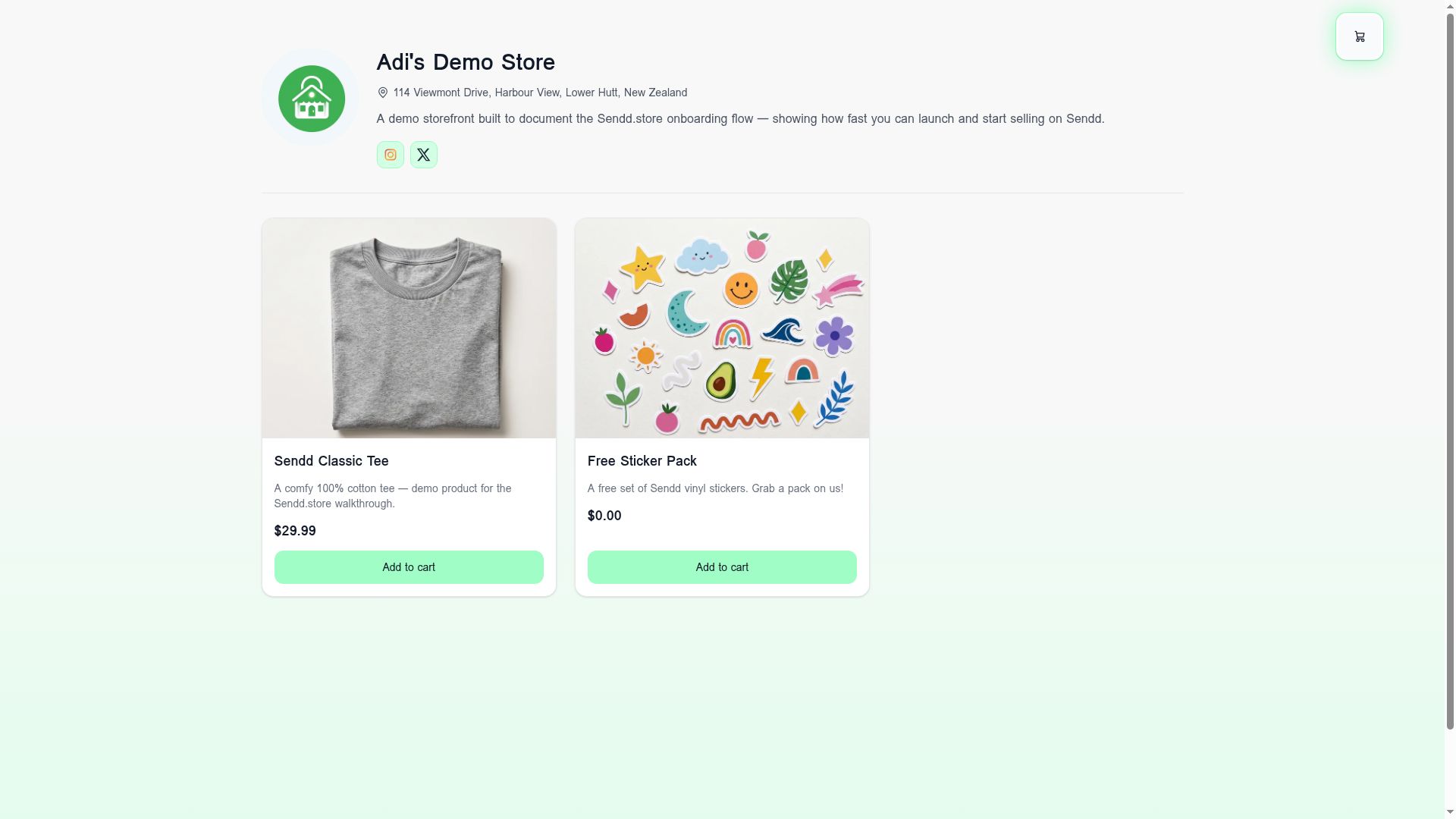 Your public storefront with products ready to add to cart.
The checkout experience
Steps a customer follows:
- They enter
Contact details: email, phone and name. - They enter a
Shipping address. - They pick a shipping method, or local pickup if you offer it.
- They can enter a coupon code if they have one.
- They complete payment to place the order.
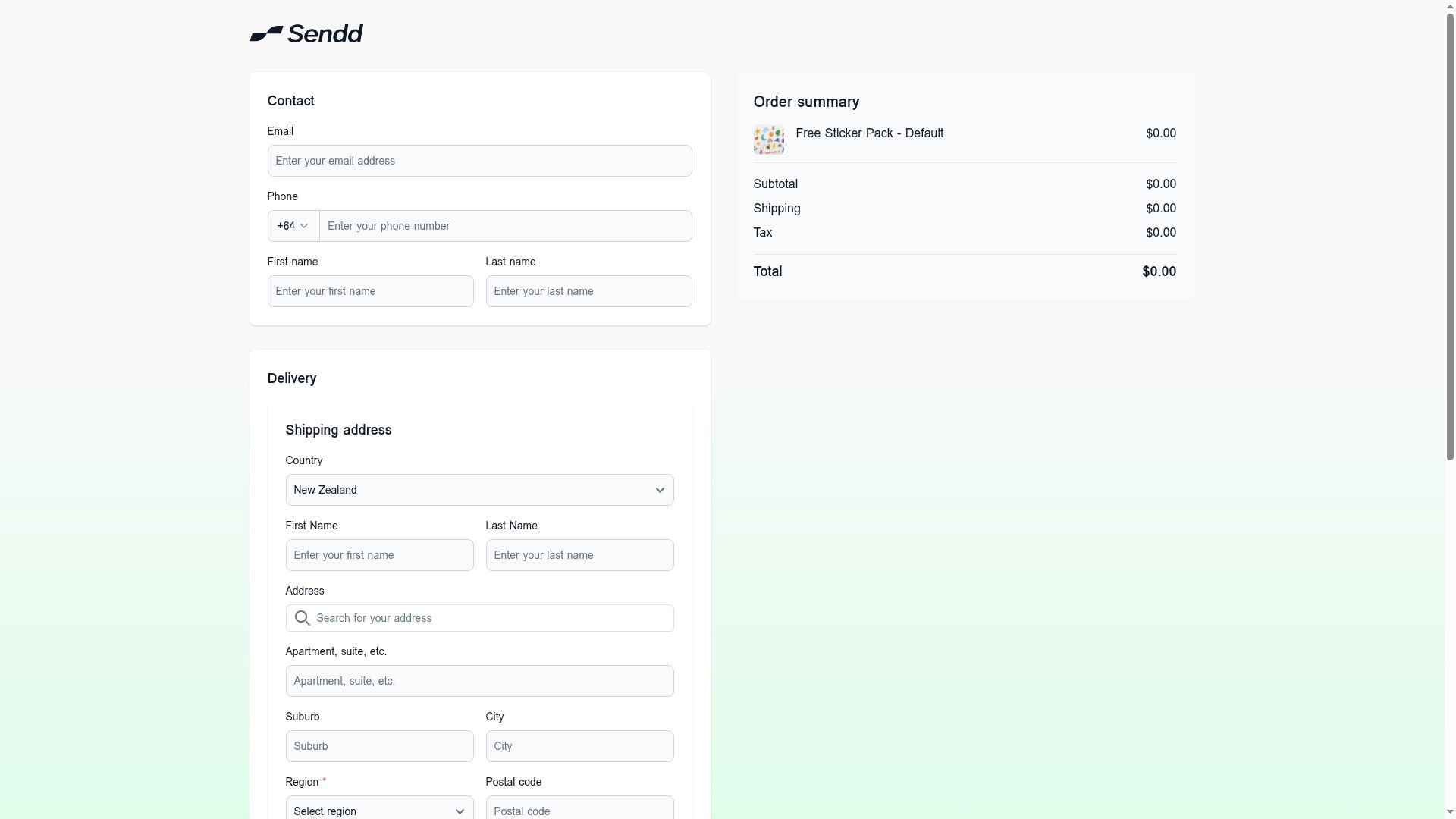 Checkout collects contact and delivery details.
What happens after paying
Once payment completes, the customer lands on a confirmation page showing their order number and a summary of what they bought. A confirmation email is also sent to the address they provided. If the order total is 0.00, it skips payment entirely, moving straight to confirmation.
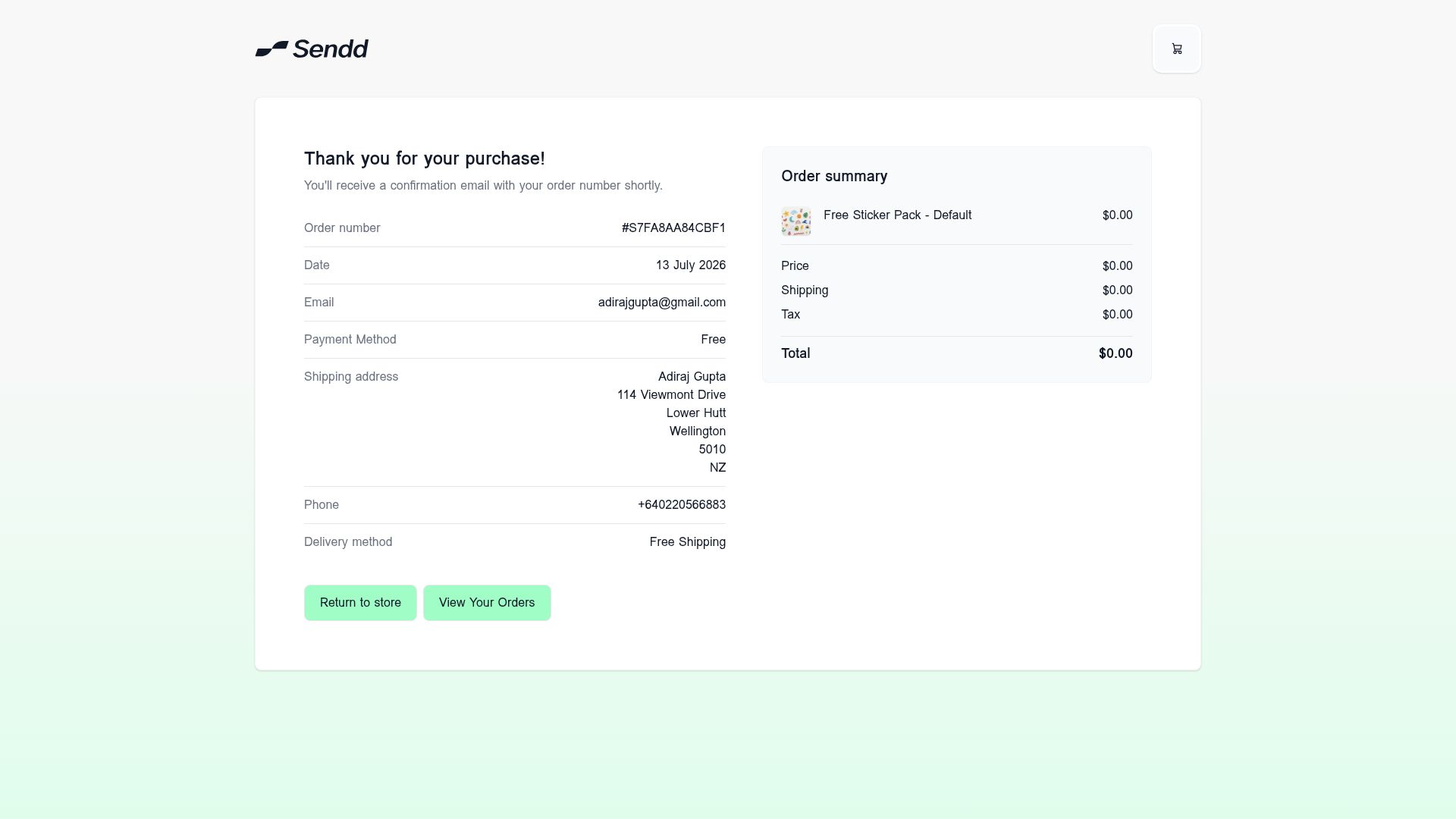 Thank you for your purchase, with order number and summary.
Example scenarios
First-time shopper on mobile. A customer taps your storefront link from Instagram, browses the product grid, selects Add to cart on a single item, and completes checkout with their email and shipping address in under a minute.
Shopper chasing free shipping. A customer adds one item, sees a nudge in the cart drawer that they are close to a free shipping threshold, adds a second item, then proceeds to Checkout.
Someone redeeming a promotion. A customer reaches checkout, enters a coupon code they received by email, sees the discount applied to totals, then completes payment.
Tip. Keep your storefront description and logo current, since it is the first thing shoppers see and shapes their trust before they add anything to the cart.
Note. Products sell only once a payment provider is connected. If checkout is not completing for customers, confirm your provider status in Payments settings.
Frequently asked questions
Do customers need an account to buy from my store?
Checkout collects Contact details and a Shipping address directly, without any account creation step described in the flow, so shoppers can move from cart to confirmation quickly.
How does a customer apply a coupon at checkout?
At checkout, after entering contact and shipping details and selecting a shipping method, they can enter a coupon code before completing payment.
Are free orders possible?
Yes. If the order total is 0.00, checkout skips payment entirely and the customer goes straight to the confirmation page.
Is checkout mobile friendly?
The storefront and checkout are the same experience for every visitor, showing the product grid, cart drawer and checkout form regardless of device.
What payment methods work at checkout?
Payment options depend on which provider you have connected in your store’s Payments settings, such as Stripe Connect. Checkout only completes once a payment provider is connected.
What happens after a customer places an order?
They see a confirmation page with their order number and a summary, and a confirmation email is sent to the address they entered at checkout.
Where does my storefront link live?
Your storefront lives at sendd.store/your-handle, showing your logo, description, social links and product grid to anyone who visits.
What shows on each product card in the storefront?
Each product card shows an image, title, price and an Add to cart button, letting shoppers add items without leaving the grid.
Next steps. See what happens on your side once an order is placed in How to manage and fulfil orders on Sendd, or make sure payments are ready with How to connect Stripe and get paid on Sendd.
Related articles