How to sell food and beverage items on Sendd
Set up Menu item products for restaurants, cafes and food trucks and configure pickup, delivery and cancellation rules.
Category: Ways to sell
If you run a restaurant, cafe, cloud kitchen, bakery or food truck, Sendd’s Menu item product type lets you list food and beverage items for ordering. This guide walks through what a menu item is, how to add one and how to control pickup, delivery and cancellation behavior for your food business.
What it is and when to use it
The Menu item product type is built for food and beverage ordering. It works like other Sendd products in the builder, where you set a title, description, image and price, but its ordering behavior is different because food orders often involve pickup times, delivery areas and cancellation windows. That behavior is governed separately, under Settings then Food & Beverage.
Use menu items if you run any kind of food or drink business that takes orders online, including:
- Restaurants taking pickup or delivery orders
- Cafes offering online ordering for coffee and food
- Cloud kitchens without a storefront
- Bakeries taking orders for baked goods
- Food trucks selling at set locations or events
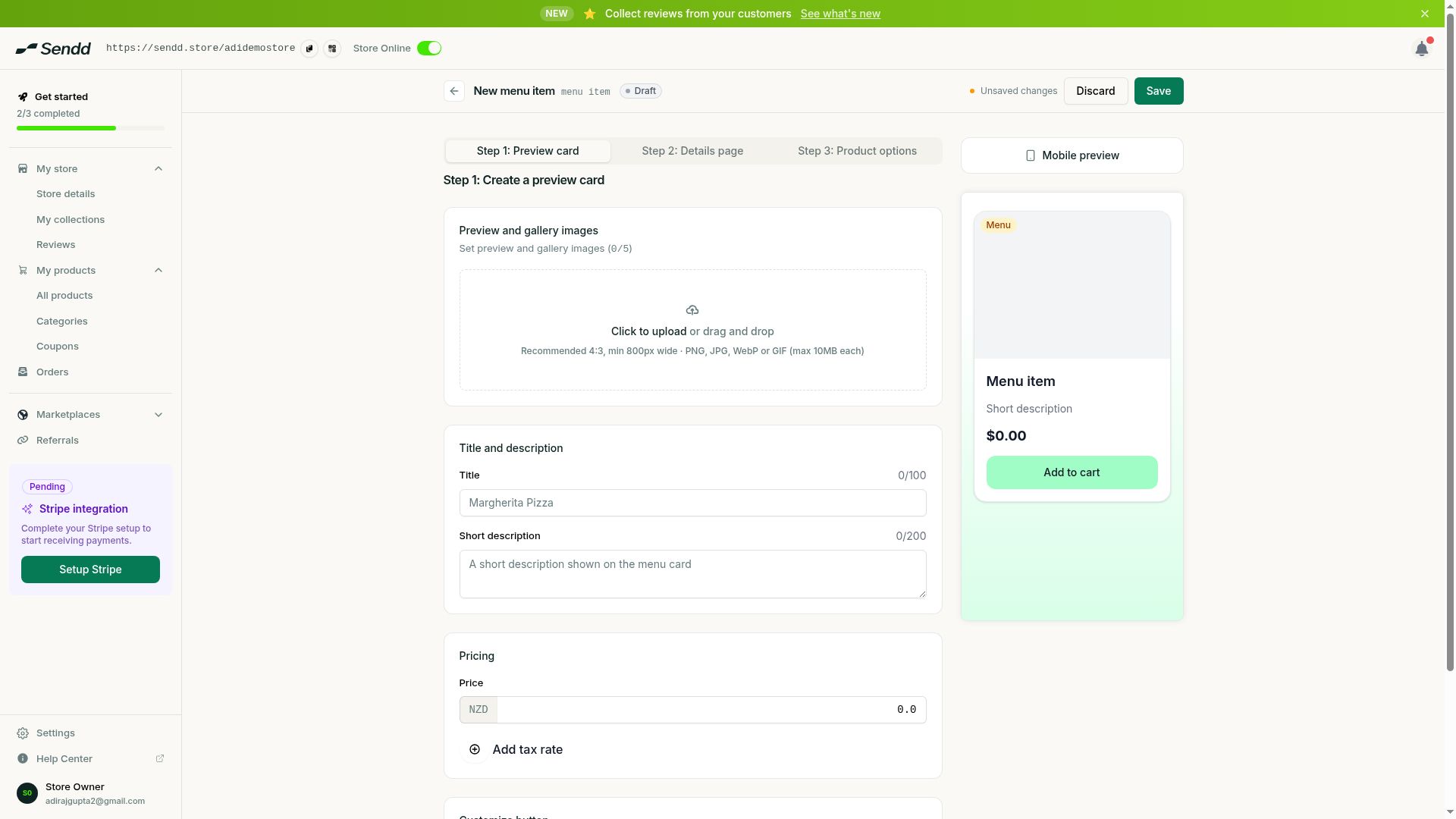 Menu items power food and beverage ordering.
How to add a menu item
Steps:
- Go to
My productsthenAll productsand start a new product. - Choose the
Menu itemproduct type. - Fill in the title, description and image for the dish or drink in the builder.
- Set the price for the item.
- Go to
SettingsthenFood & Beverageand turn on Food & Beverage in theOverviewtab if you have not already. - In
Overview, set your store address and time zone, since these determine where you serve customers and what local time your pickup and delivery windows use. - Open the
Pickup,DeliveryandCancellationtabs, which unlock once Food & Beverage is enabled, and configure the rules for how customers can order from you. - Publish your menu item so it appears on your store.
Because pickup, delivery and cancellation rules live in Settings rather than in the product builder, you only need to configure them once, and every menu item you add follows the same rules.
Options and fields explained
Overview is where you enable Food & Beverage for your store and set your store address and time zone. These fields determine where you serve customers and what local time your ordering hours run on.
Pickup governs how customers collect orders from your location once Food & Beverage is turned on.
Delivery governs how orders reach customers away from your location, also unlocked once Food & Beverage is enabled.
Cancellation governs how orders can be cancelled once placed, and also unlocks with Food & Beverage.
Use-case examples
Cafe with pickup orders. A neighborhood cafe lists its coffee and pastries as menu items, sets its store address and time zone in Overview and uses the Pickup tab to manage how customers collect their order.
Cloud kitchen with delivery only. A delivery-only kitchen with no dine-in space lists its dishes as menu items and relies on the Delivery tab to manage how food reaches customers.
Food truck at a fixed location. A food truck sets its current location as the store address, lists its menu items and lets customers place pickup orders timed to when the truck is parked.
Tip. Set your store address and time zone correctly in Overview before you configure Pickup, Delivery or Cancellation, since those tabs depend on Food & Beverage being enabled first.
Note. The Pickup, Delivery and Cancellation tabs stay locked until you turn on Food & Beverage in the Overview tab.
Frequently asked questions
What is the difference between pickup and delivery for menu items?
Pickup is when customers collect their order from your store address, and delivery is when the order is brought to the customer. Both are configured separately under Settings then Food & Beverage, in the Pickup and Delivery tabs.
How do I set a delivery area?
Delivery settings are configured in the Delivery tab under Settings then Food & Beverage, which unlocks once you enable Food & Beverage in the Overview tab.
How do I set opening hours or availability?
Your store address and time zone are set in the Overview tab, and pickup and delivery availability builds on that once Food & Beverage is enabled.
Can customers cancel an order after placing it?
Cancellation rules are set in the Cancellation tab under Settings then Food & Beverage, which controls how cancellations work for your menu items.
Can I add options like sizes or extras to a menu item?
Menu items go through the same builder as other Sendd products, which includes a product options step, so you can configure options for a dish the way you would for any product.
How do I connect a payment method for food orders?
Payment processing on Sendd is separate from the 1% platform fee, and menu items use the same payment setup as your other products, configured through your store settings.
Do I need to enable anything before I can use Pickup or Delivery?
Yes. Turn on Food & Beverage in the Overview tab first. The Pickup, Delivery and Cancellation tabs stay locked until you do.
What kind of businesses use the Menu item product type?
Restaurants, cafes, cloud kitchens, bakeries and food trucks all use Menu items to sell food and beverages online.
Next steps. Review the general product builder steps in How to add a product on Sendd, check how shipping works for physical goods in How to set up shipping and local pickup on Sendd, or explore more of what you can configure in How to manage your Sendd store settings.
Related articles