How to set up shipping and local pickup on Sendd
Configure shipping providers, free shipping thresholds and local pickup so customers can get their orders.
Category: Payments and shipping
Once payments are connected, the next step is telling customers how their order will reach them. Sendd lets you configure shipping providers, offer free shipping past a spending threshold and add local pickup as an alternative to delivery. This guide covers every option under the shipping settings.
What shipping settings control
Shipping settings determine what delivery choices shoppers see at checkout, how shipping cost is calculated or entered and whether a free shipping incentive is shown. You configure all of this in one place, so there is no need to touch individual products for shipping behaviour.
When to use each option
Use a shipping provider if you deliver anywhere beyond arm’s reach of your business. Use a free shipping threshold if you want to encourage larger orders. Use local pickup if you sell from a physical location and some customers would rather collect than pay for delivery.
How to configure shipping
Steps:
- Go to
SettingsthenStorethenShipping. - Under
Shipping provider, chooseManualorGoSweetSpot. - Optionally, set a
Free shipping thresholdso orders over that amount ship free. - If you set a threshold, choose the
Eligible countriesfor free shipping. - Toggle on
Offer local pickupif you want customers to be able to collect orders in person. - Add a
Pickup addressandPickup instructionsfor customers who choose that option. - Select
Save shipping settings.
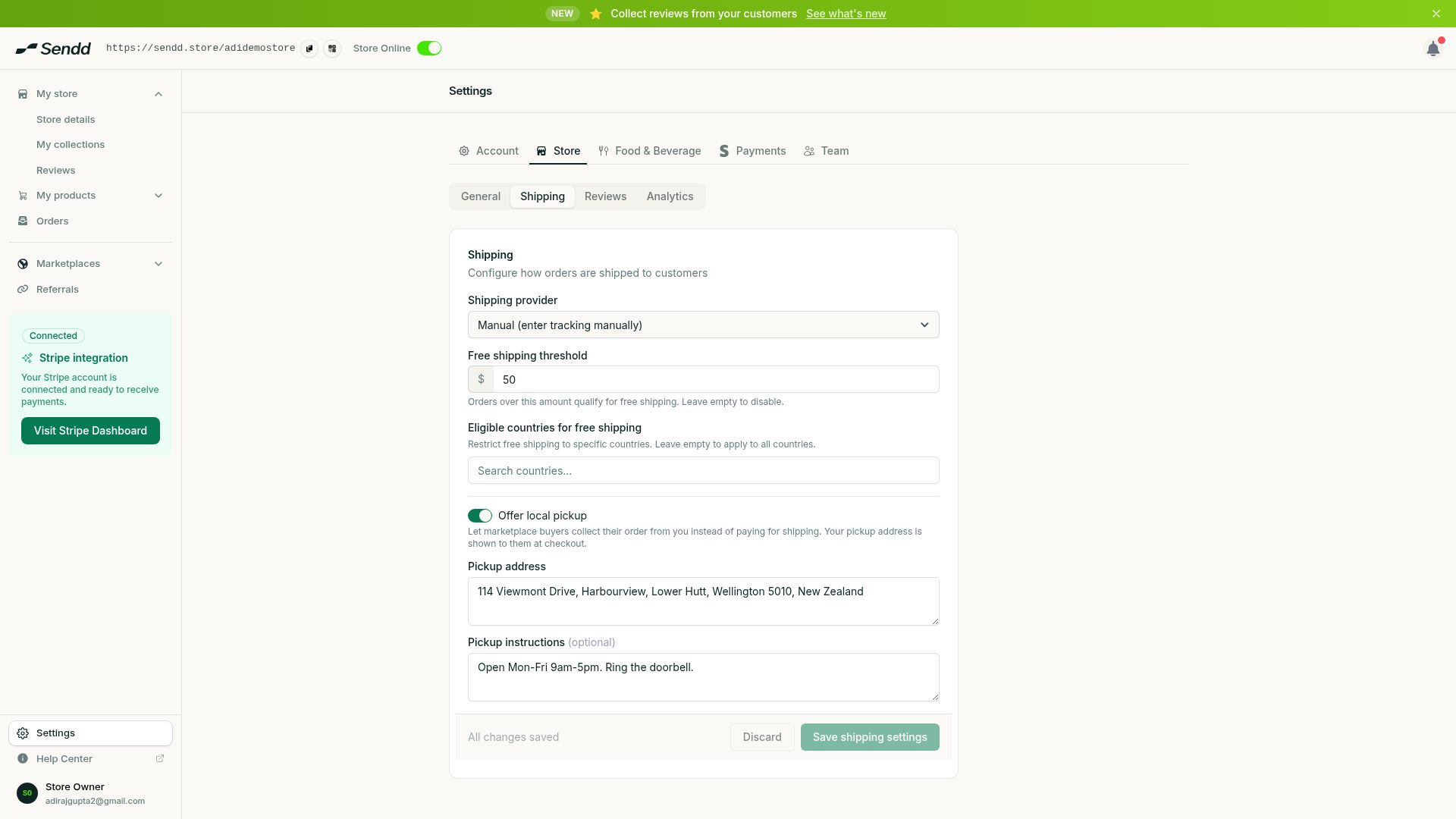 Free shipping threshold and local pickup with a pickup address.
Shipping provider options explained
- Manual. You handle shipping cost and carrier selection yourself, and enter tracking details manually once an order ships.
- GoSweetSpot. Available for stores in New Zealand and Australia, giving you a connected shipping workflow rather than entering everything by hand.
Free shipping threshold
When you set a free shipping threshold, orders above that amount ship at no cost automatically. You also choose which countries qualify for free shipping, so you can offer the incentive locally without extending it internationally if that does not make sense for your margins. Shoppers see a live nudge in the cart, for example “Add 50.00 more for free shipping,” which encourages them to add another item before checking out.
Local pickup
Toggling on Offer local pickup adds a collection option alongside delivery at checkout. Fill in a Pickup address so customers know where to go, and Pickup instructions for details like opening hours or where to park. This is useful if you run a studio, market stall or small retail space and want to save regular customers a delivery fee.
Example scenarios
Wellington cafe selling merchandise online. You offer Manual shipping for out-of-town orders but also turn on Offer local pickup so nearby customers can collect from the counter.
Homeware store encouraging bigger baskets. You set a $75.00 free shipping threshold with New Zealand and Australia as eligible countries, so shoppers see the “Add X more for free shipping” nudge and often add one more item.
Auckland store shipping regularly within New Zealand and Australia. You switch the shipping provider to GoSweetSpot instead of entering tracking manually for every order.
Tip. Set your free shipping threshold slightly above your average order value. It nudges shoppers to add one more item rather than giving away free shipping on every order.
Note. Local pickup and shipping are not mutually exclusive. You can offer both at once and let the customer choose their preferred method at checkout.
Frequently asked questions
What shipping providers are available on Sendd?
You can choose Manual, where you enter tracking yourself, or GoSweetSpot, which is available for stores in New Zealand and Australia.
How do I offer free shipping?
Set a Free shipping threshold under Settings then Store then Shipping. Orders over that amount ship free, and you choose which Eligible countries the offer applies to.
How do I offer local pickup?
Toggle on Offer local pickup in the same shipping settings, then add a Pickup address and Pickup instructions before selecting Save shipping settings.
Can I ship internationally?
Eligible countries are configured for the free shipping threshold, letting you control which countries qualify for that incentive. Choose your shipping provider and eligible countries to match where you actually ship.
How do I add tracking to an order?
If you use Manual shipping, you enter tracking details yourself once the order ships, from the order detail view.
Is GoSweetSpot available in my country?
GoSweetSpot is available for stores in New Zealand and Australia. If you are outside those countries, use Manual shipping instead.
What does the free shipping nudge look like to customers?
When a threshold is set, shoppers see a message such as “Add 50.00 more for free shipping” in the cart drawer, encouraging them to reach the threshold before checking out.
Do I have to choose between shipping and local pickup?
No, you can enable both. Customers see whichever delivery methods you have configured and pick the one that suits them at checkout.
Next steps. With delivery configured, learn how to move orders through fulfilment in How to manage and fulfil orders on Sendd, or revisit How to connect Stripe and get paid on Sendd if checkout is not yet unlocked.
Related articles