How to set up your Sendd store details
Add your logo, description, location, currency and theme so your storefront looks ready for customers
Category: Getting started
Setting up your store details is how you turn a blank Sendd storefront into a store that looks trustworthy and ready to sell. This covers your logo, store name and description, location, currency, storefront layout and theme, all of which appear directly on your public storefront and in search results. Here is exactly how to fill them in.
What it is and when to use it
Store details live under My store, and this is the section you should visit right after creating your account, and again any time your branding, location or currency changes. A live preview updates as you type, so you can see exactly how customers will experience your storefront before you save anything.
Steps:
- In the sidebar, select
My store, then selectStore details. - Select the avatar circle to upload a logo. You can crop the image before saving it.
- Fill in the
Store namefield. - Fill in the
Store descriptionfield. This appears on your storefront and in search results, so write it clearly and briefly. - Set your
Store location. - Set your
Store currency, for example NZD. - Choose a
Storefront UI. The New option is recommended once you have three or more products. - Choose a
Store themefrom the available presets, or selectCustomize themefor more control. - Scroll down to add your social media links, including Instagram, X, TikTok, WhatsApp, YouTube and more.
- Select
Save.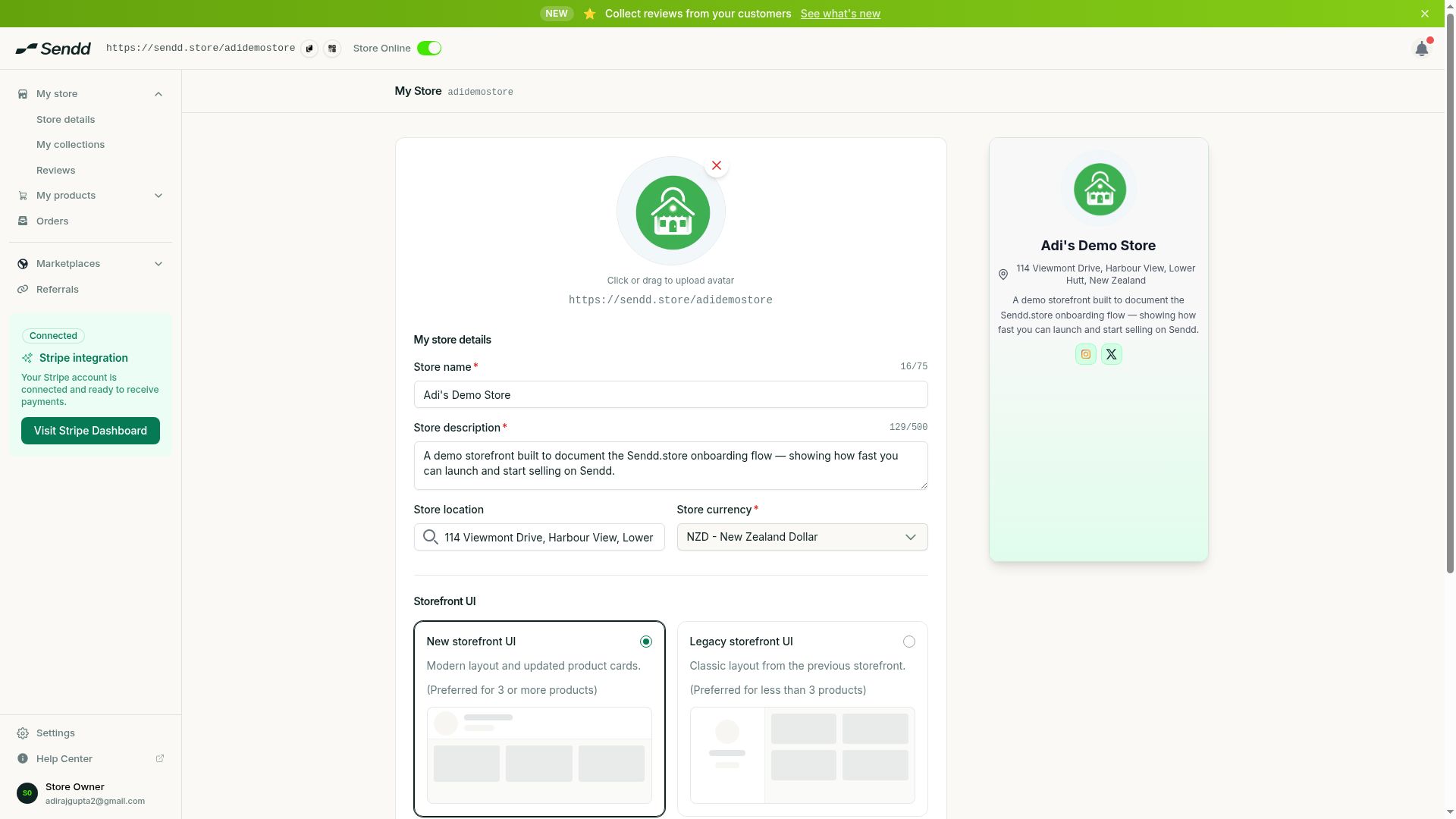 A finished header: logo, description, location and social icons.
Understanding the options and fields
Each field on this page has a specific job. The Store name and Store description are what shoppers and search engines see first, so treat them like a headline and subheading for your brand. Store location and Store currency set expectations around shipping and pricing, and matter most if you sell physical goods locally or price in a currency other than NZD. The Storefront UI choice controls how your product catalogue is laid out, and the New layout suits stores with a growing range of products. Your Store theme controls the colours, fonts and overall feel, with presets for a quick start or the Customize theme option for full control. Social media links appear as icons in your storefront header, giving shoppers an easy way to find you elsewhere.
Use-case examples
- A clothing brand uploads a square logo, crops it to fit, writes a two-sentence description of their aesthetic and links their Instagram and TikTok so shoppers can browse their content.
- A New Zealand candle maker sets their location to Wellington and their currency to NZD, then picks a warm preset theme that matches their product photography.
- A course creator with a growing catalogue switches to the New Storefront UI once they pass three published products, giving their site a cleaner grid layout.
Tip. Write your Store description the way you would introduce your brand to a new customer in one breath. It shows up in search results, so make the first sentence count.
Note. The live preview on the right reflects your changes instantly, so use it to check how your logo, colours and text actually look together before you select Save.
Frequently asked questions
Where do I edit my store logo and description?
Go to My store, then Store details. You can upload and crop a logo and edit your Store name and Store description there.
Can I change my store currency after setup?
Yes, you can update Store currency at any time from the Store details page, for example switching to or from NZD depending on where you sell.
What is the difference between the storefront UI options?
The Storefront UI setting controls your catalogue layout. The New option is recommended once you have three or more products, since it is built to display a larger range cleanly.
Can I customize my store theme beyond the presets?
Yes, select Customize theme instead of a preset to adjust the look of your storefront in more detail.
Which social platforms can I link on my storefront?
You can add links for Instagram, X, TikTok, WhatsApp, YouTube and more, which appear as icons on your storefront header.
Does my store description affect search results?
Yes, your Store description appears both on your storefront and in search results, so a clear and concise description helps customers understand your store at a glance.
Do I need to fill in my location if I only sell digital products?
Store location is still useful for context and search results, but it matters most for stores selling and shipping physical products.
How do I preview my changes before saving?
The Store details page includes a live preview on the right that updates as you type, so you can review everything before selecting Save.
Next steps. With your branding in place, start building your catalogue in How to add a product on Sendd.
Related articles