How to sell physical products on Sendd
List clothing, homeware, prints and other shippable goods using the Physical product type
Category: Ways to sell
Selling physical products on Sendd covers anything you pack up and ship: clothing, homeware, prints, stickers or packaged goods. The Physical product type uses the same three-step builder as every other product on Sendd, with a few details that matter specifically for goods that need to travel from your hands to your customer’s door. Here is how to set one up properly.
What it is and when to use it
Choose the Physical product type any time you are selling a tangible item that requires shipping, local delivery or pickup. It pairs your storefront listing with your store-wide shipping settings, so shoppers see accurate delivery expectations at checkout.
Steps:
-
In the sidebar, select
My products, thenAll products, then selectAdd new product. -
Select
Physical productfrom the product type chooser.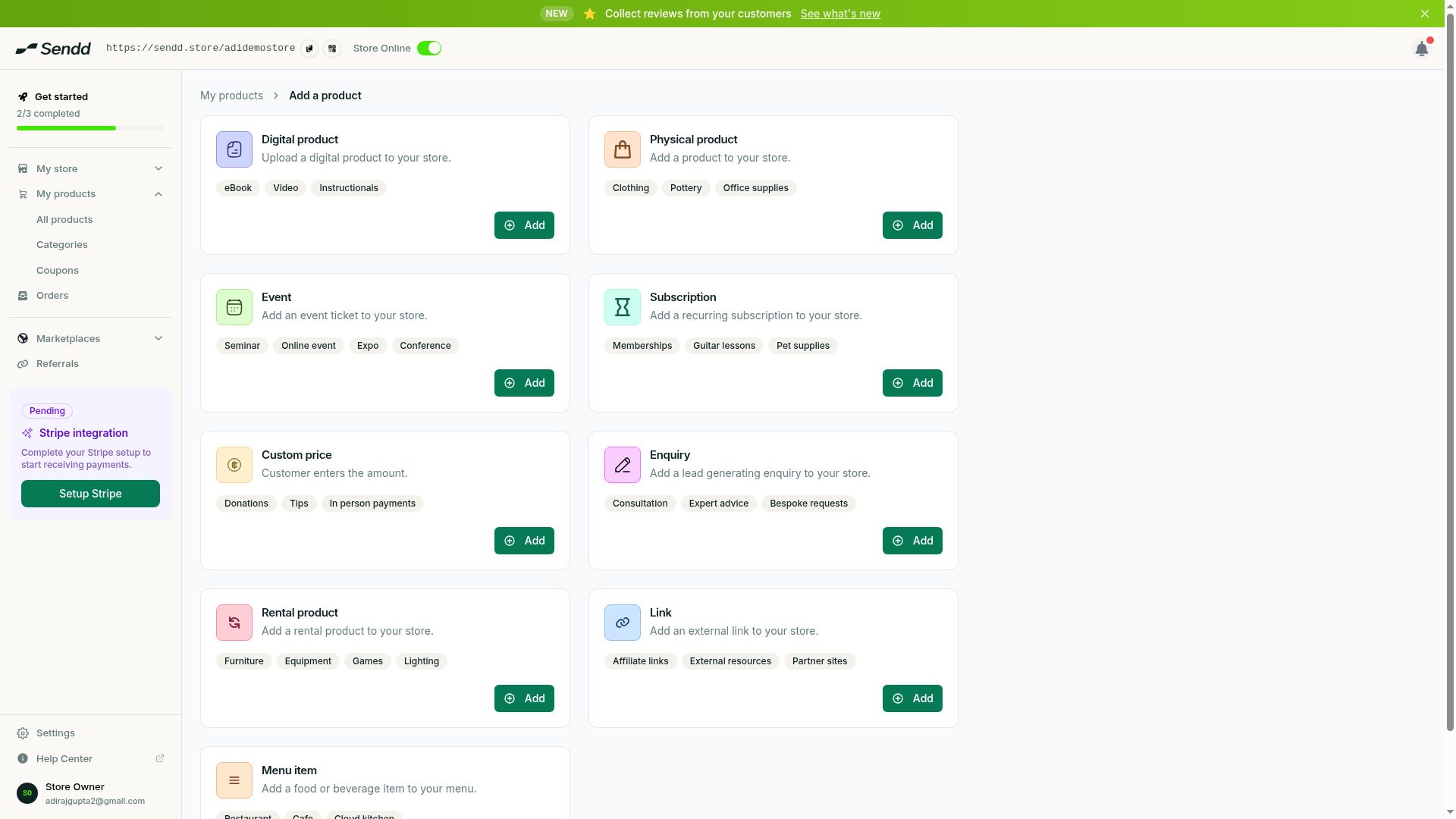 Pick Physical product from the type chooser.
 -
On Step 1, add your
Title,Short descriptionandPreview and gallery images. -
Set the
Price. Enter 0 if you want to give the item away free.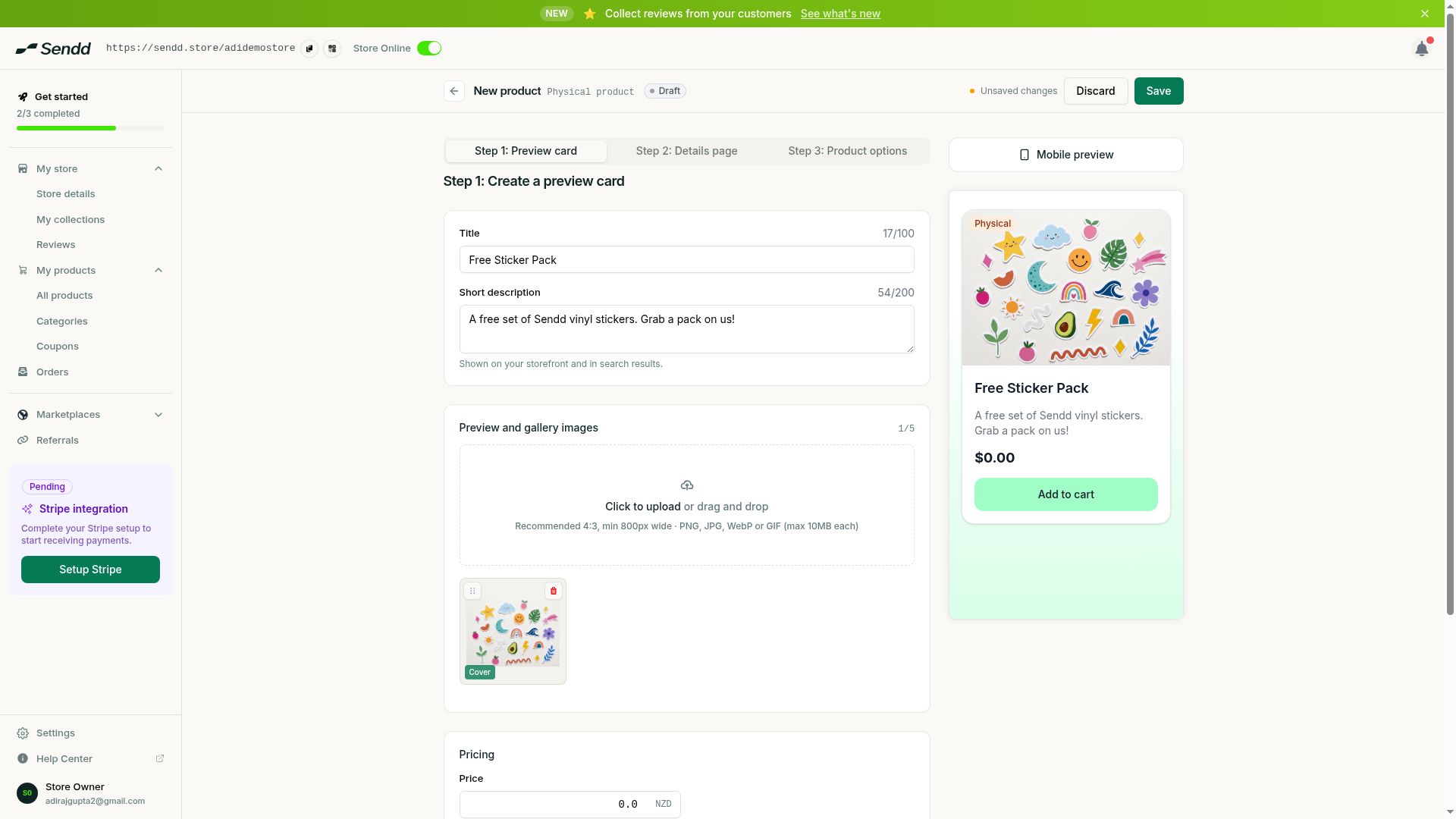 A physical product with a cover image and price.
 -
On Step 2, write your
Detailed description. -
Set up
Stock and variations, for example different sizes or colours, each with its own stock count. -
Review your
Sendd Marketplacessettings to decide if this product should be discoverable beyond your storefront. -
On Step 3, toggle on
Shipping, delivery and pickupso buyers know how the item will reach them. -
Add
FAQsor aForm collectionif you need to answer common questions or gather extra details from buyers. -
Select
Publish, or selectSave as draftto finish later.
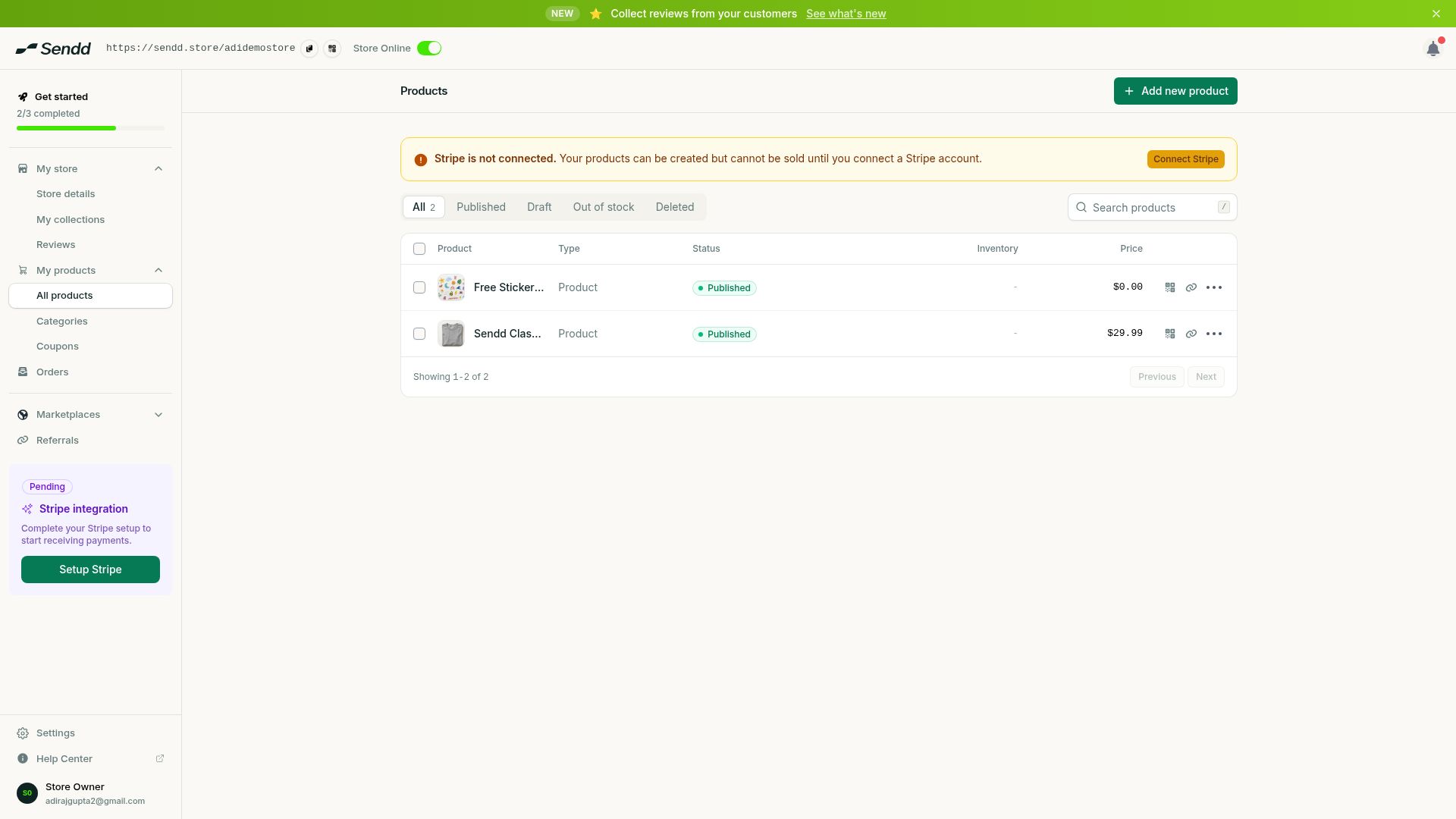 Published products appear in All products.
Understanding the options and fields
Stock and variations is one of the most important fields for physical products. Use it to offer choices like size or colour, and to track how many units of each variation you have on hand so you do not oversell. The Shipping, delivery and pickup option in Step 3 works together with your store-wide shipping settings to determine what delivery methods and costs a buyer sees at checkout. Sendd Marketplaces settings in Step 2 control whether this particular product can be found through Sendd Marketplaces, giving you a way to expand reach beyond your own storefront traffic.
Use-case examples
- An apparel seller adds a t-shirt with size and colour variations, each tracked separately in stock, and enables shipping and local pickup for customers near them.
- A print artist lists a limited run of art prints with a single variation for framed versus unframed, and turns on Sendd Marketplaces so new buyers can discover the piece.
- A homeware brand offers a small giveaway item at a price of 0 to build their mailing list, still using the Physical product type since it ships to the winner.
Tip. Set up your Stock and variations before you publish. Adding sizes or colours after launch means existing orders and your storefront listing need to catch up, so it is smoother to get it right from Step 2.
Note. Shipping, delivery and pickup in Step 3 relies on your store-wide shipping settings, so make sure those are configured for accurate rates and delivery windows.
Frequently asked questions
How do I add sizes or colours to a physical product?
Use the Stock and variations field on Step 2, Details page, to create variations like size or colour, each with its own stock count.
Can I track how many units of a product I have left?
Yes, Stock and variations on Step 2 lets you track inventory for the whole product or for each individual variation.
How do I offer free shipping on a physical product?
Turn on Shipping, delivery and pickup in Step 3 of the product builder, and configure the rates in your store-wide shipping settings.
Can customers pick up physical products locally instead of shipping?
Yes, the Shipping, delivery and pickup option in Step 3 covers shipping, delivery and pickup, so you can enable whichever methods suit your business.
How do I make my physical product show up on Sendd Marketplaces?
Review the Sendd Marketplaces settings on Step 2, Details page, to control whether this product is discoverable beyond your storefront.
Can I make a physical product free?
Yes, set the Price field to 0 in Step 1 to list a physical product for free.
Can I edit a physical product after publishing it?
Yes, published products appear under My products, All products, and you can open and edit them there at any time.
What image size should I use for a physical product listing?
Use a 4:3 aspect ratio with images at least 800px wide across your Preview and gallery images for the clearest result.
Next steps. Organize your growing catalogue with categories and collections, or review the full builder in How to add a product on Sendd.
Related articles