How to create discount coupons on Sendd
Build percentage or fixed amount discount codes with eligibility, conditions, usage limits and a schedule on Sendd.
Category: Selling and orders
Discount coupons give you a way to run promotions, reward loyal customers or attract new ones without changing your listed prices. This guide covers every field in the Sendd coupon builder and how to set up a coupon step by step.
What it is and when to use it
A coupon on Sendd is a code that customers enter at checkout to receive a discount on their order. You control the discount amount, which products or collections it applies to, how many times it can be used and when it is valid. Use coupons for seasonal sales, first-time customer offers, clearing out specific inventory or rewarding customers who reach a spending threshold.
How to create a coupon
Steps:
- Go to
My productsthenCoupons. - Select
Create coupon. - Enter a
Coupon code, or leave it blank to auto-generate one. Codes use letters and numbers and run 3 to 20 characters. - Enter an
Internal nameso you can recognize this coupon in your own records. - Choose a
Discount typeof eitherPercentageorFixed amount. - Enter the
Discount valueand, if you want to cap how much a percentage discount can be worth, set aMaximum discount. - Set
Eligibilityto restrict the coupon to specific listings, collections or categories, or leave it applying to all items. - Set
Conditions, including aMinimum order valueand whether to turn onNew customers only. - Set
Usage limits, includingTotal usesandUses per customer. - Set the
Schedulewith aStart dateandExpiry date. - Toggle
Coupon is activeon so the coupon works once created. - Select
Create couponto save it.
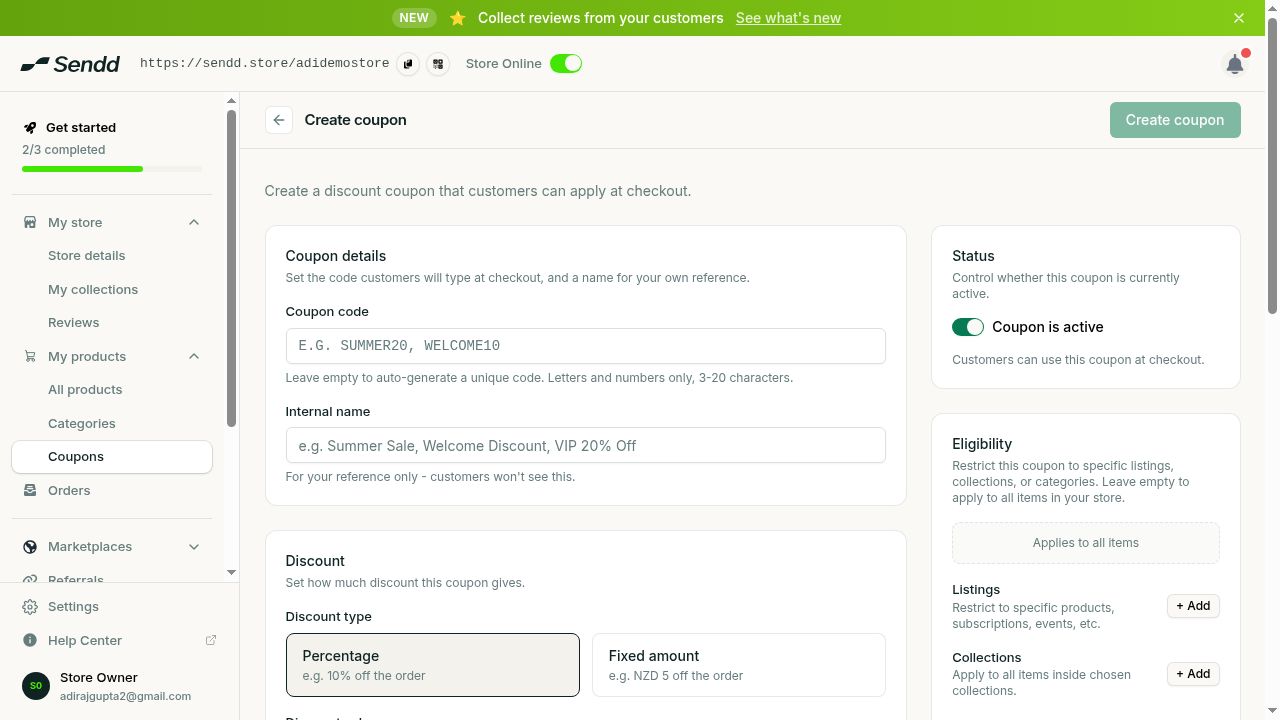 The coupon builder: code, discount, eligibility, conditions and schedule.
Options and fields explained
Discount type determines whether the discount is a percentage off the order or a fixed dollar amount off, for example NZD 10 off. Maximum discount is useful with percentage discounts, since it lets you cap the dollar value a customer can save even on a large order.
Eligibility lets you restrict a coupon to specific listings, specific collections or specific categories, or leave it open to all items in your store.
Conditions let you require a Minimum order value before the coupon applies, and the New customers only toggle restricts the coupon to shoppers who have not ordered from you before.
Usage limits control how many times a coupon can be used overall with Total uses, and how many times a single customer can use it with Uses per customer.
Schedule sets when the coupon becomes valid with a Start date and when it stops working with an Expiry date.
Use-case examples
Welcome discount for new customers. Set the Discount type to Percentage, turn on New customers only under Conditions and set Uses per customer to 1, so each new shopper gets a one-time discount on their first order.
Clearance sale on one collection. Set Eligibility to a specific collection, choose Fixed amount as the Discount type and set a Start date and Expiry date to run a short clearance sale on just those items.
Spend threshold reward. Set a Minimum order value under Conditions and a Percentage discount with a Maximum discount cap, encouraging shoppers to add more to their cart while limiting how much you discount on large orders.
Tip. Use a Maximum discount cap alongside a Percentage discount type if you want to offer a generous looking percentage without risking a huge payout on your highest priced orders.
Note. A coupon only works at checkout while its Coupon is active toggle is on and the current date falls between its Start date and Expiry date.
Frequently asked questions
What is the difference between a percentage and a fixed amount discount?
A percentage discount reduces the order total by a percentage, while a fixed amount discount reduces it by a set dollar figure, for example NZD 10 off, regardless of order size.
Can I limit a coupon to certain products?
Yes. Use Eligibility to restrict the coupon to specific listings, collections or categories instead of applying it to all items.
Can I make a coupon that only works once or a limited number of times?
Yes. Set Total uses under Usage limits to cap how many times the coupon can be used across all customers, and set Uses per customer to limit how many times any one shopper can use it.
How do I set an expiry date on a coupon?
Set the Expiry date field under Schedule. The coupon stops working once that date passes.
Can I make a coupon only work for new customers?
Yes. Turn on the New customers only toggle under Conditions to restrict the coupon to shoppers who have not ordered from your store before.
Can customers use more than one coupon on the same order?
Each coupon is created and applied as its own code entered at checkout, with its own eligibility, conditions and usage limits governing when it applies.
Do I have to type my own coupon code?
No. Leave the Coupon code field blank and Sendd will auto-generate one for you, or type your own using letters and numbers between 3 and 20 characters.
Where do customers enter the coupon code?
Customers enter the coupon code at checkout, and the discount is applied to their order if it meets the coupon’s conditions.
Next steps. See how the code is applied during checkout in How customers buy from your Sendd store, track discounted sales in How to manage and fulfil orders on Sendd, or promote your coupon by learning How to share your Sendd store.
Related articles