How to organize products with categories and collections on Sendd
Understand the difference between collections and categories on Sendd and set both up for your storefront.
Category: Products and catalog
As your Sendd catalog grows, shoppers need a way to browse and narrow down what they see. Sendd gives you two tools for this: collections and categories. This guide explains how each one works, how they differ and how to set both up for your store.
What they are and when to use them
Collections are curated groups of products that you build by hand and display on your storefront, such as a “Best Sellers” collection featuring your top picks. Categories are filters shoppers use to narrow down a list of products, such as filtering by product type. In short, collections curate and categories filter.
Use a collection when you want to hand-pick and showcase a specific set of products, for example a seasonal lineup, a bundle of related items or your top sellers. Use categories when you want shoppers to be able to filter your whole catalog by an attribute, such as product type, size or material.
How to create a collection
Steps:
- Go to
My storethenMy collections. - Select
Add collection. - Enter a
Collection title, for example “Best Sellers”. - Select
Add product. - Tick the products you want in this collection.
- Select
Add to collection. - Select
Saveto publish the collection.
Sendd also gives every store a default All collection, so shoppers always have a way to browse your full catalog even before you build any custom collections.
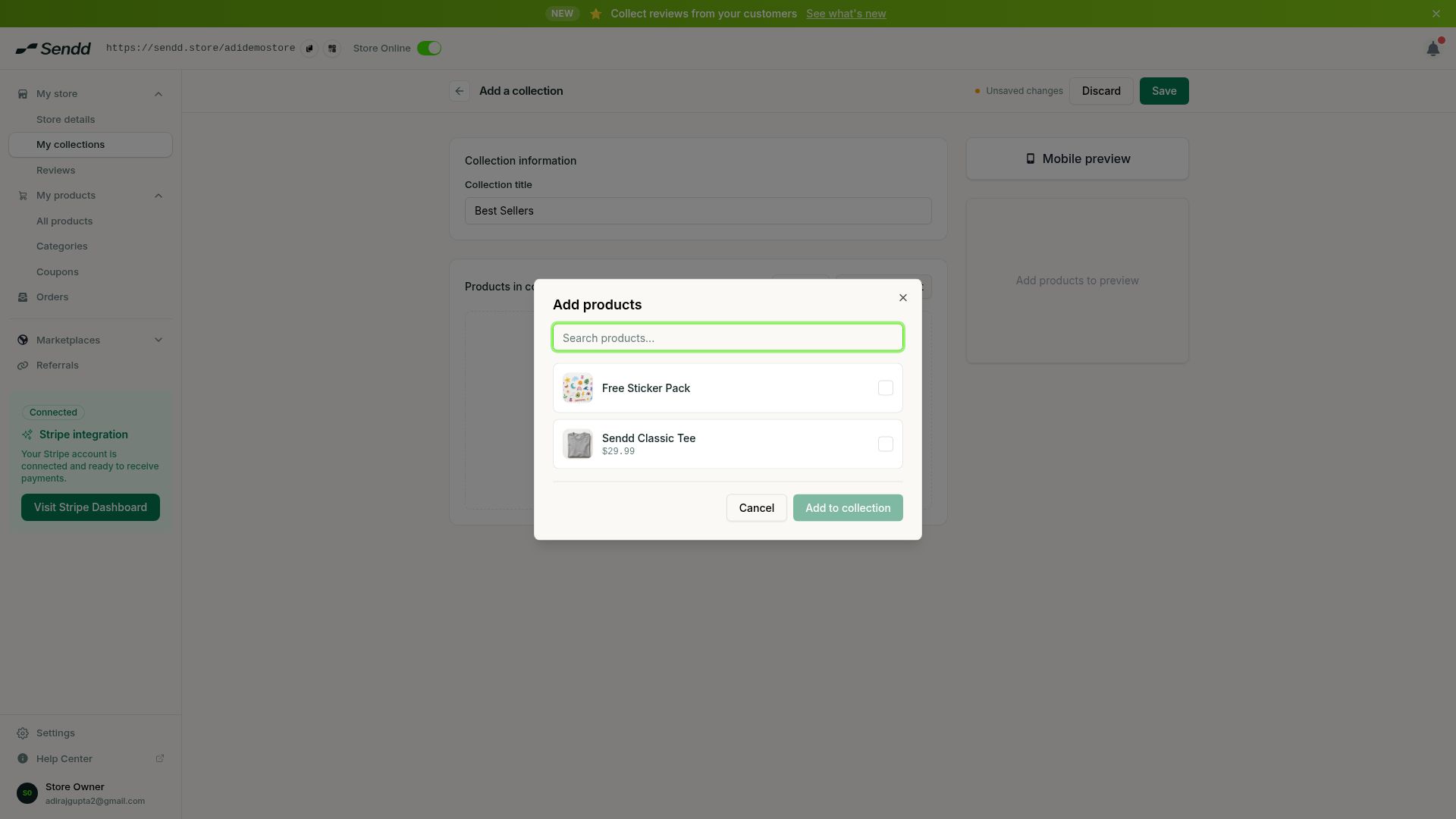 Pick which products belong in a collection.
How to create a category
Steps:
- Go to
My productsthenCategories. - Select
Add group. - Name the group, for example “Product Type”. This name becomes the filter label shoppers see.
- Select
Add valueto add the options within that group, for example “Stickers”. - Use
Manage productsto assign specific products to each value.
Once set up, shoppers browsing your store see the category group name as a filter label, with each value as a selectable option underneath it.
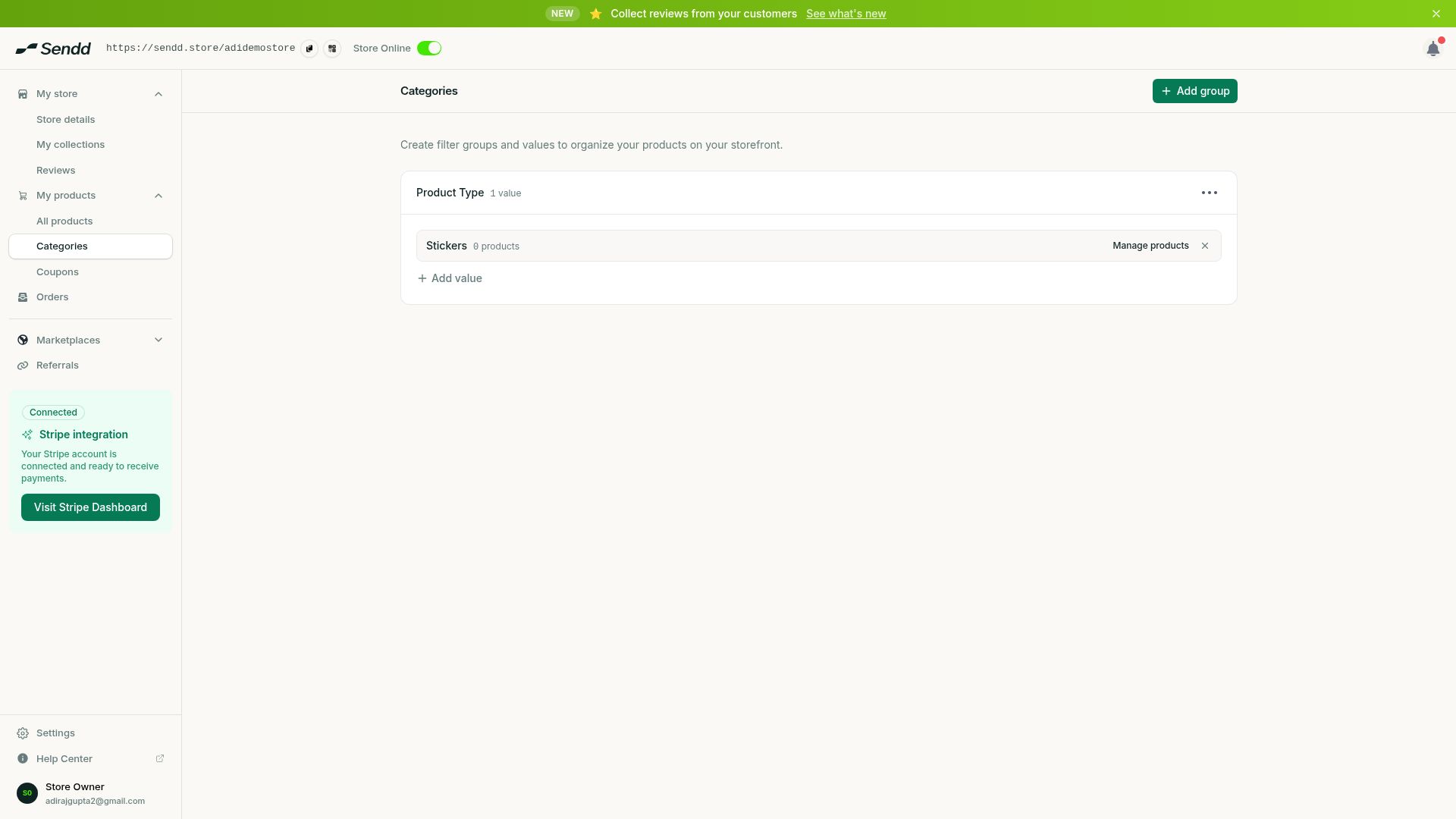 A category group (Product Type) with a value (Stickers).
Use-case examples
Seasonal collection. A gift shop creates a “Holiday Picks” collection, adds a handful of hand-selected products to it and features it on the storefront during the holiday season.
Filtering by product type. A sticker and print shop creates a “Product Type” category group with values like “Stickers” and “Prints”, so shoppers can filter the catalog down to just what they want.
Combining both. A clothing store builds a “New Arrivals” collection to showcase its latest items, while also setting up a “Size” category so shoppers can filter any part of the catalog, including new arrivals, by the size they need.
Tip. Keep your category group names short and clear, since the group name becomes the filter label shoppers see directly on your storefront.
Note. Every store starts with a default All collection, so you always have a fallback view of your full catalog even before adding custom collections.
Frequently asked questions
What is the difference between a collection and a category on Sendd?
A collection is a curated group of products you hand-pick to display on your storefront. A category is a filter shoppers use to narrow down your catalog by an attribute, such as product type. Collections curate, categories filter.
How many collections or categories can I create?
You can create as many collections under My collections and as many category groups and values under Categories as your catalog needs.
How do filters look to shoppers on my storefront?
Each category group name appears as a filter label, with the values you added underneath it as selectable options, letting shoppers narrow down the products shown.
Can I control the order products appear in a collection?
You build a collection by selecting which products to add through Add product and ticking the ones you want, then adding them to the collection.
Can one product belong to multiple collections?
Yes. You can add the same product to more than one collection by including it when you select products for each collection.
Do I need to set up categories before I can sell products?
No. Categories are optional and help shoppers filter your catalog, but you can add and sell products without setting any up.
What happens to the All collection if I create my own collections?
The default All collection stays in place alongside any custom collections you build, giving shoppers a way to see your entire catalog.
Can I assign a product to a category after I have already published it?
Yes. Use Manage products under Categories to assign existing products to a category value at any time.
Next steps. Learn the full product builder in How to add a product on Sendd, see specific setup for physical goods in How to sell physical products on Sendd, or explore how shoppers browse and check out in How customers buy from your Sendd store.
Related articles