How to manage and fulfil orders on Sendd
Track, update and fulfil every order from your storefront or marketplace in one place.
Category: Selling and orders
Every sale you make, whether it comes through your own storefront or a connected marketplace, lands in one place: your Orders list. This guide explains how to read that list, open an individual order, move it through fulfilment statuses and keep your customers informed along the way.
What the Orders section is
Orders is the central record of every purchase made from your store. It shows order number, customer, item count, status, source and total for each sale, so you can see at a glance what needs attention. You use it daily to pick up new sales, confirm what has shipped and search for a specific customer’s order.
When to check Orders
Check Orders whenever you want to see new sales, whenever you are packing and shipping and whenever a customer contacts you asking about their purchase. The tabs and search make it fast to find exactly the order you need.
Reading the Orders list
The list is organised into tabs so you can filter by stage: New, Processing, Shipped, Completed and Cancelled. You can also search by order number or email to jump straight to one order.
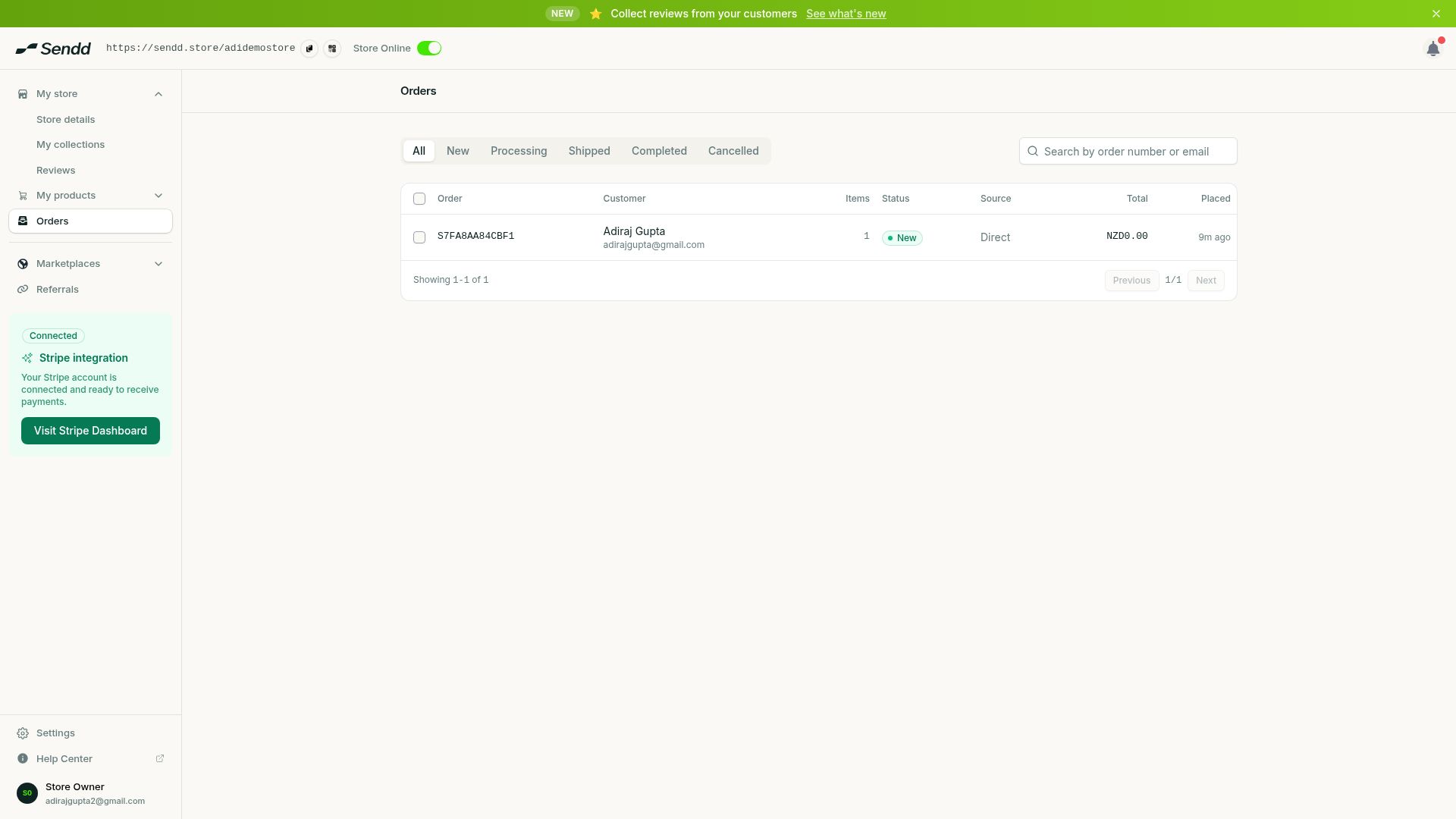 New orders arrive with a New status.
How to fulfil an order
Steps:
- Open
Ordersand select theNewtab to see orders awaiting action. - Select an order to open its detail view.
- Review the items, totals and the customer panel showing contact details and delivery method.
- In the
Shipmentpanel, fetch shipping rates if needed for this order. - Choose the next status from the dropdown, for example
Processing. - Select
Updateto save the new status. - Repeat as the order moves along, updating to
Shippedonce it leaves your hands, andCompletedonce it is delivered.
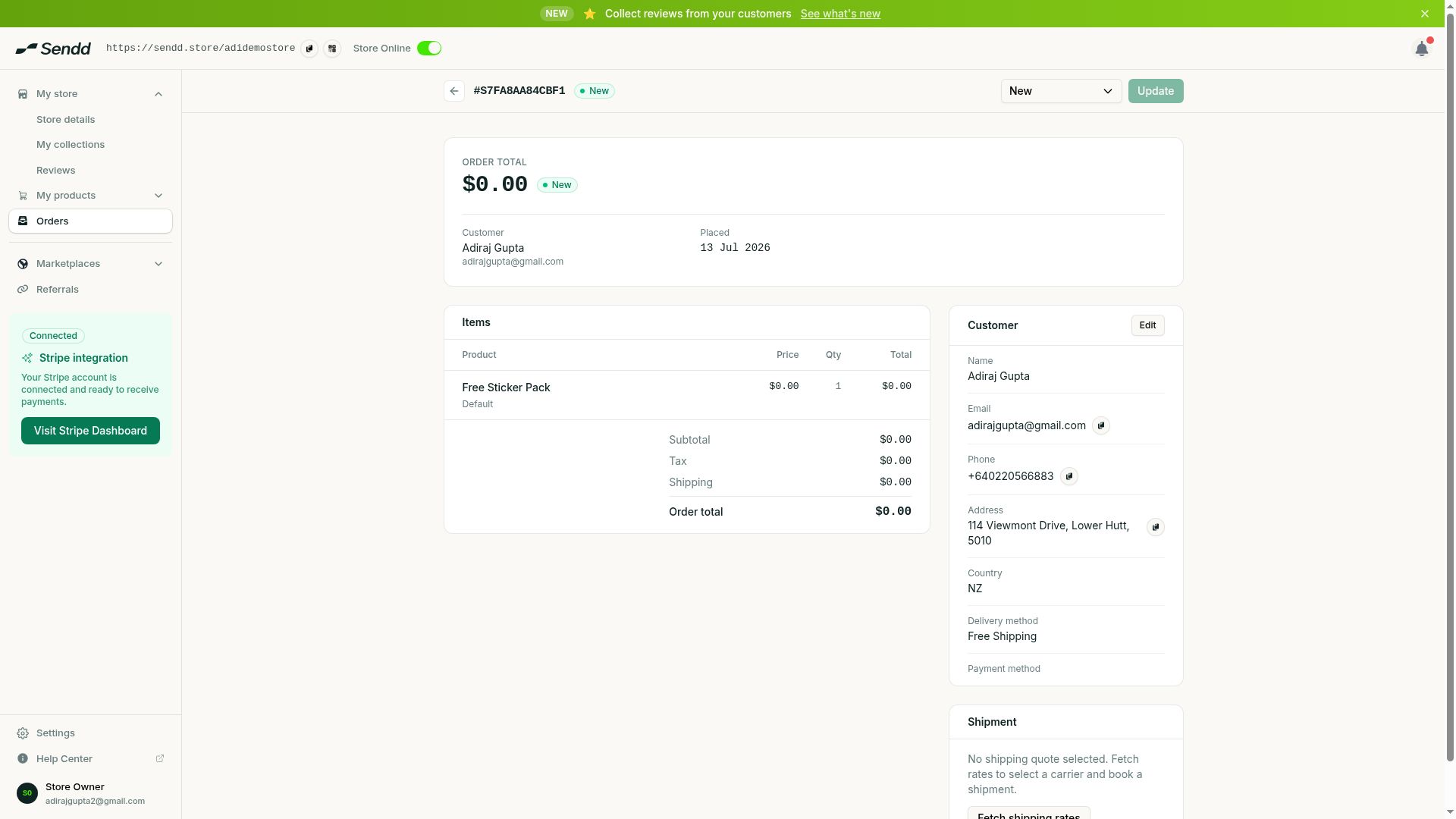 The order detail view with a status dropdown.
What each status means
- New. The order has just come in and needs your attention.
- Processing. You are preparing or packing the order.
- Shipped. The order is on its way to the customer.
- Completed. The order has been fulfilled and delivered.
- Cancelled. The order will not be fulfilled.
Example scenarios
Morning order batch. You open Orders, filter to New, and work through each one, updating to Processing as you pack items.
Customer asking about their delivery. You search by their email in the Orders search bar, open the matching order and check whether it is still Shipped or already Completed.
Order from a connected marketplace. The order appears in your Orders list alongside storefront orders, with its source shown so you know where the sale originated, and you fulfil it the same way.
Tip. Update order status as soon as something changes. Customers are notified as status changes, so keeping it current avoids repeat “where is my order” messages.
Note. The Shipment panel lets you fetch shipping rates directly on the order, which is useful when you have not pre-set a flat shipping cost.
Frequently asked questions
What do the order statuses mean?
Orders move through New, Processing, Shipped, Completed and Cancelled. Each reflects where the order is in its fulfilment journey, from just placed to fully delivered.
How do I add tracking to an order?
Open the order and use the Shipment panel, where you can fetch shipping rates and manage delivery details before updating the status.
Can I refund or cancel an order?
You move an order to Cancelled from the status dropdown in the order detail view when it will not be fulfilled. Select the status and then Update to save it.
Do marketplace orders show up alongside storefront orders?
Yes. Every order, whether from your own storefront or a marketplace, appears in the same Orders list, with the source shown for each one.
Are customers notified when I update an order?
Yes, customers are notified as the status changes, so updating an order to Processing, Shipped or Completed keeps them informed automatically.
How do I filter or search orders?
Use the tabs, New, Processing, Shipped, Completed and Cancelled, to filter by stage, or search by order number or email to find a specific order.
What information does the order detail view show?
It shows the items and totals, a customer panel with contact details and delivery method, and a Shipment panel where you can fetch shipping rates.
How do I move an order to the next stage?
Open the order, choose the next status from the dropdown and select Update to save it.
Next steps. If shipping rates or pickup options need adjusting before fulfilment, revisit How to set up shipping and local pickup on Sendd, or see how orders start in How customers buy from your Sendd store.
Related articles