Uploading and Changing Profile Pictures
In this section, we will go ahead with how to setup your Profile Picture.
- Go to Sendd Store , and click on My Store on the left menu.
- Now you will see the image right above your Sendd Store link as shown below. Click on the circle image and upload an image of your choice.
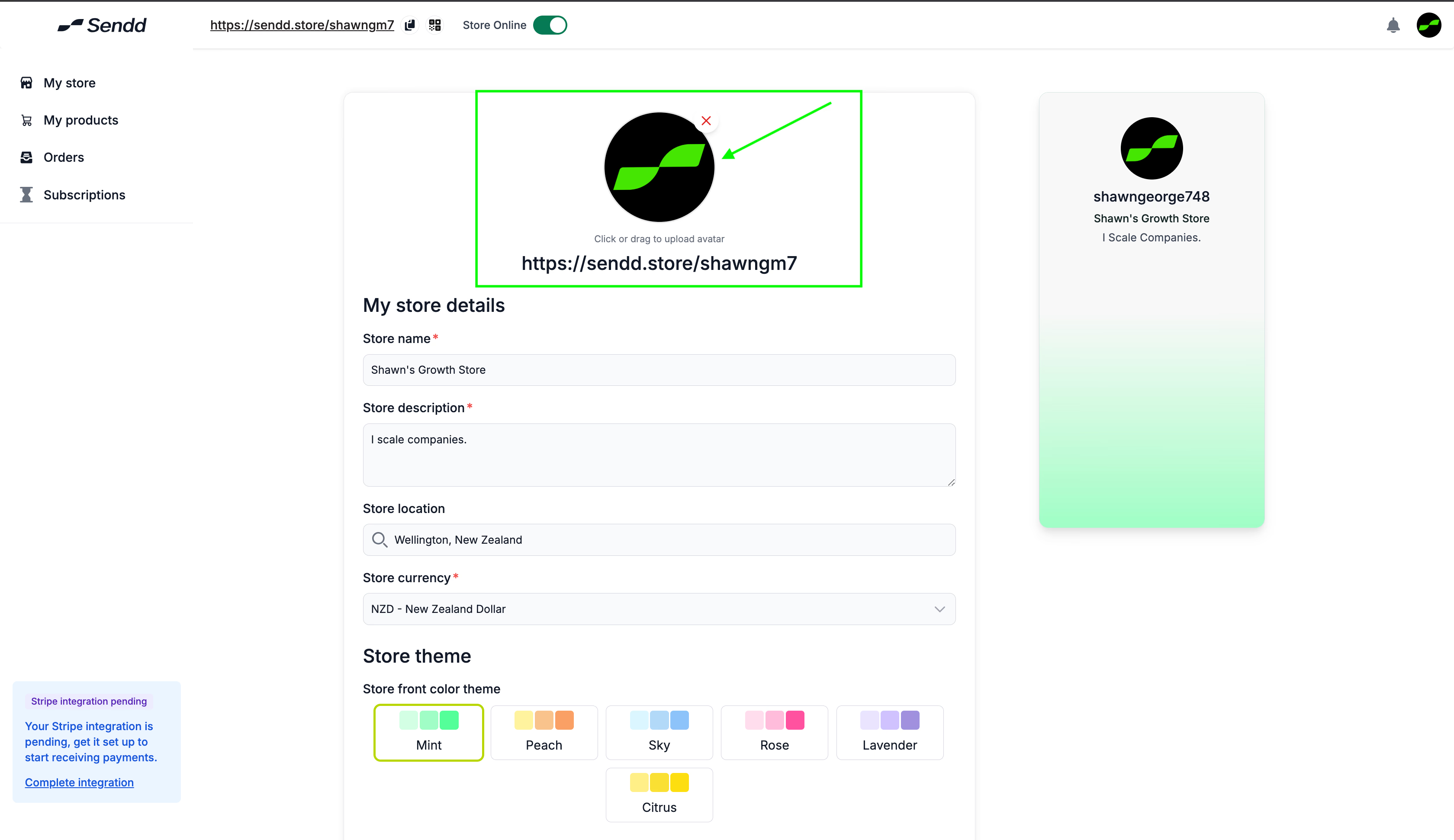
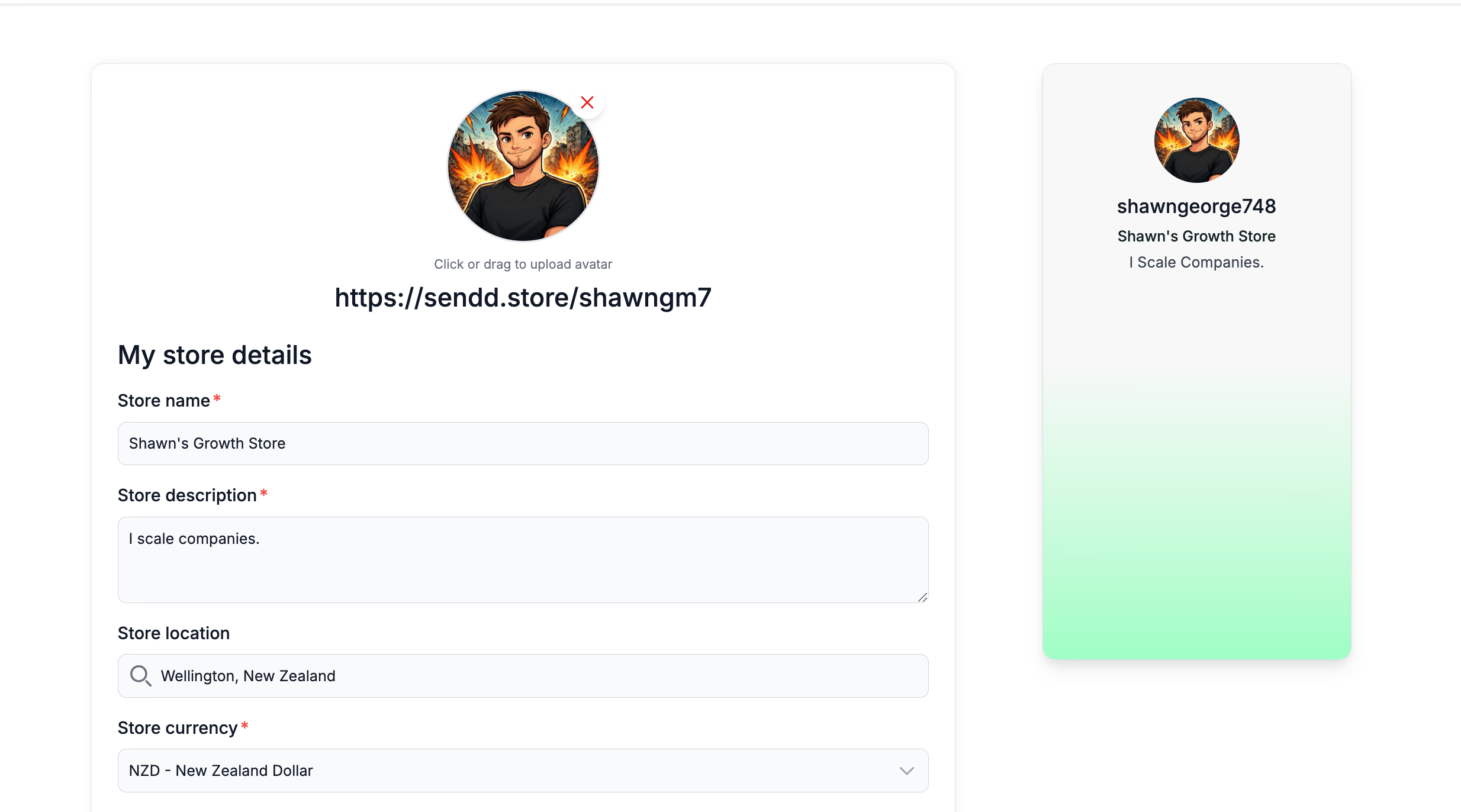
- Don’t forget to click on Save (at the bottom of the page) so that the avatar uploads on your Sendd Store.
- You have now successfully uploaded your new profile picture!
Last updated on