How to add link products on Sendd
Learn how the Link product type sends shoppers to an external URL instead of a Sendd checkout.
Category: Ways to sell
A link product is a product type on Sendd that points shoppers to an external URL instead of selling something directly on your store. Instead of a price and a checkout, the card acts like a signpost, sending visitors to another website when they select it. This guide explains what link products are, when to use them and how to add one to your store.
What it is and when to use it
The Link product type creates a card on your storefront that behaves differently from a normal product. Rather than collecting payment through Sendd, the card opens an external website when a shopper selects it. You paste the External URL into the builder, and Sendd tries to auto-fill the title, description and image for you based on that page, saving you from typing everything out by hand.
Link products are useful any time you want your store to double as a hub for pointing people somewhere else. Common uses include:
- Affiliate links to products you recommend but do not sell yourself
- External resources like guides, PDFs or partner documentation
- Partner sites you want to cross promote
- Booking pages for appointments, tables or events hosted elsewhere
- A link-in-bio style hub where your whole store becomes a landing page of links
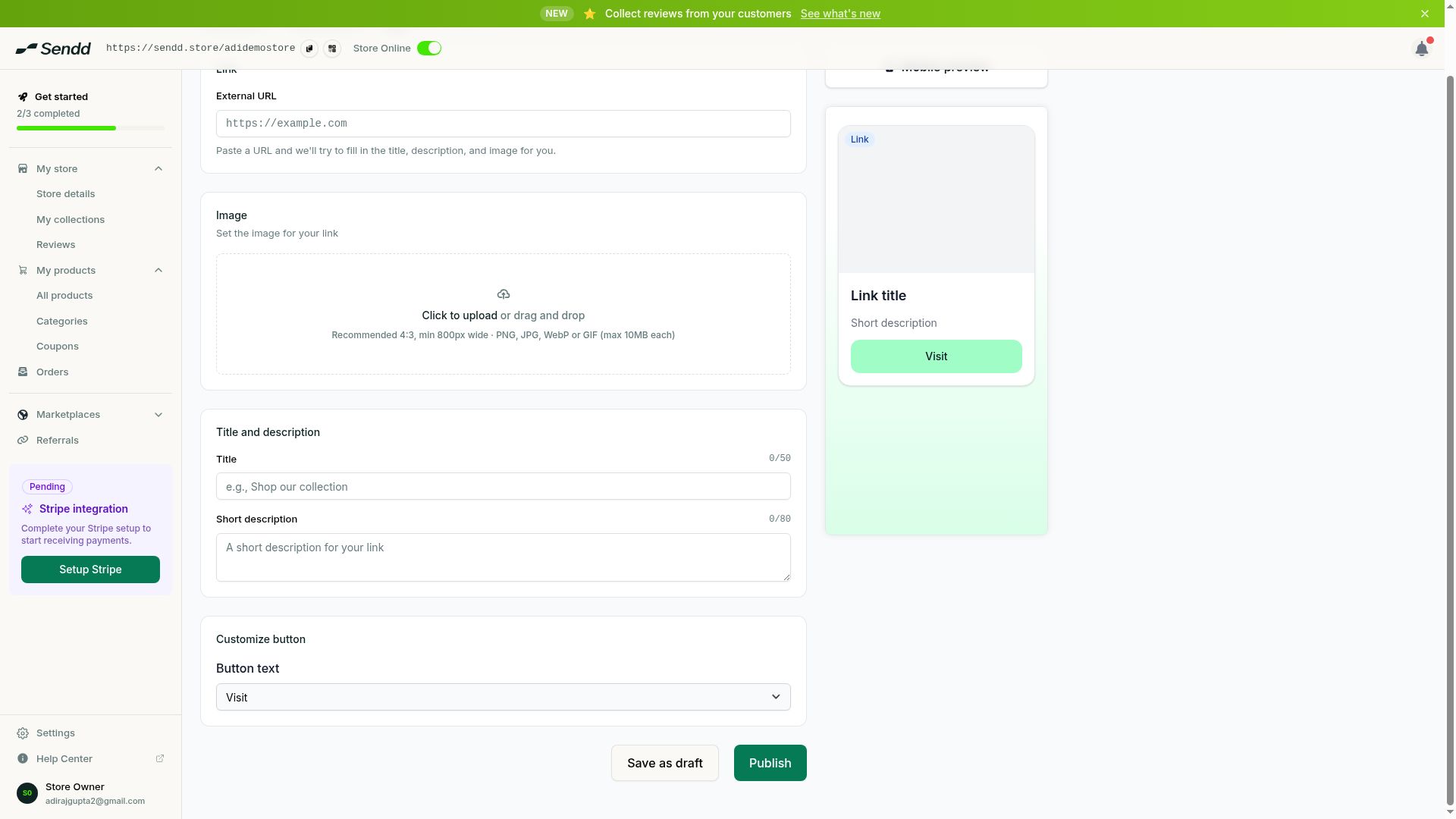 Paste a URL and Sendd fills in the title, description and image.
How to add a link product
Steps:
- Go to
My productsthenAll productsand start a new product. - Choose the
Linkproduct type. - Paste the address of the page you want to send shoppers to into the
External URLfield. - Let Sendd auto-fill the title, description and image, or adjust these fields yourself if you want different wording or a different picture.
- Move through the remaining builder steps and review how the card will look on your storefront.
- Publish the product so it appears on your store.
Once published, the card looks like any other product tile in your catalog, but there is no price shown and the button reads Visit instead of an add-to-cart or buy action. Selecting Visit sends the shopper straight to the URL you entered.
Use-case examples
Affiliate storefront. A creator who reviews gear can add a link product for each item they recommend, pasting the affiliate URL for each one so the description and image fill in automatically.
Booking page for a service business. A tutor or consultant who takes bookings through a separate scheduling tool can add a link product labeled “Book a session” that sends visitors to their booking page.
Link-in-bio hub. Instead of running a traditional shop, someone can build a whole store made up of link products, each one pointing to a different social profile, article or external shop, turning their Sendd store into a single shareable hub of links.
Tip. Keep your External URL pointing at a page with a clear title and a good preview image if you want the auto-fill to grab something worth showing on your card.
Note. Because a link product does not go through Sendd checkout, there is no price field and no order created on your side when a shopper visits the linked page.
Frequently asked questions
Can I use a link product for affiliate links?
Yes. Paste your affiliate URL into the External URL field and Sendd will try to auto-fill the title, description and image, so each affiliate product looks presentable without extra work.
Can I turn my whole Sendd store into a link-in-bio page?
Yes. Add a link product for each destination you want to share, such as your social profiles or other shops, and your store becomes a hub of links shoppers can browse and select.
Does adding a link product cost anything?
Sendd has no subscription and no monthly fee. Since a link product sends shoppers away rather than completing a sale on Sendd, no payment happens through your store for that action.
Can I edit the title, description or image that Sendd auto-fills?
Yes. After Sendd fills in the details from your External URL, you can edit any of the fields, including the title, description and image, before publishing.
Why does the button say Visit instead of a price?
Link products do not sell anything through Sendd checkout, so there is no price to display. The Visit button simply sends the shopper to your External URL.
What happens when a shopper selects a link product?
They are taken to the External URL you set for that product, opening the destination page you chose.
Can I mix link products with regular products in the same store?
Yes. Link products appear alongside your other product cards, so you can combine items you sell directly with cards that point elsewhere.
What kinds of pages work well as link products?
Affiliate product pages, external resources, partner sites, booking pages and any other page you want shoppers to reach directly from your store.
Next steps. Learn the general process for building any product type in How to add a product on Sendd, or see how to share your finished store in How to share your Sendd store. If you sell downloadable files alongside link products, check out How to sell digital products on Sendd.
Related articles