How to connect Stripe and get paid on Sendd
Link your Stripe account so your storefront can accept payments and you can start receiving payouts.
Category: Payments and shipping
Before shoppers can buy anything from your store, you need to connect a payment provider. On Sendd, the fastest route is Stripe. This guide walks you through connecting Stripe Connect, understanding what changes once you are connected and setting up your payout schedule so money lands in your bank account on your terms.
What connecting Stripe does
Sendd is payment-agnostic, which means you choose how you get paid rather than being locked into one processor. Stripe Connect is live today, Marketplace payments is available now, and Inflow and Orchestr are coming soon. Until a payment provider is connected, your products cannot be purchased. Your storefront can still display products, but checkout stays locked. Connecting Stripe is what unlocks it.
When to use Stripe Connect
Use Stripe Connect if you already have a Stripe account, want the most widely supported processor for cards and digital wallets, or you are setting up your store for the first time and want the quickest path to accepting payments. Stripe handles the actual movement of money, while Sendd handles your store, orders and catalog.
How to connect Stripe
Steps:
- From your
Get starteddashboard, selectSetup Stripe. Alternatively, go toSettingsthenPaymentsand chooseStripe Connect. - Follow Stripe’s prompts to sign in to an existing Stripe account, or create a new one if you do not have one yet.
- Complete Stripe’s onboarding, which includes your business details, bank account for payouts and identity verification.
- Once Stripe finishes processing your onboarding, return to your Sendd dashboard.
- Check the sidebar for a green
Connectedbadge. It reads “Your Stripe account is connected and ready to receive payments.” - Set your payout schedule at the bottom of the
Paymentstab: daily, weekly or once your balance reaches a threshold.
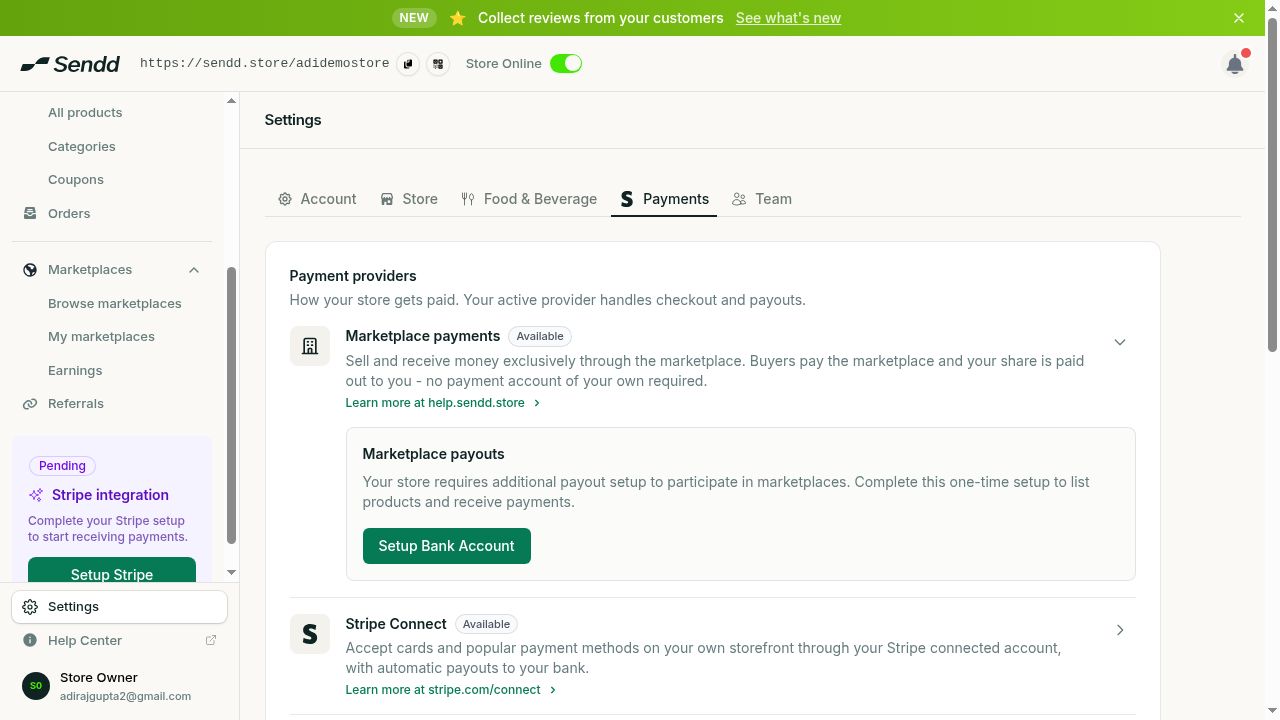
Settings then Payments lists your providers and payout schedule.
Once Stripe is connected, your storefront checkout unlocks immediately. Shoppers can now enter card details and complete purchases without any further action from you.
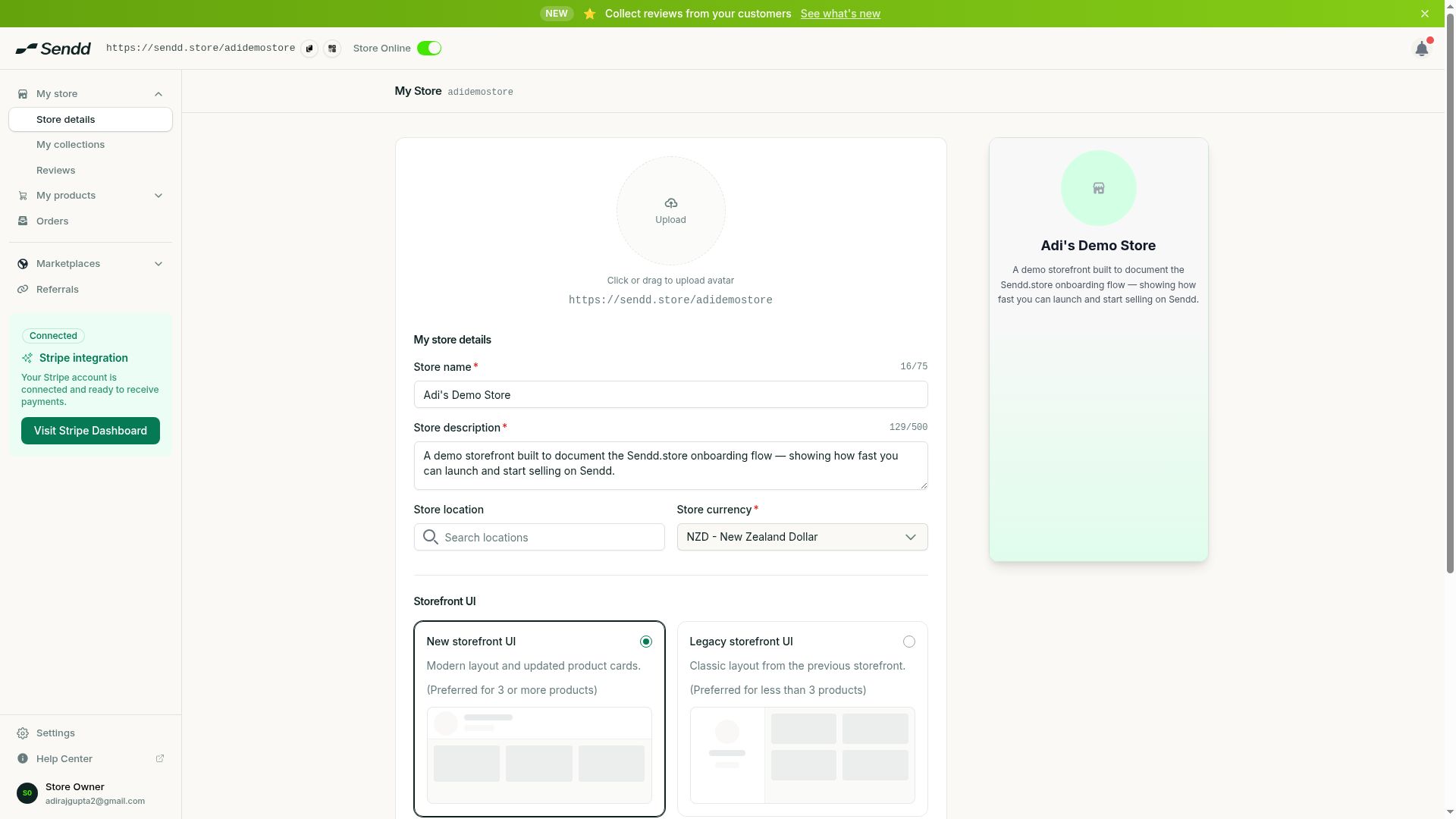 Once connected, you’ll see a
 Connected badge on the navigation menu on the left.
Payout schedule options
At the bottom of the Payments tab you choose how often Stripe sends money to your bank:
- Daily. Funds move on a rolling daily basis as sales settle.
- Weekly. Funds are collected and paid out once a week.
- Balance threshold. Payouts trigger once your available balance crosses an amount you set, rather than on a fixed calendar.
Understanding the fees
Sendd charges no subscription and no monthly fee. Instead, Sendd takes a 1% platform fee on each sale. Stripe’s own processing fees are separate and added on top of that, since Stripe is the one moving the funds and covering card network costs. There is nothing extra to configure for either fee: both are deducted automatically as sales come through.
Example scenarios
New store owner in Wellington. You are launching your first store and already use Stripe for a side project. You select Setup Stripe from the Get started dashboard, sign in with your existing Stripe account and are ready to sell within minutes.
Switching payout cadence. You started with weekly payouts but want cash sooner. Go to Settings then Payments and change the schedule to daily at the bottom of the tab.
Testing before launch. You want to build your catalog before worrying about payments. You can add products and design your storefront first, but remember nothing can actually be purchased until Stripe (or another provider) is connected.
Tip. Complete Stripe’s identity verification promptly. Onboarding that is left half finished can delay when your checkout unlocks and when your first payout goes out.
Note. Sendd’s 1% fee and Stripe’s processing fees are separate charges. Check Stripe’s own fee schedule for your country to understand your total cost per sale.
Frequently asked questions
Do I need Stripe to sell on Sendd?
You need a connected payment provider to sell. Stripe Connect is available now, Marketplace payments is also available and Inflow and Orchestr are coming soon. Until you connect one, your products cannot be purchased.
Is Stripe the only payment option on Sendd?
No. Sendd is payment-agnostic. Stripe Connect and Marketplace payments are both available today, with Inflow and Orchestr coming soon, so you are not locked into a single processor long term.
What fees apply when I connect Stripe?
Sendd charges 1% per sale as its platform fee. Stripe’s processing fees are separate and on top of that. There is no subscription or monthly fee for using Sendd itself.
When do payouts arrive after connecting Stripe?
That depends on the payout schedule you set at the bottom of the Payments tab: daily, weekly or once your balance reaches a threshold you choose.
Which countries can use Stripe with Sendd?
Stripe’s own country support applies, since Stripe handles onboarding, identity verification and payouts. Complete Stripe’s onboarding prompts and it will confirm what is available for your business location.
Do I need Stripe connected to sell free products?
Products sell only once a payment provider is connected, so even listing items for browsing without a connected provider means checkout stays locked for all products, including free ones.
Is my store safe to share before I connect a payment provider?
Yes, your storefront can be live and browsed, but checkout will not process any purchases until Stripe (or another provider) is connected and shows the green Connected badge.
How do I know Stripe is successfully connected?
Check the sidebar in your dashboard for a green Connected badge that reads “Your Stripe account is connected and ready to receive payments.”
Next steps. Now that payments are set up, configure delivery options in How to set up shipping and local pickup on Sendd, or preview the buying experience in How customers buy from your Sendd store.
Related articles