How to share your Sendd store
Share your store link, a QR code or your social profiles so customers can find and shop your storefront.
Category: Settings and sharing
Getting customers to your Sendd storefront starts with making it easy to find. Whether you are pointing people to your store from social media, printing it on packaging or linking your other profiles, Sendd gives you three simple ways to share your store: your store link, a downloadable QR code and social media links on your storefront. This guide walks through each option and when to use it.
What store sharing options are and when to use them
Your store link works best online, in bios, captions and emails. A QR code works best offline, on packaging, flyers, business cards or a market stall banner where a customer can scan rather than type. Social media links work best for turning storefront visitors into followers, or for signaling that your brand is active and reachable across platforms. Most sellers use all three together: a link for digital sharing, a QR code for physical touchpoints and social icons to build a following from storefront traffic.
How to copy and share your store link
Steps:
- Look at the top bar of your Sendd dashboard, where your store URL is shown in the format sendd.store/your-handle.
- Select the one-click copy button next to your store URL.
- Paste the link anywhere you want customers to click through, such as a social bio, email signature or ad.
How to download and use your store’s QR code
Steps:
- In the top bar, select the QR code icon next to your store URL.
- Select
Download QR Codeto save the image. - Add the downloaded QR code to packaging inserts, flyers, receipts or a market stall sign so shoppers can scan straight through to your storefront.
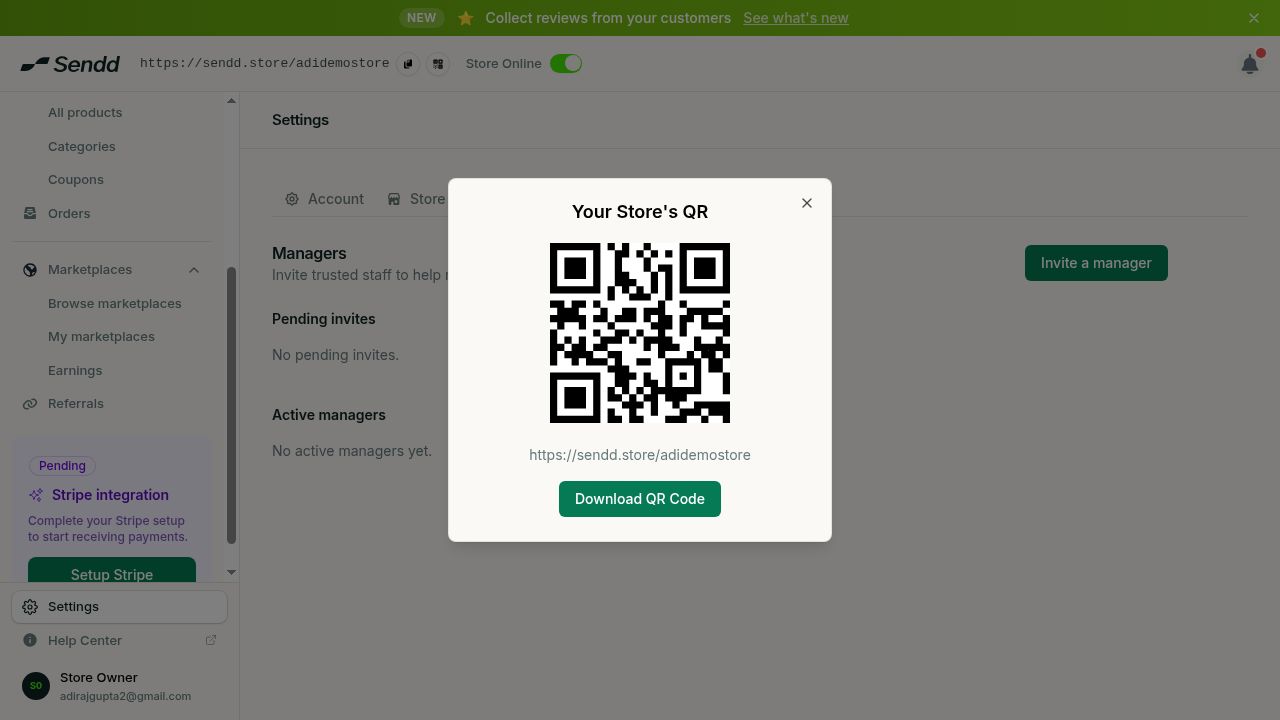 A downloadable QR code that links to your storefront.
Tip. Print your QR code on the inside of packaging as well as the outside, so repeat customers keep a way to find your store even after they have unwrapped their order.
Note. If you change your Sendd store handle, your store’s QR code will also change. Make sure to share the latest version of your QR code!
How to add social media links to your storefront
Steps:
- Open
My storein the sidebar. - Select
Store details. - Go to
Social media links. - Add your profile links for Instagram, X, TikTok, WhatsApp, YouTube and other supported platforms.
- Save your changes so the icons appear on your live storefront.
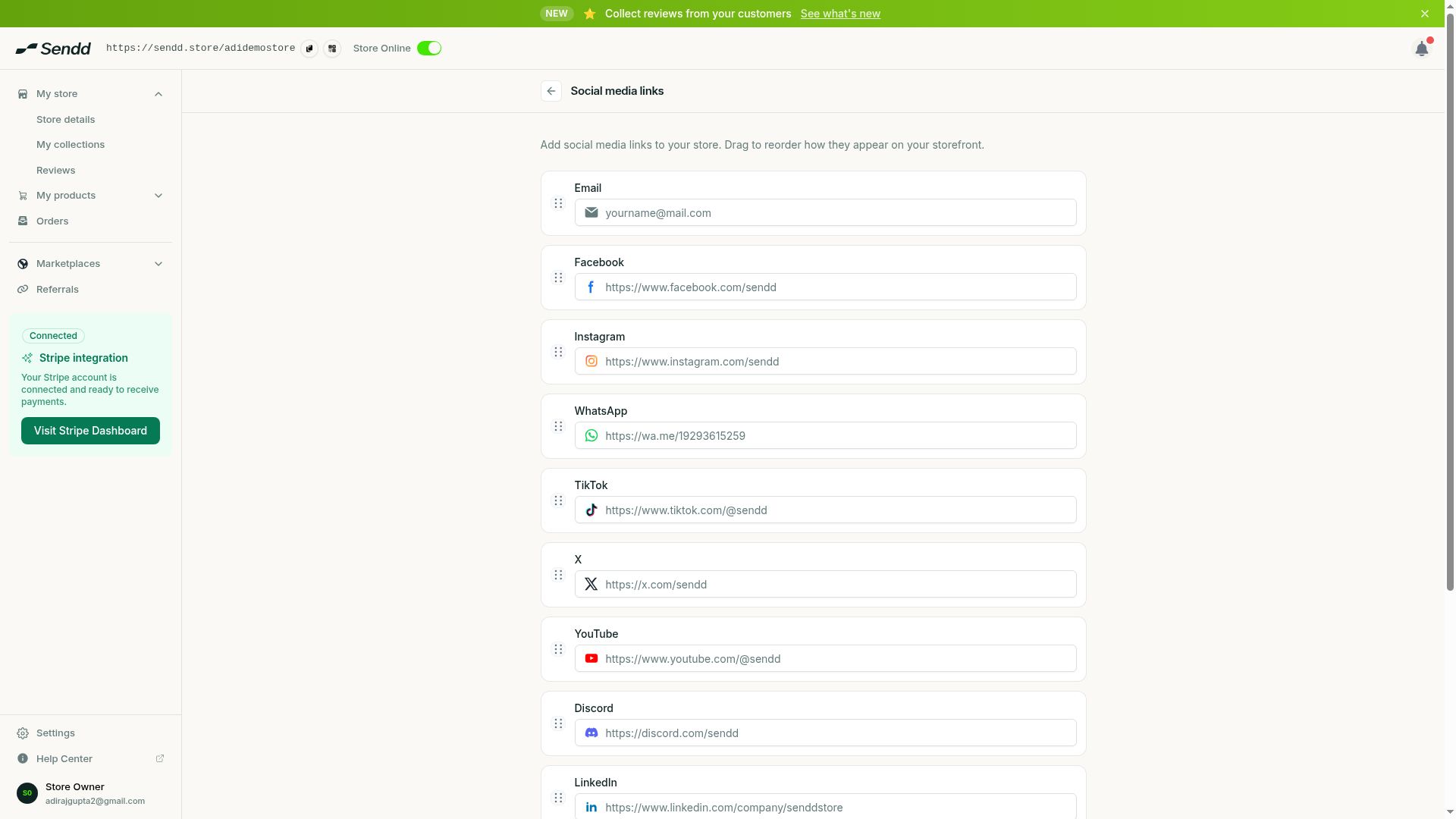 Add and reorder social links for your storefront.
Example: a market stall seller sharing offline
A candle maker who sells at weekend markets downloads their store QR code and prints it on a table sign. Shoppers who like the display but do not buy in person scan the code and land straight on the storefront to order later.
Example: a seller building a following from storefront traffic
A clothing seller adds their Instagram, TikTok and WhatsApp links under Store details then Social media links, so storefront visitors who are not ready to buy can follow along instead of leaving without any connection to the brand.
Note. Your store link always follows the sendd.store/your-handle format, using the store handle set in your store settings.
Frequently asked questions
Where do I find my store link?
Your store URL appears in the top bar of your dashboard, in the format sendd.store/your-handle, with a one-click copy button next to it.
What should I use a QR code for?
Use your downloadable QR code for offline sharing, such as packaging, flyers, receipts or a market stall sign, wherever a customer can scan rather than click a link.
Which social platforms are supported for storefront links?
Under Store details then Social media links you can add Instagram, X, TikTok, WhatsApp, YouTube and more.
Can I use a custom domain instead of the sendd.store link?
This article covers the store link, QR code and social links available from the dashboard top bar and Store details. For anything beyond these, check your store settings directly.
Can I share a link to a single product instead of my whole store?
This article covers sharing your overall store link, QR code and social links. For sharing an individual product, check that product’s own page in My products.
Can I reorder my social media icons?
Yes, add and reorder your social links under My store then Store details then Social media links.
Do customers need an app to scan my QR code?
Most phone cameras can scan a QR code directly without a separate app, then open your store link in the browser.
How do I get a QR code for my store?
Select the QR code icon next to your store URL in the dashboard top bar, then select Download QR Code to save it.
Next steps. Add your social media links under
Store details, then explore the Sendd referral program as another way to grow beyond your own audience.
Related articles