Store Setup
Why Your Product Buttons Are Greyed Out on Sendd
Learn the reason why the CTA buttons on your store are disabled
If the Add to cart, Join now, or Register buttons on your Sendd store are greyed out, it means your store is not yet connected to a payment method.
Your products are visible, but customers can’t complete a purchase until payments are set up.
What this looks like
On your live Sendd store, product cards appear normally, but the action buttons are disabled and cannot be clicked.
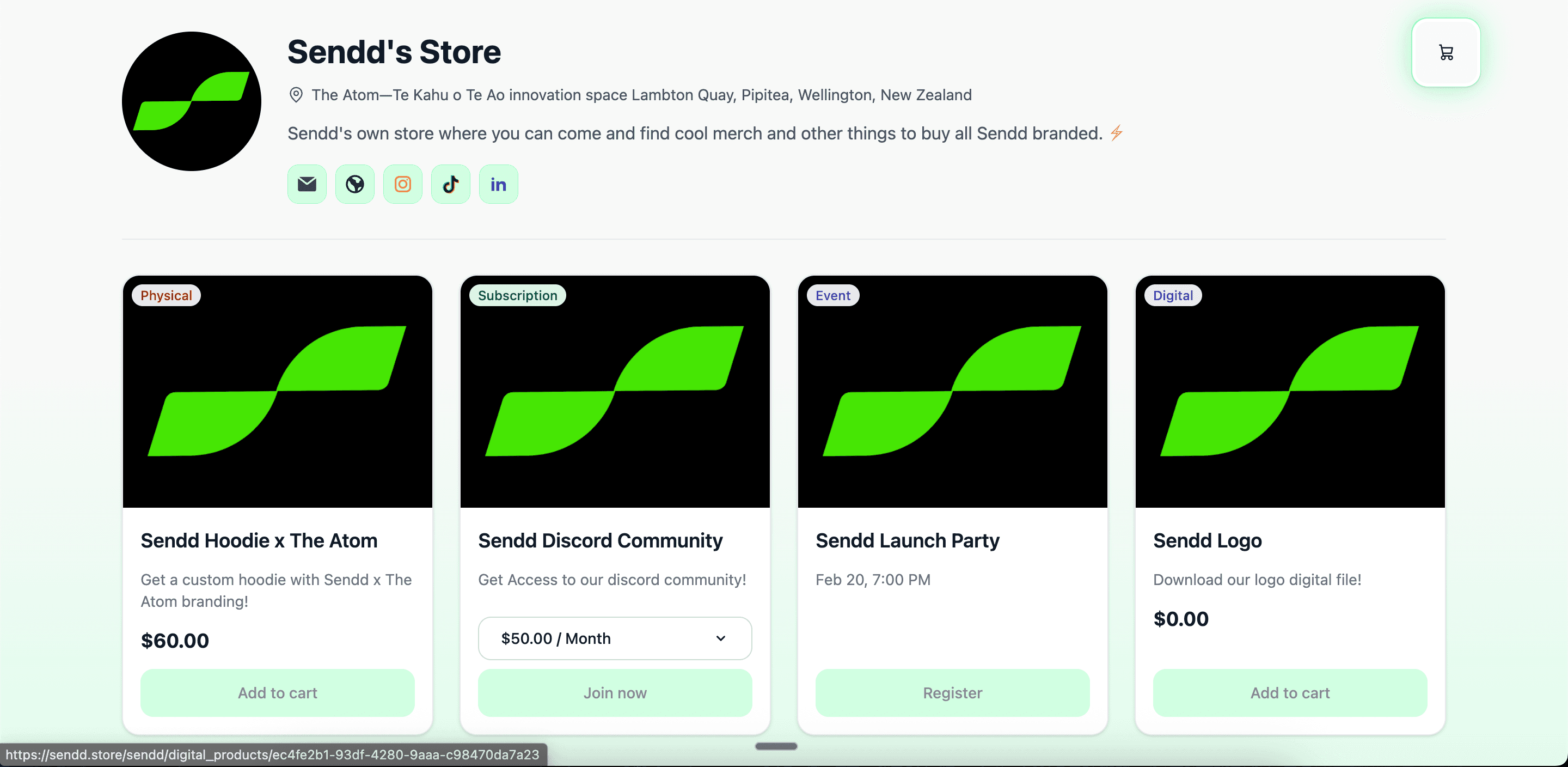
Why this happens
Sendd automatically disables checkout buttons when:
No payment provider (such as Stripe) is connected
Your Stripe setup is incomplete or still pending
This prevents customers from attempting to buy when payments aren’t ready.
How to enable purchases
Option 1 — From Get started
In your Sendd dashboard, go to Get started
Under Setting up payments (optional), click Link Stripe
Complete the Stripe onboarding flow
Return to Sendd — your buttons will now be active
Option 2 — From Settings
Open Settings in the left-hand menu
Go to the Stripe Account section
Connect and complete your Stripe setup
If Stripe says “Integration Pending”
If you see a notice like this in your dashboard, Stripe still needs something from you:
Common missing steps include:
Identity verification
Business details
Bank account information
Click Complete integration, finish the required steps, and refresh your Sendd dashboard.
How to check it worked
Open your store link in a private / incognito window.
If everything is set up correctly, your products will now show:
Add to cart
Join now
Register
with fully clickable buttons.
Example: A fully active Sendd store
Here’s how a live Sendd store looks once payments are connected:

If your buttons are still greyed out after completing Stripe setup, try refreshing your dashboard or logging out and back in.
Any other questions? Get in touch