Store Setup
Add Digital Product's
This article helps you add a Digital Product to your store
In the Add Products Section click on the Add button on Digital Products Box.
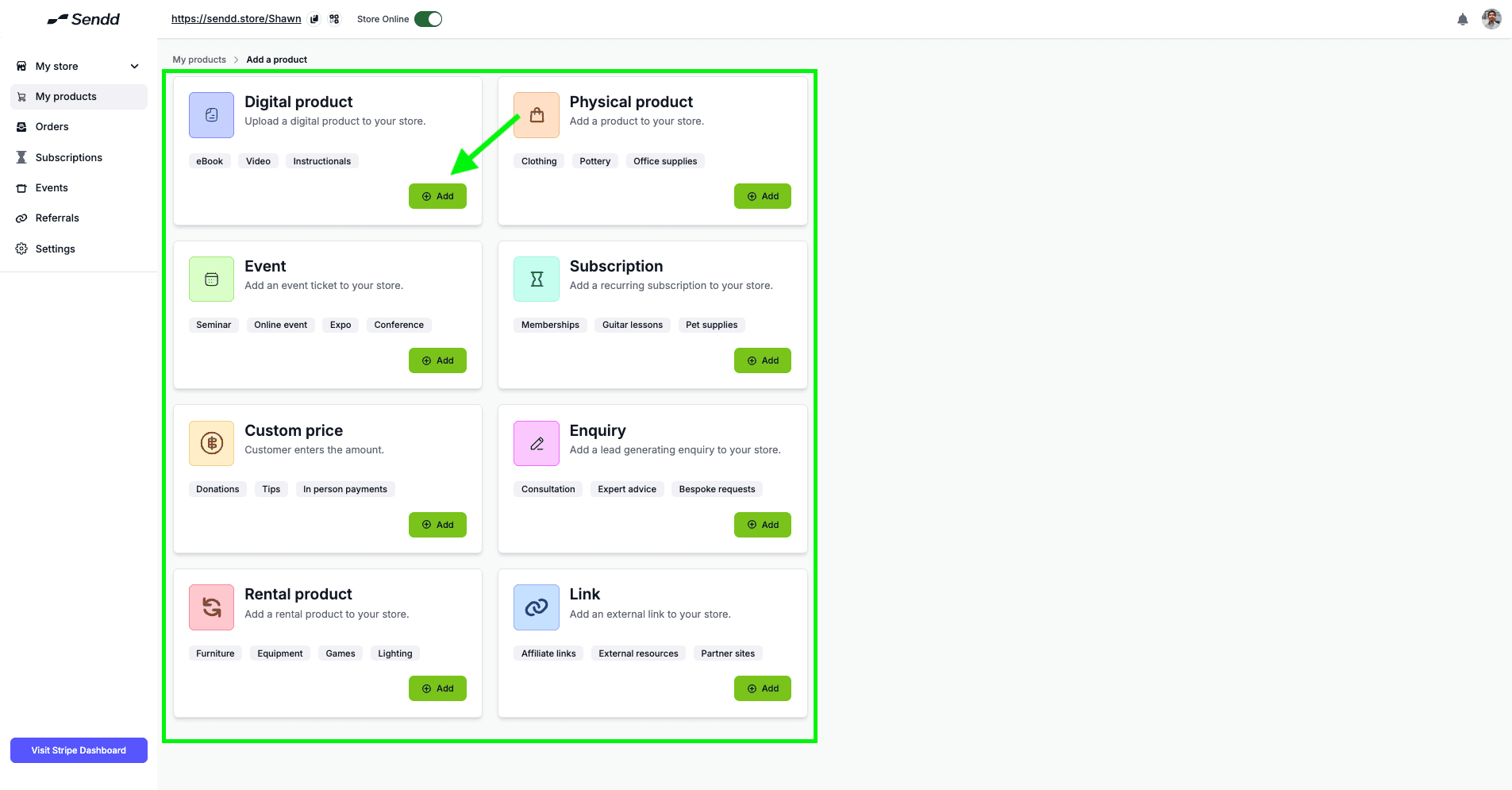
You will see a page as Shown below:
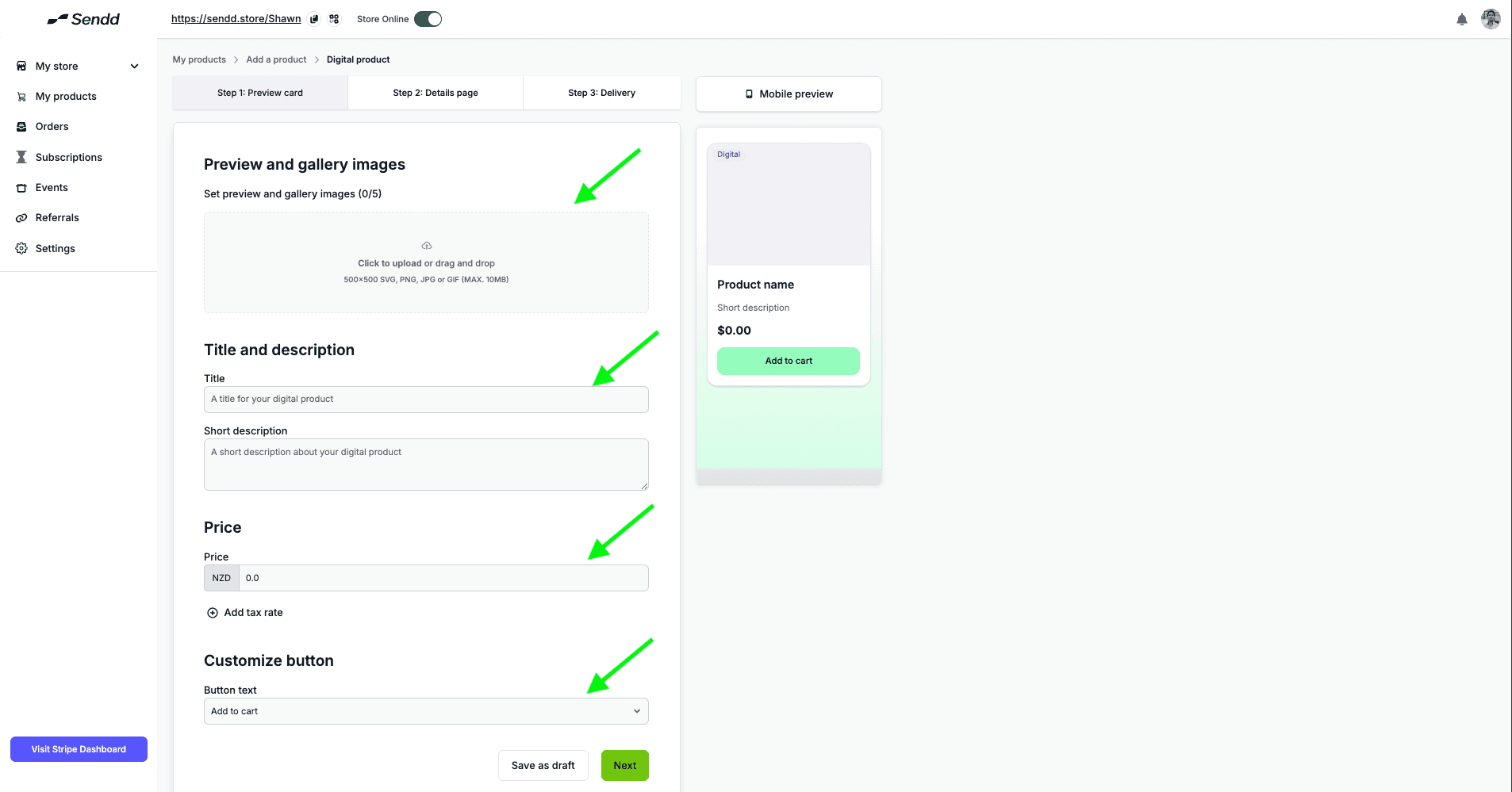
Add an Image in the Preview section to show your customers what the Digital product looks like, then Add a Title and Description - this helps your customers understand what the product you are selling is all about.
Add a Price, to your product.
The Customize Button helps you change what shows up on the button when your product is shown, this is customizable by creating a custom Button by clicking on the drop down box.
Then click the green Next button below.
You will be taken to the Details Page, this page has the following
Detailed Description: this shows the expanded details that will be visible once a customer clicks on your product within the sendd store.
Customize Button: gives you an option to customize the button within the expanded view of your product.
Sendd Marketplace Settings: This section is present within every kind of Product type and helps you decide on the Marketplace commission you are willing to give away by joining a Marketplace, for more information visit our Sendd Marketplace and docs at : https://www.sendd.store/docs/getting-started
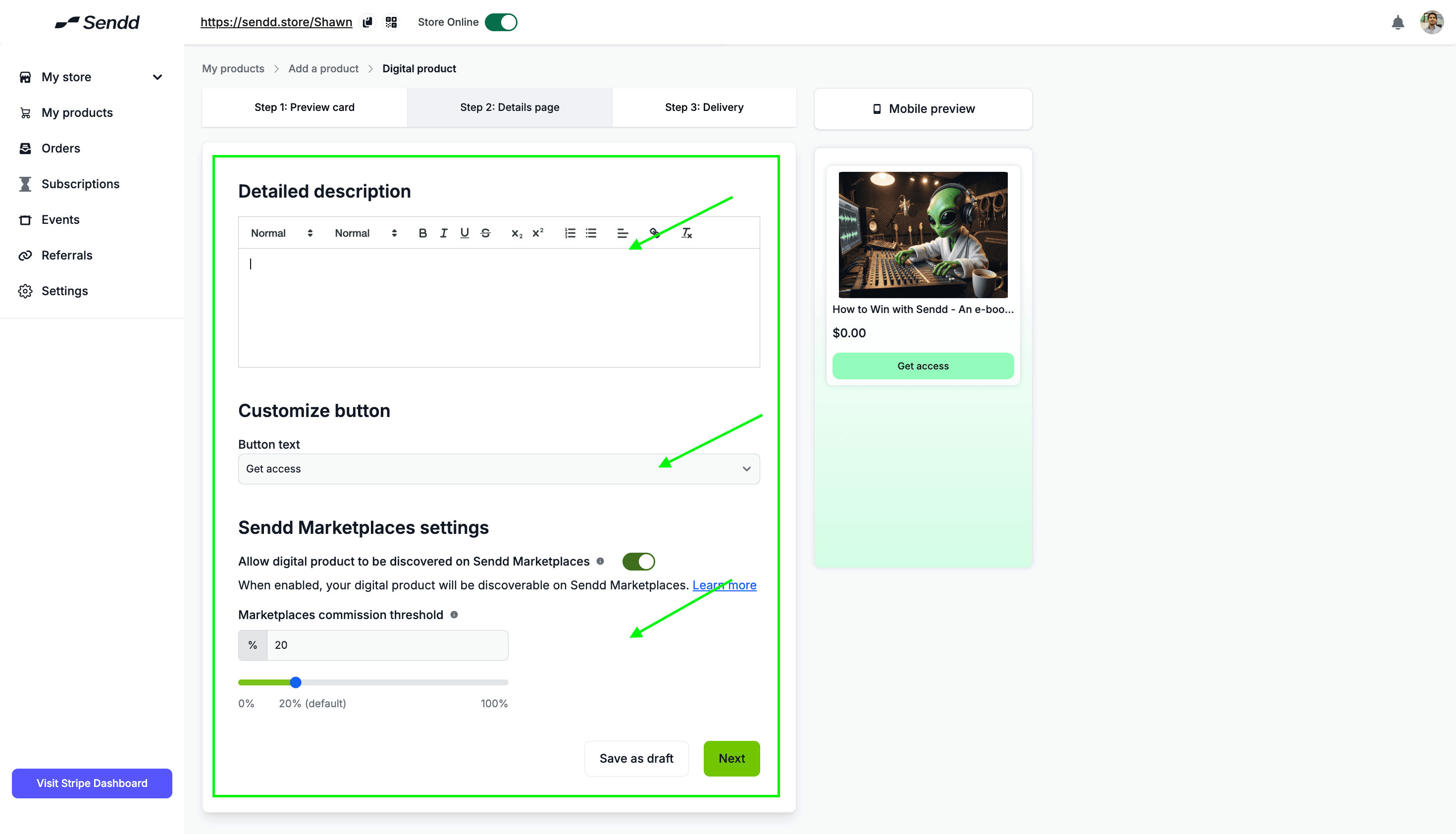
After filling out the necessary information, click the green Next button
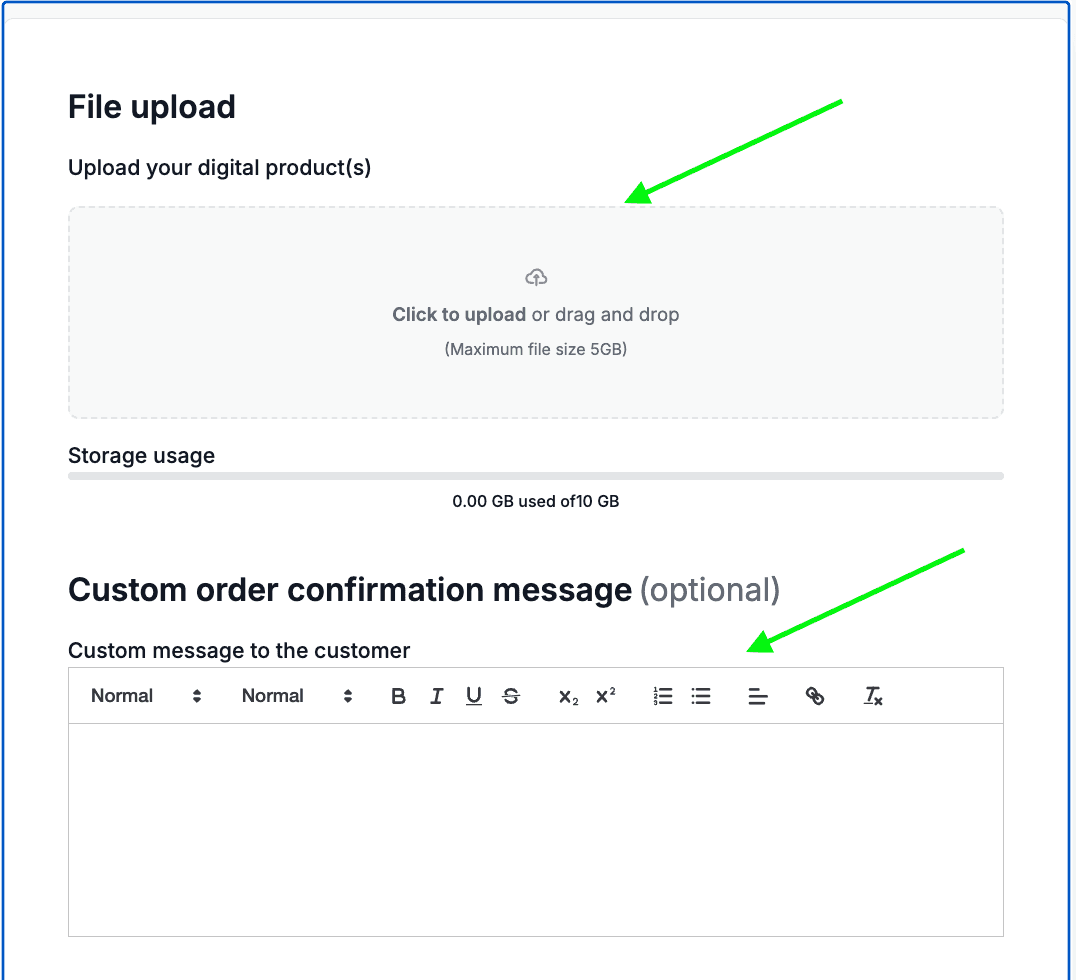
You will be redirected to this page, where you upload the actual contents of your digital product
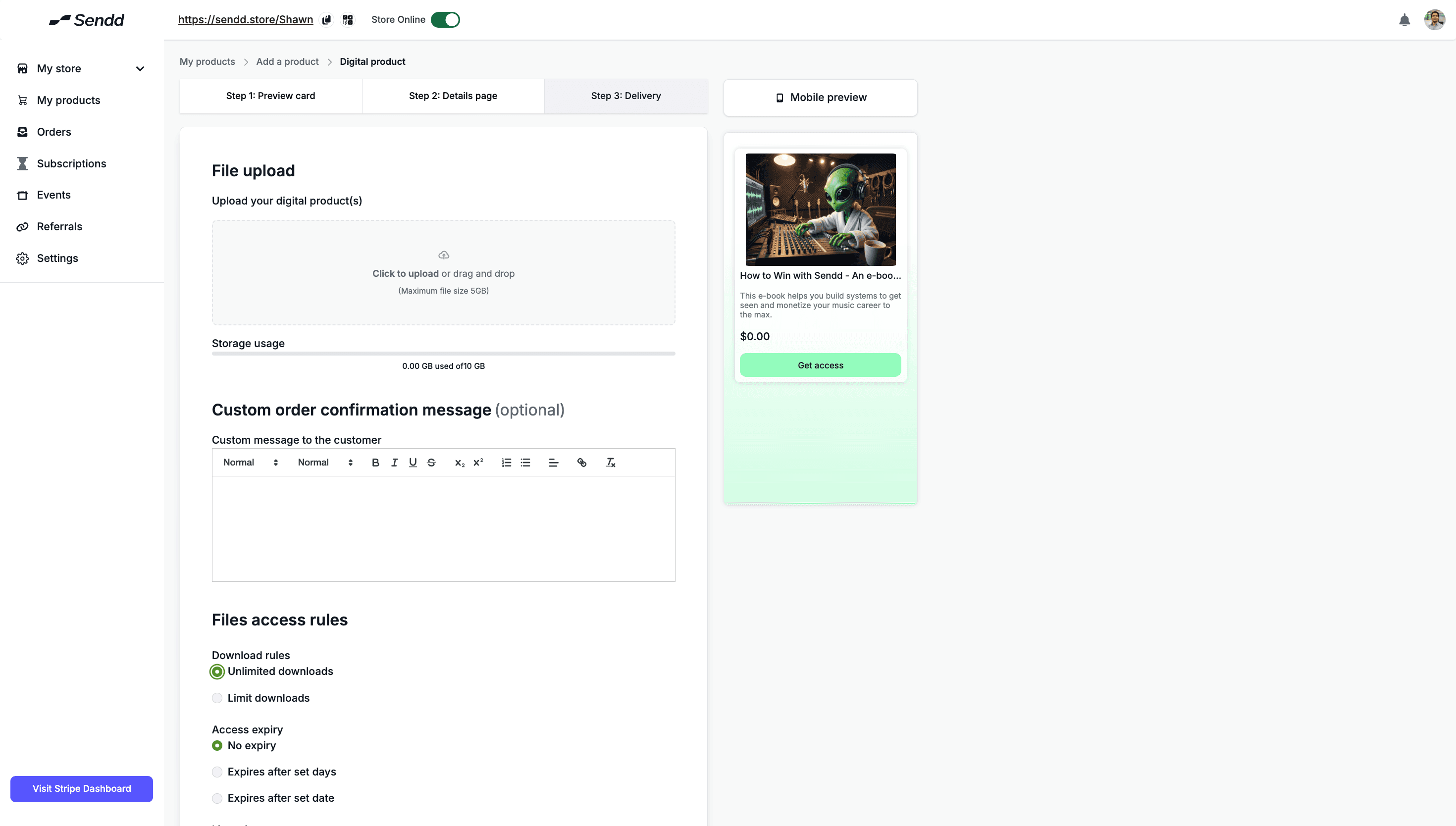
Upload your Digital Product, into the File Upload section, there is a Maximum file size of 5gb, and a total storage size for your Sendd Store at around 10 Gb.
Optional: you can add a custom order confirmation message,
for example, you might have a community or something they gain access to while downloading your digital e-book, and you can write this message to your customer here.
For Digital Products you have the option to set Download Rules, Access expiry and Licensing
Download rules
helps you set your product to unlimited downloads or,
set a Download limit count and define that limit within the text box.
Access Expiry: You can create an access expiry with a variable as shown in the options below:
No Expiry: Set it so that there is no expiry on until when your customers have access to the product.
Expires after set days: set it so that the access expires after a set number of days.
Expires after set date: set it so that the access expires after a certain date.
Licensing: Licensing allows creators to sell digital products while controlling how buyers are allowed to use them. Instead of transferring ownership of the file itself, the buyer receives a license that grants specific rights such as personal use, commercial use, or limited distribution.
Sendd makes it easy to attach a license by simply clicking on whether its a Personal License or Commercial License.
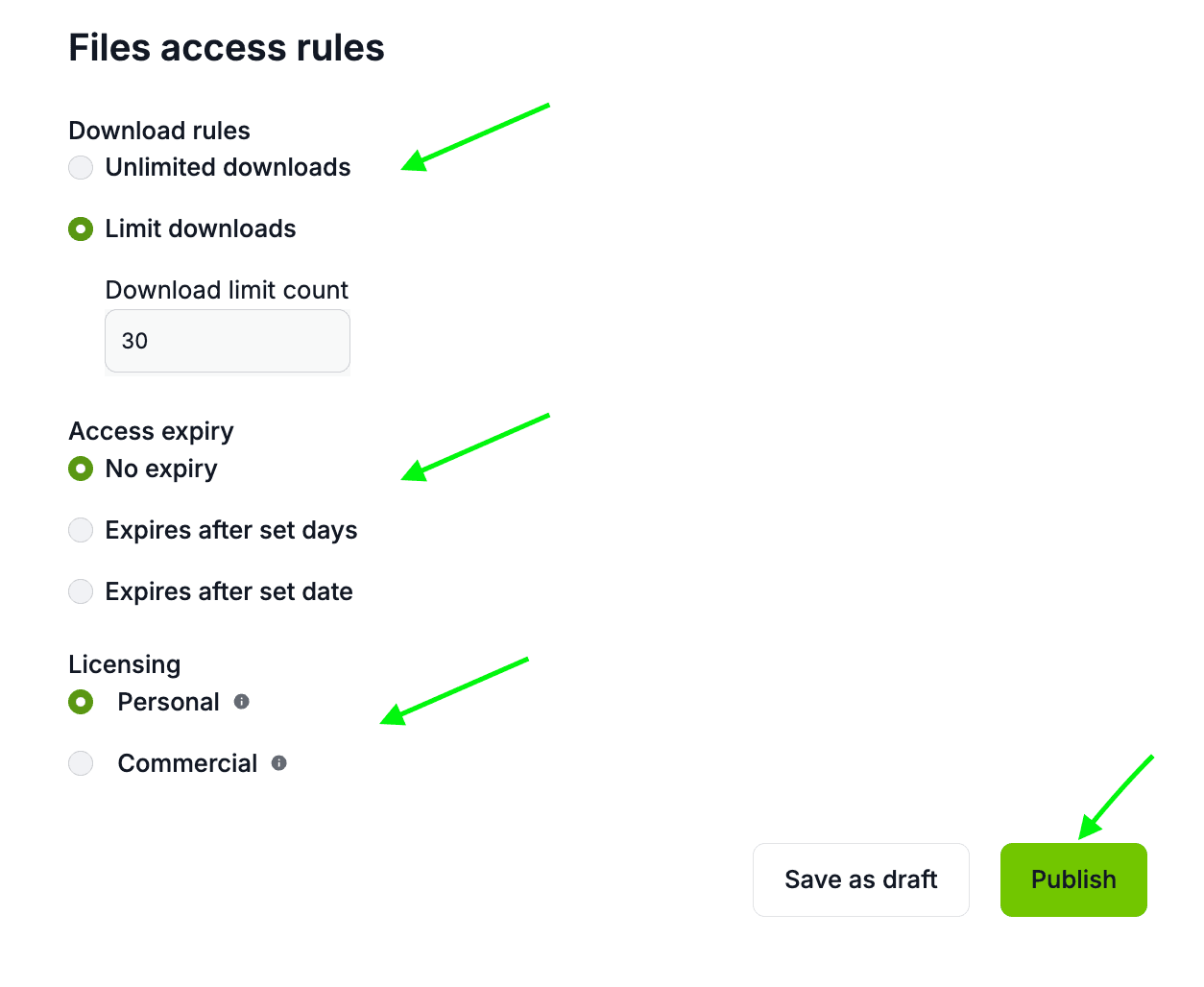
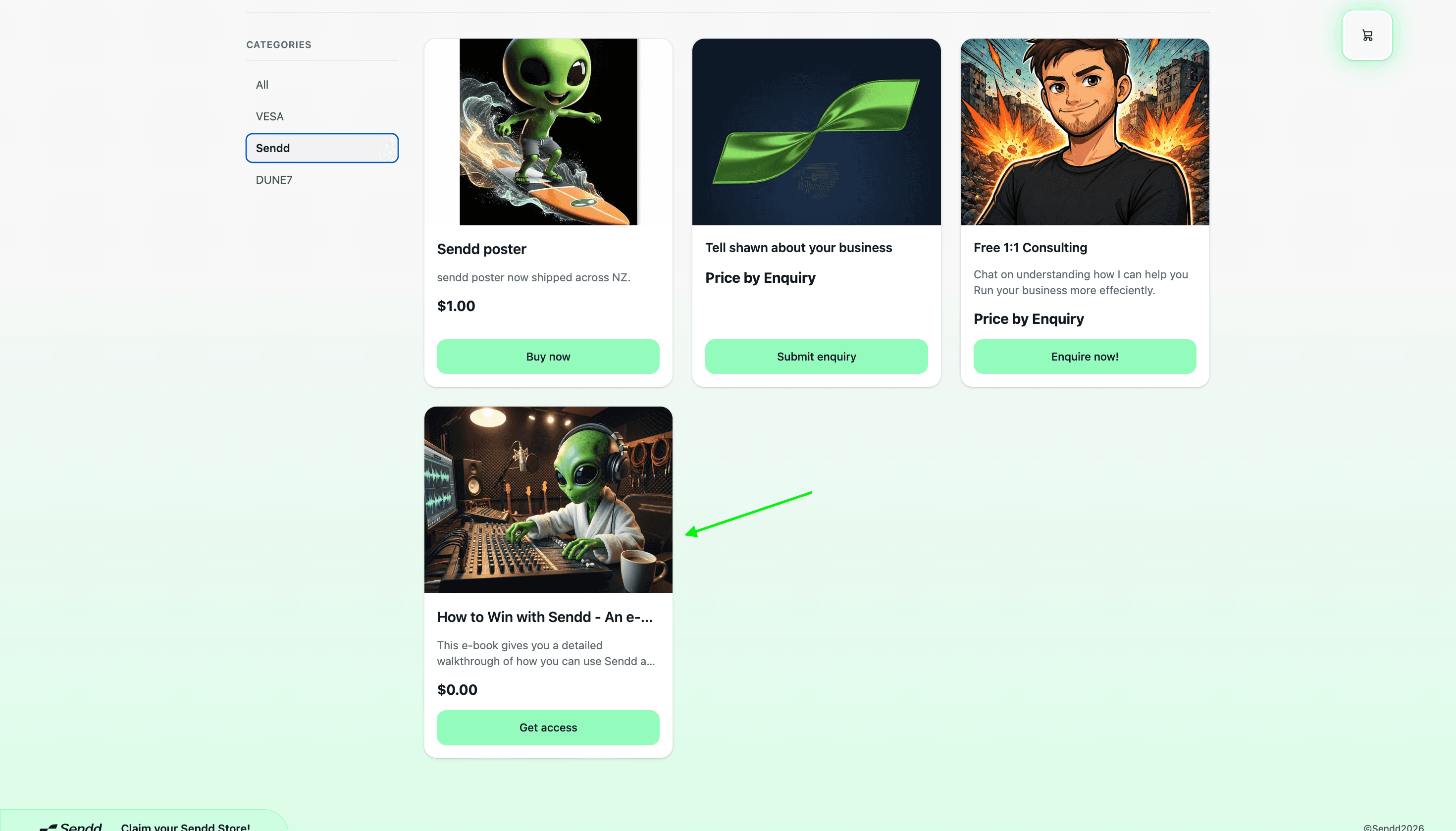
Click on Publish and there you go we have your Digital Product listed on Sendd as shown below!
Any other questions? Get in touch