Sendd MCP
Connecting to the Sendd MCP with an AI of your choice
This Tutorial focuses on how to connect your Sendd MCP to your favourite AI of choice.
MCP's have completely changed how our Everyday work tools interact with each other, and the best part is at Sendd we have built an MCP server that can interact directly with your AI agent of choice in order to help run your store for you, which given into the right hands can be super powerful.
Below we will go into a step by step process of how to add this MCP server to your AI of choice, We will start this with an instruction to add It to ChatGPT as well as Claude.
MCP Server with Claude
Let's start with Claude.
Step 1: Copy this link below
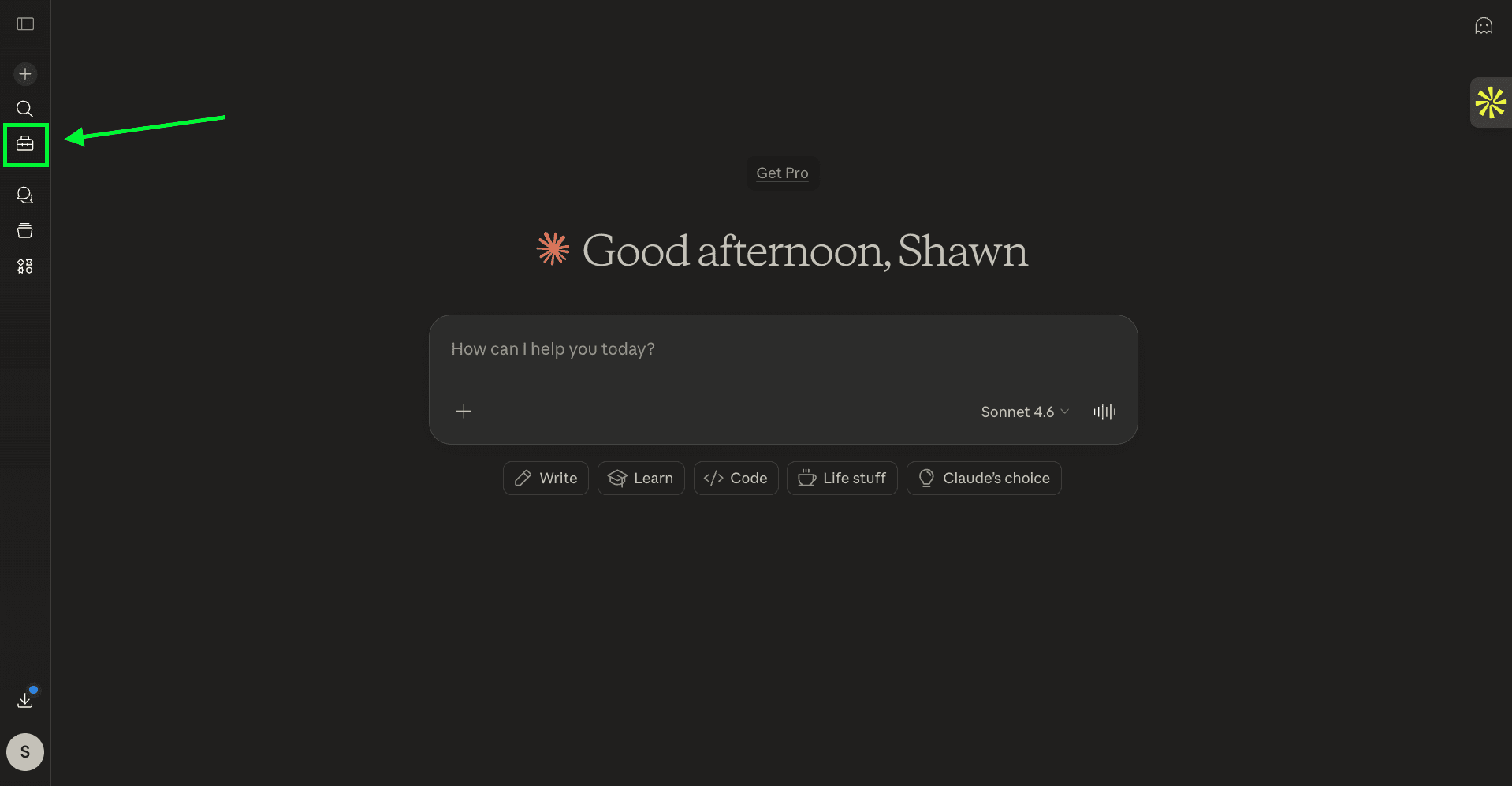
Step 2: Go to your Claude homepage, and click on Customize as shown below
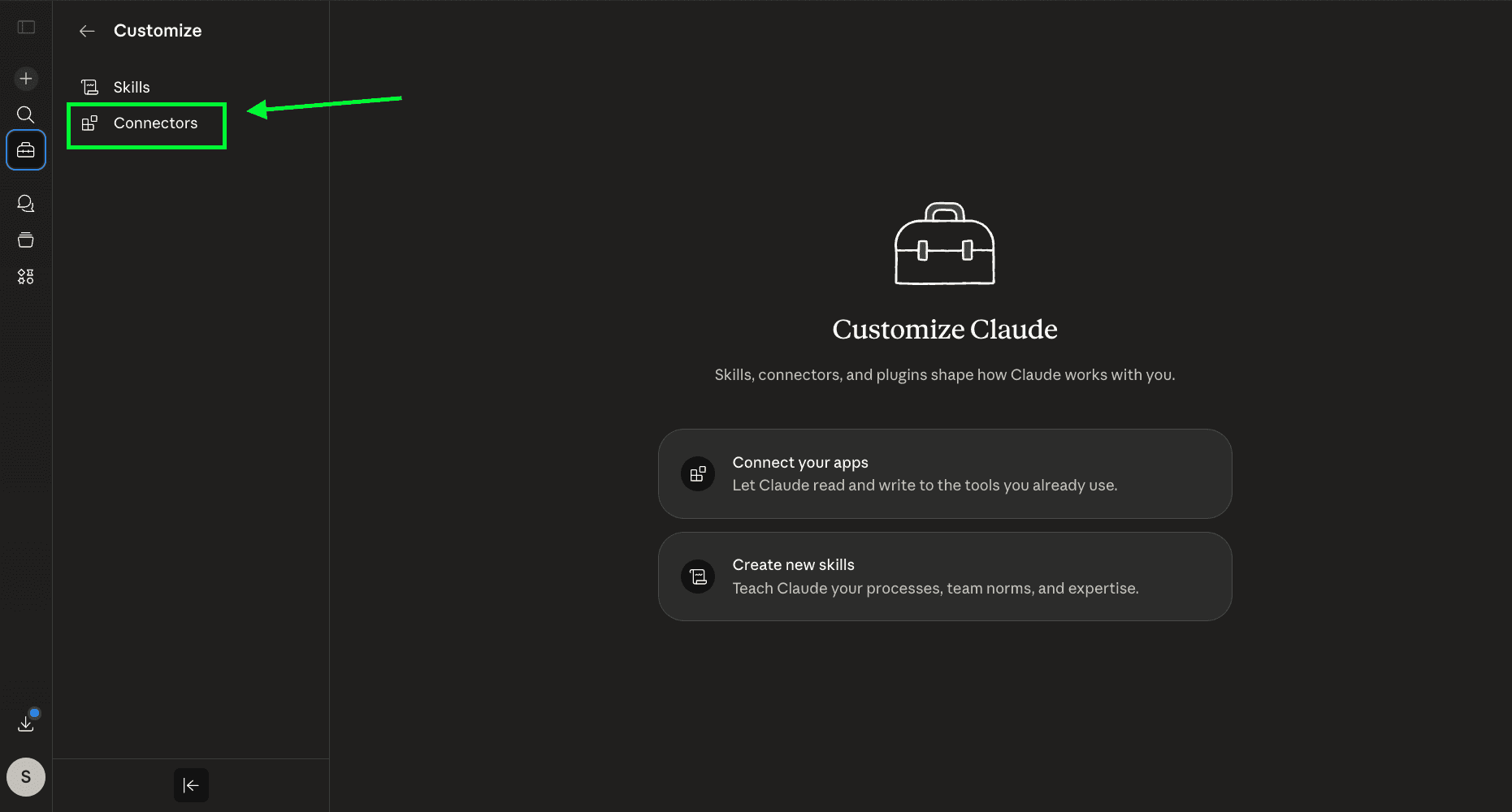
Step 3: Click on Connectors as shown below
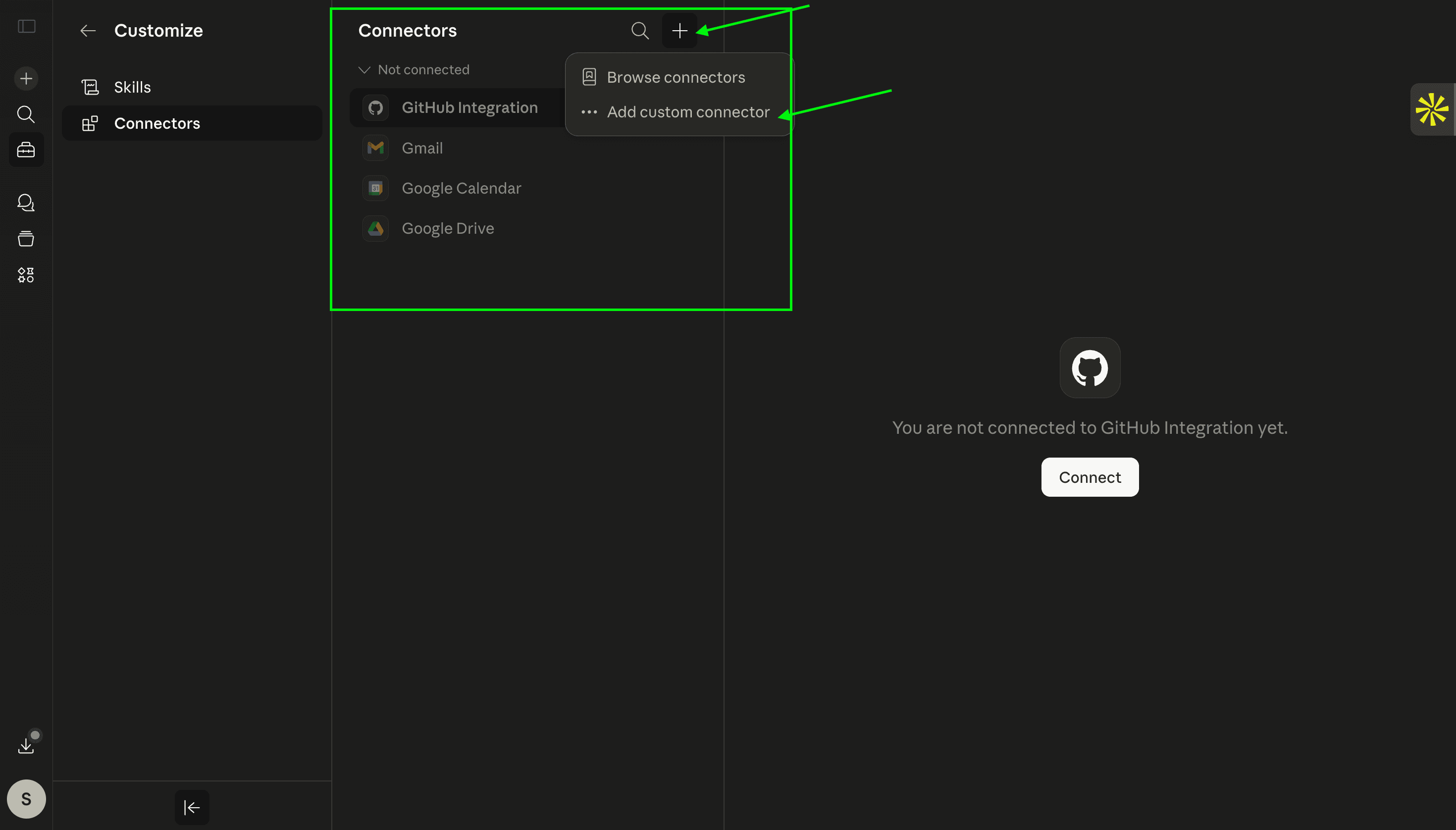
Step 4: Click on the "+" button and click on Add Custom Connector
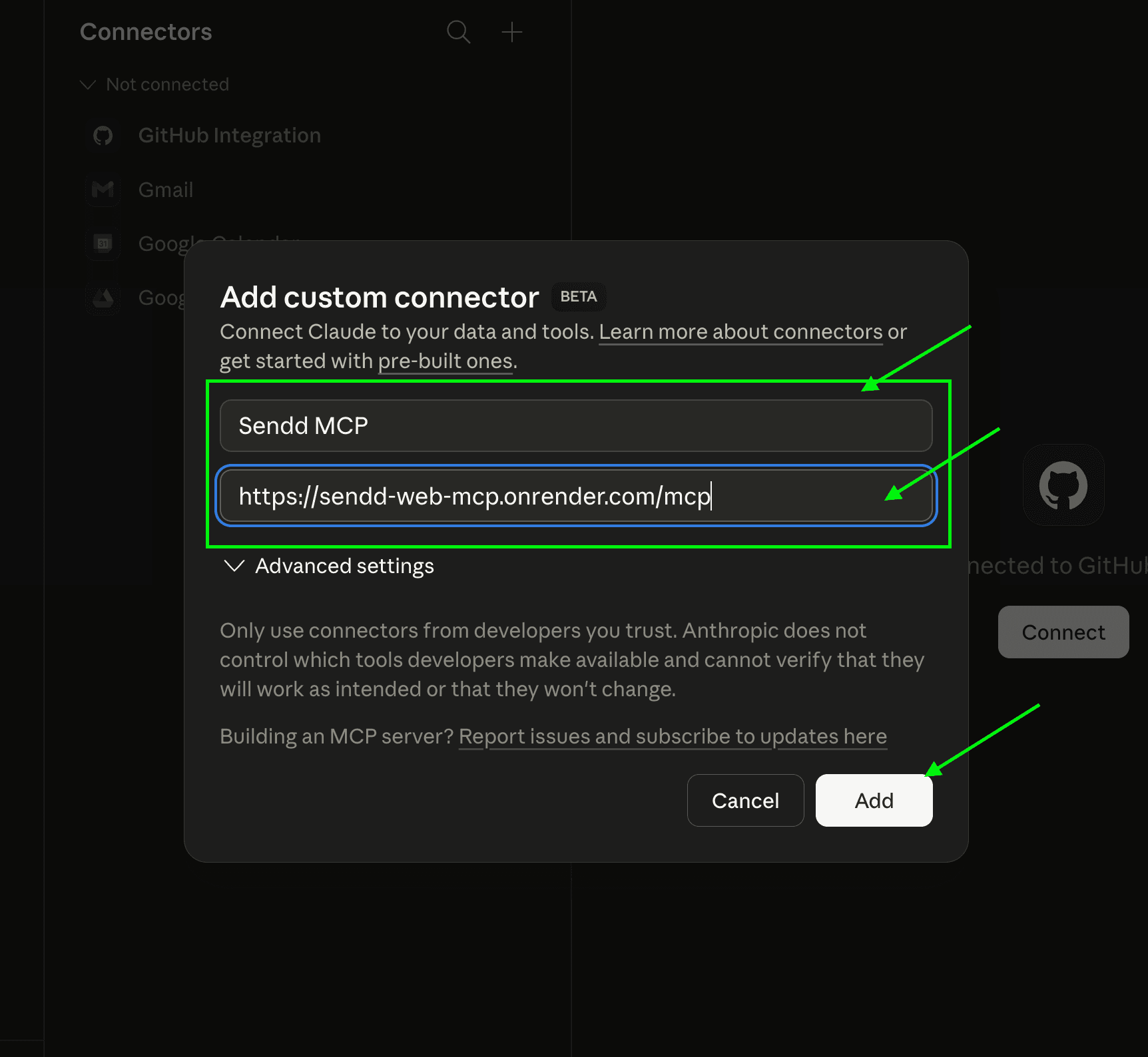
Step 5:
There are two fields, for the name of the connector as well as the MCP link.
Here for the Connector name I put in: Sendd MCP
and for the Link past in: https://sendd-web-mcp.onrender.com/mcp
And then Click on Add.
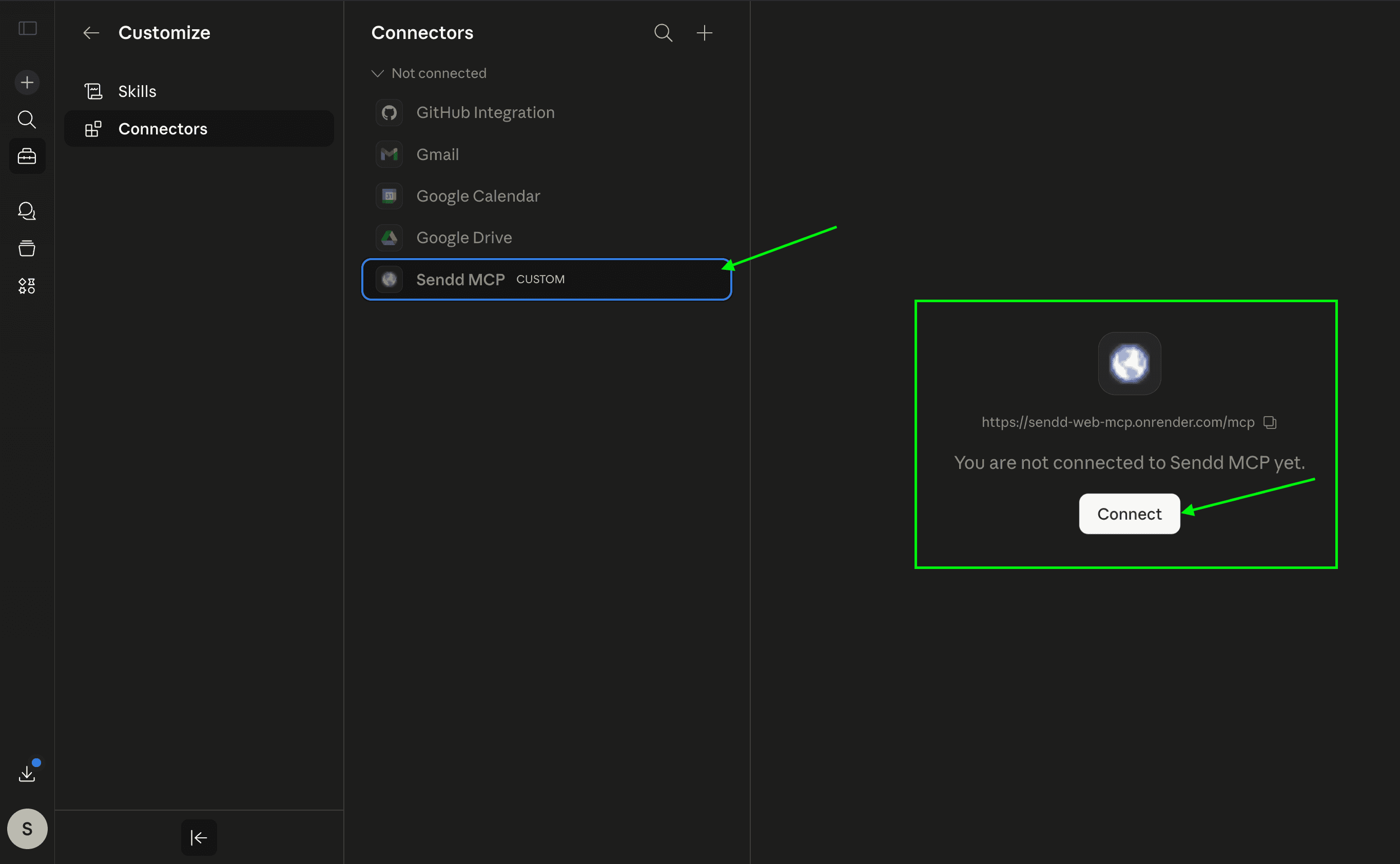
Step 6: from here your MCP is added to Claude, now all you have to do is click on Connect as shown in the image below.
Step 7: Now once you click on Connect, you will be re-directed to a a new page within Sendd that let's Claude authorize modifications within your store.
Click on Authorize to allow Claude to access your Sendd Store.
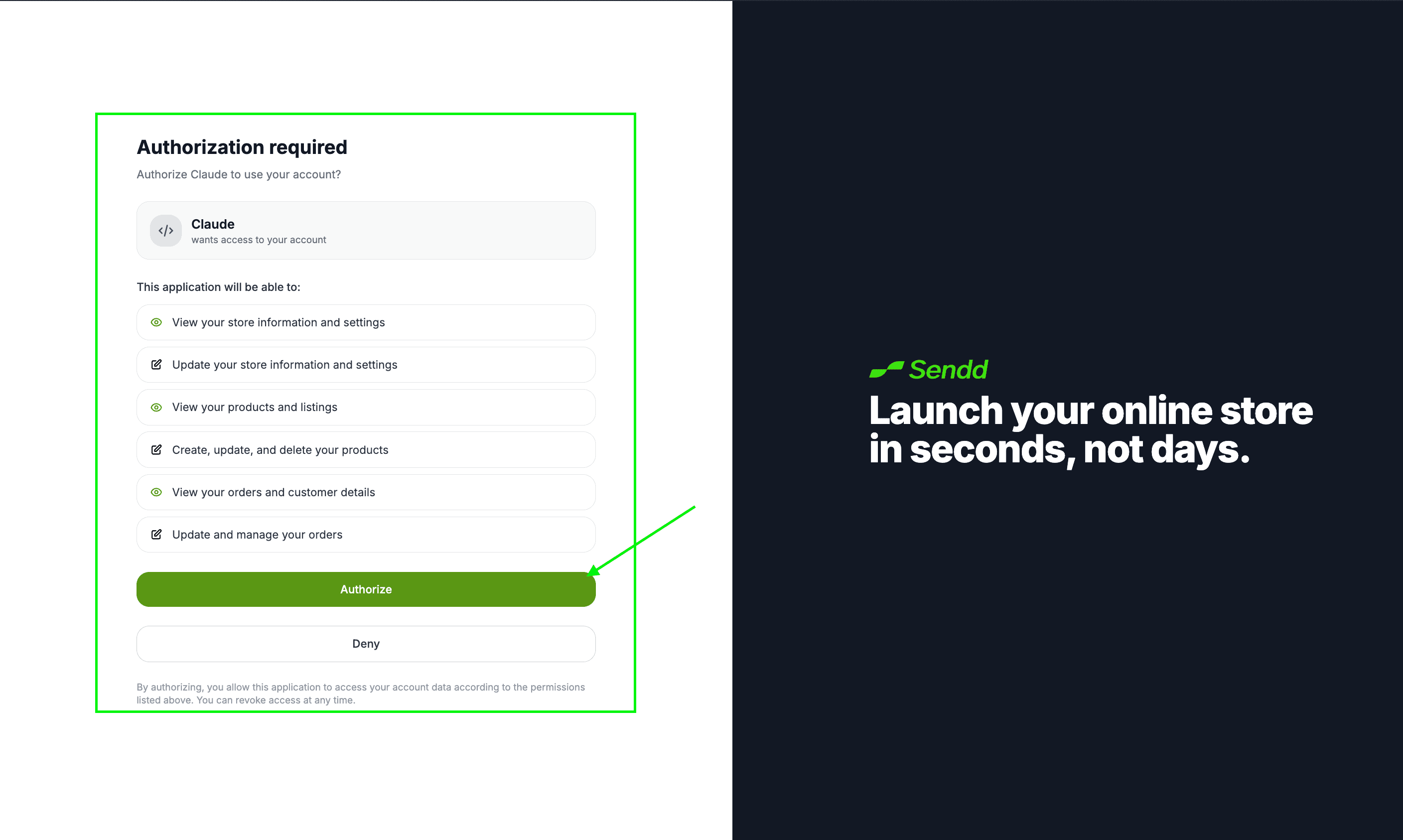
Step 8: After you click on Authorize, the Sendd MCP has been connected, and you can Easily start Communicating with and modifying your Sendd Store
Some of the use cases you would consider right now would be:
"Create an email list of all the customers within my database, the purpose is to create a newsletter for them on my new product launches."
"Add a new Digital product with this provided file, and charge them around 40 dollars per sale"
"Give me an inventory check of all the products live on my Sendd Store"
Any other questions? Get in touch