Store Setup
Add Subscriptions
This article helps you add a subscription service to your Sendd store.
Subscriptions on Sendd are ideal for businesses that charge customers on a recurring basis rather than one-off purchases. They’re especially useful for business owners who want predictable monthly revenue and an easy way to manage repeat customers.
Examples of where Sendd subscriptions shine:
Content creators & educators – monthly access to exclusive content, communities, or courses.
Coaches & consultants – recurring memberships for group coaching, mentorship programs, or support communities.
Fitness & wellness professionals – ongoing training plans, classes, or wellness memberships.
Software or digital tool builders – charging users monthly for access to tools or services.
Clubs & communities – member dues for private groups, associations, or fan communities.
Product subscription businesses – monthly boxes like coffee, supplements, or curated product bundles.
In short, Sendd subscriptions are perfect for any business that wants steady recurring income while giving customers ongoing access to a service, product, or community.
This fits Sendd’s broader goal of helping creators and communities monetize their audiences easily through flexible commerce tools.
How to add subscriptions to your Sendd Store?
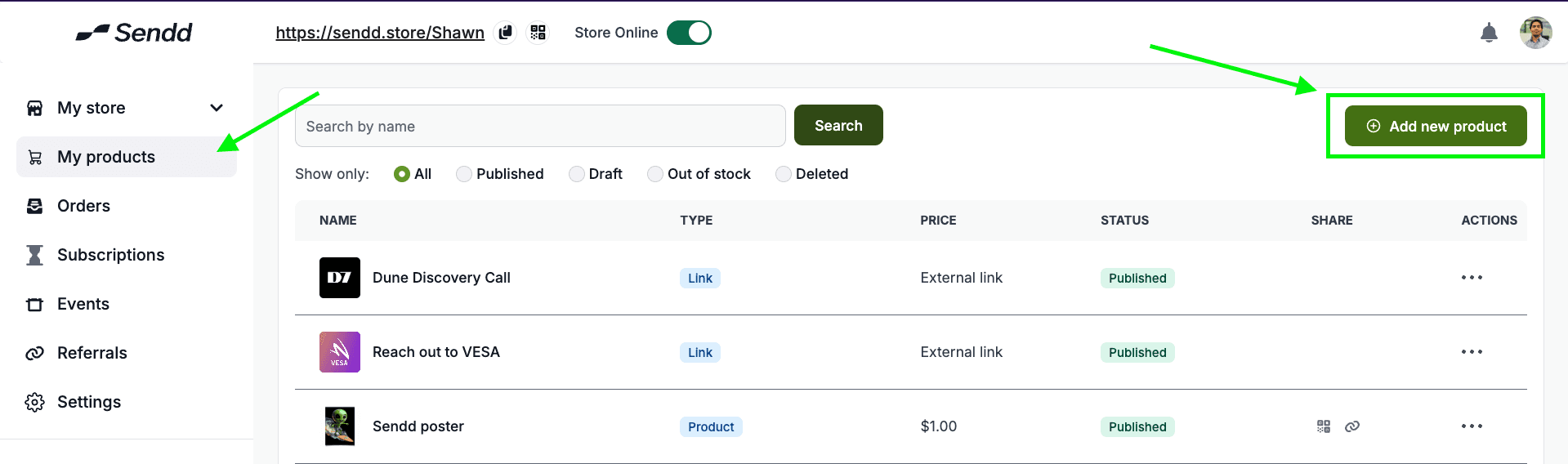
to add a subscription to your Sendd Store Click on Add New Product button within My Products:
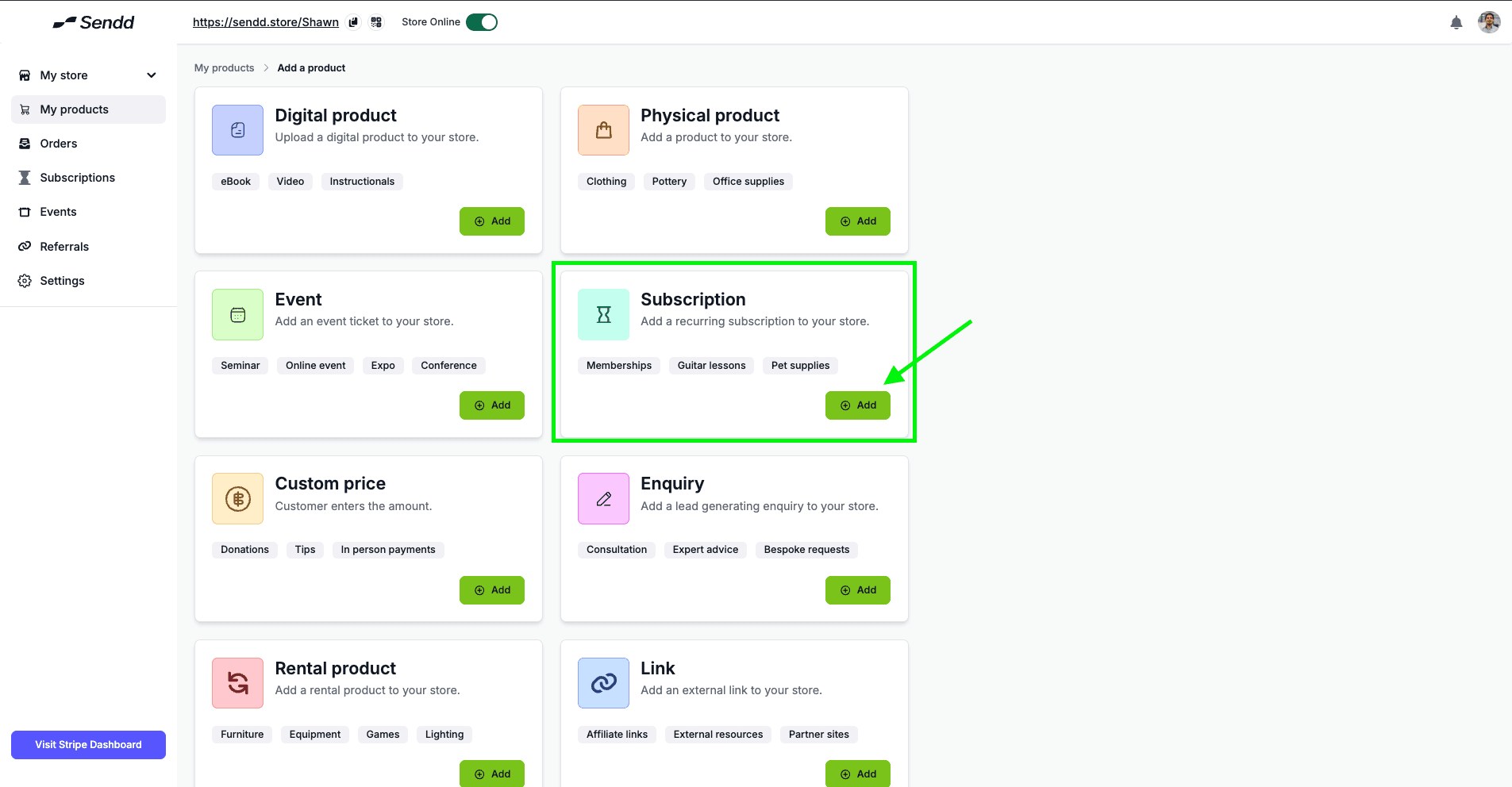
Then click on Subscriptions:
Start updating your Preview Card,
Add a Preview Image, and there is also the option to add up to 4 more images with your cover image with a Gallery view.
Add a Title and Description to describe what the subscription service is.
Now you add an Options to your Subscriptions, this helps you have different subscription tiers, (Click on Add Option to keep building on different subscriptions)
Customize Button to personalize what the Button shows when a customer clicks on it.
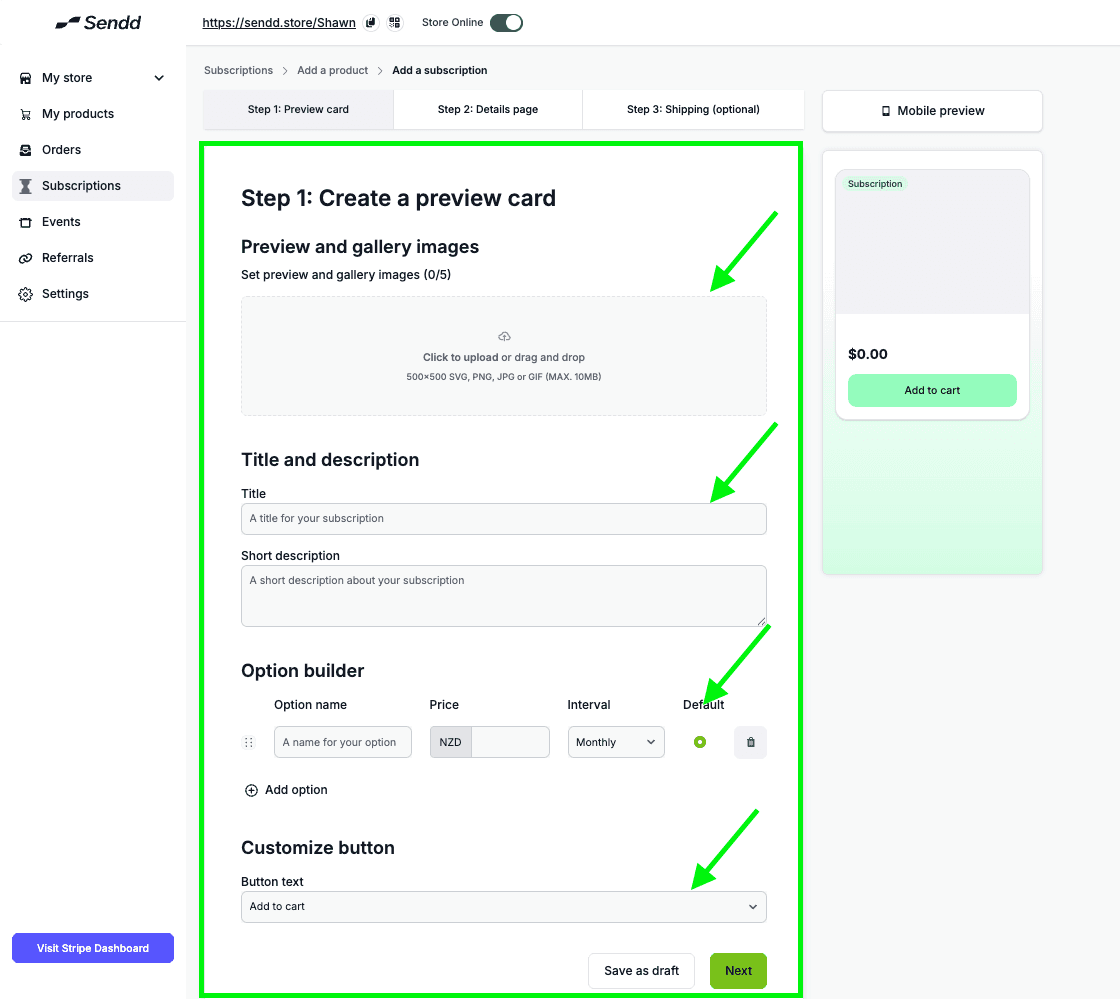
Click on Next after you complete the Preview Card.
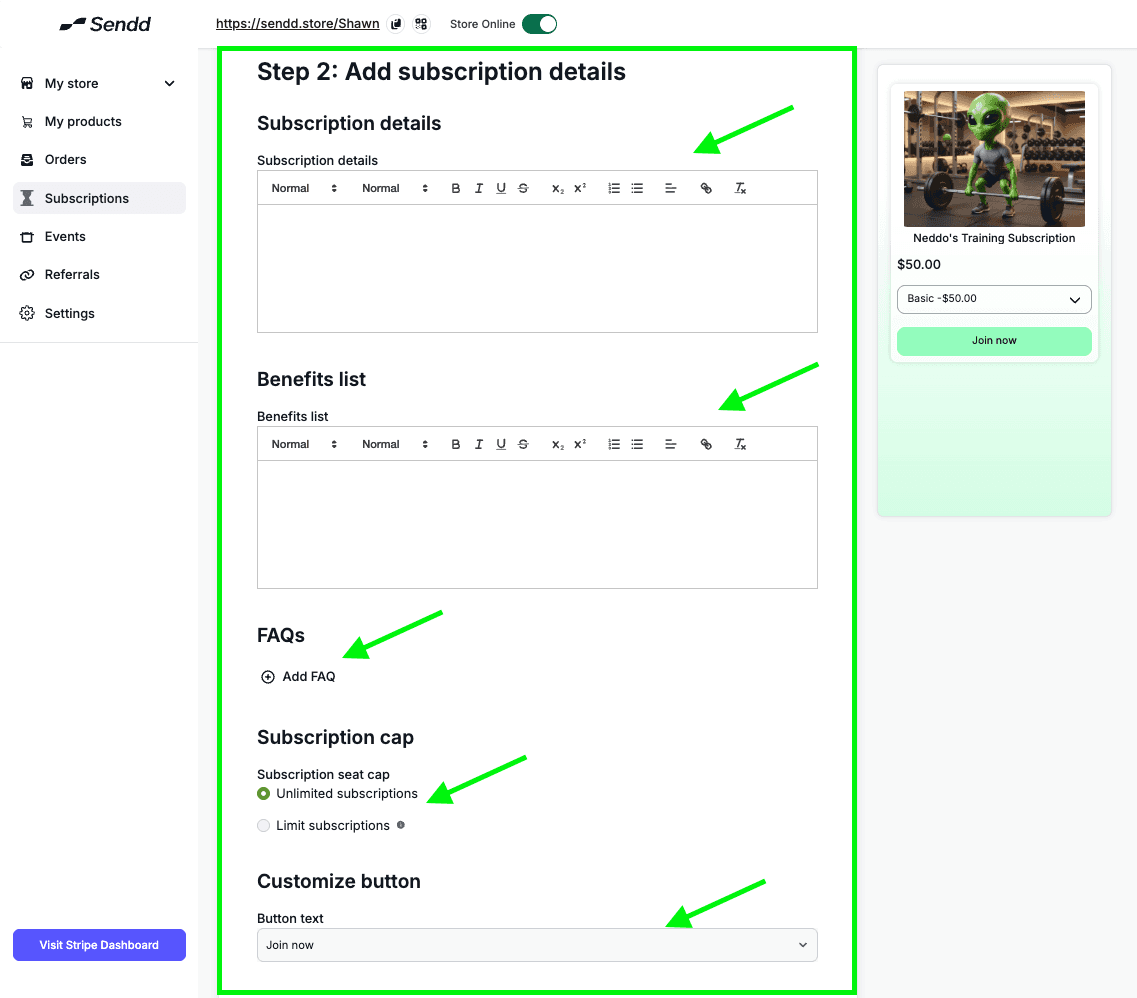
Here we are going to be adding more details to what this Subscription is like:
Add some Subscription details to explain what this subscription is for.
Add some Benefits to the what your customers will receive from this Subscription.
You have the option add some FAQs (frequently asked questions) from your customers.
You can keep the Subscription cap at Unlimited subscriptions, or limit subscriptions, this will depend entirely on how many customers you can serve at together.
Customize your Button for details page based on your liking.
Sendd Marketplace Option: get your service/ subscription visible on larger marketplaces. This Commission threshold will dictate how much marketplace commissions you are willing to give away for more visibility. Read more at : https://www.sendd.store/docs/getting-started
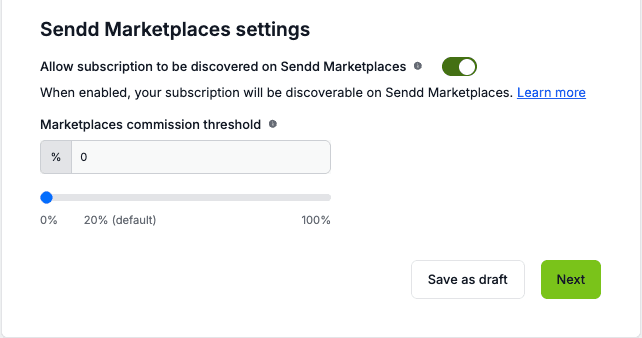
Click on Next and Organize any sort of Shipping details if applicable
You can Collect your customer's shipping address along with the following options:
Free shipping:
Flat Rate Shipping: fixed shipping cost for any products you are shipping to them as part of the subscription.
Live Carrier rates(via Gosweetspot): Live local courier shipping rates from local shipping providers within NZ. find more about setting up your shipping here:
or you can Allow your customer to come pick it up:
Provide your pick up address or,
Contact customer to arrange pickup.
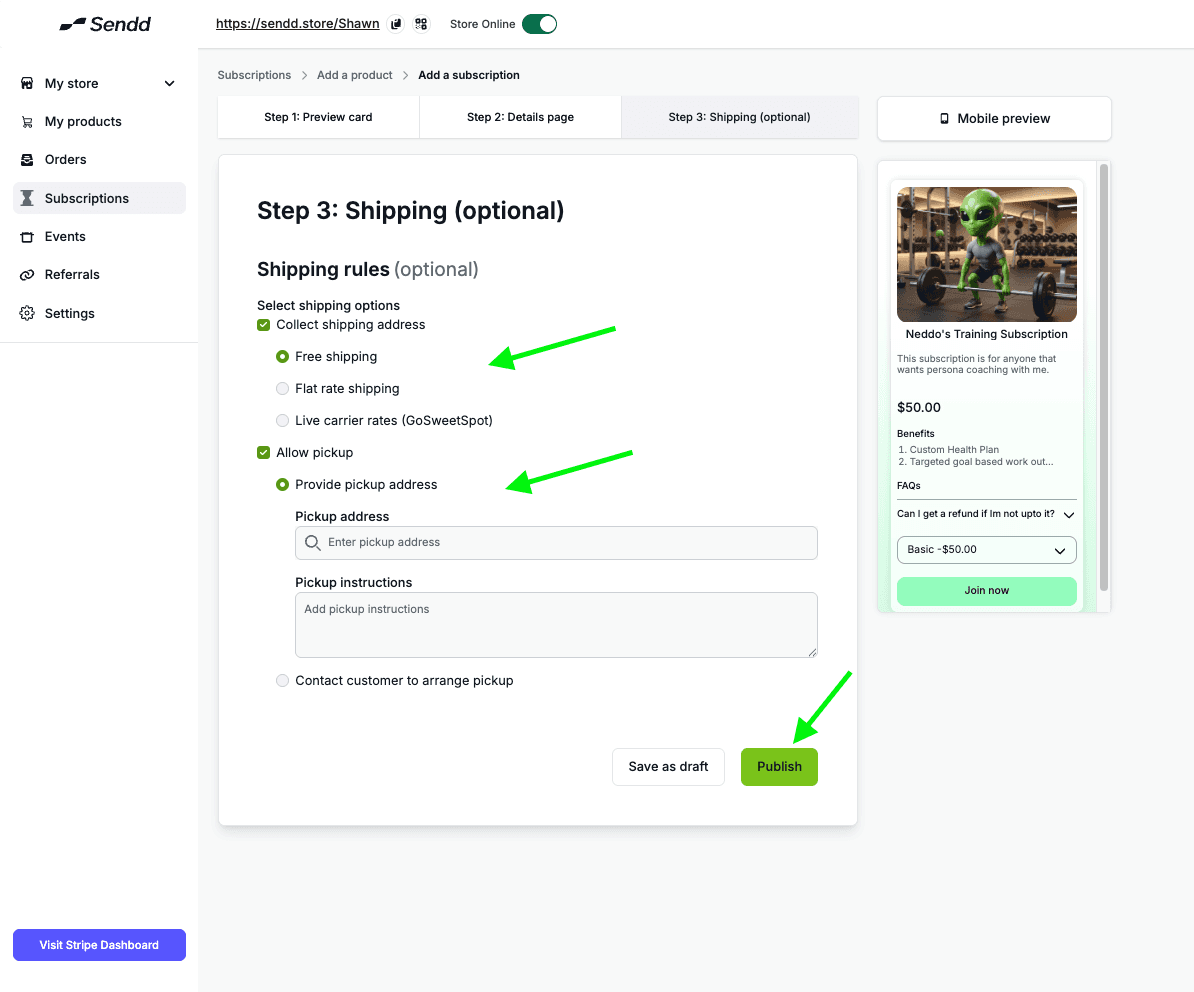
Hit Publish to completely post the subscription.
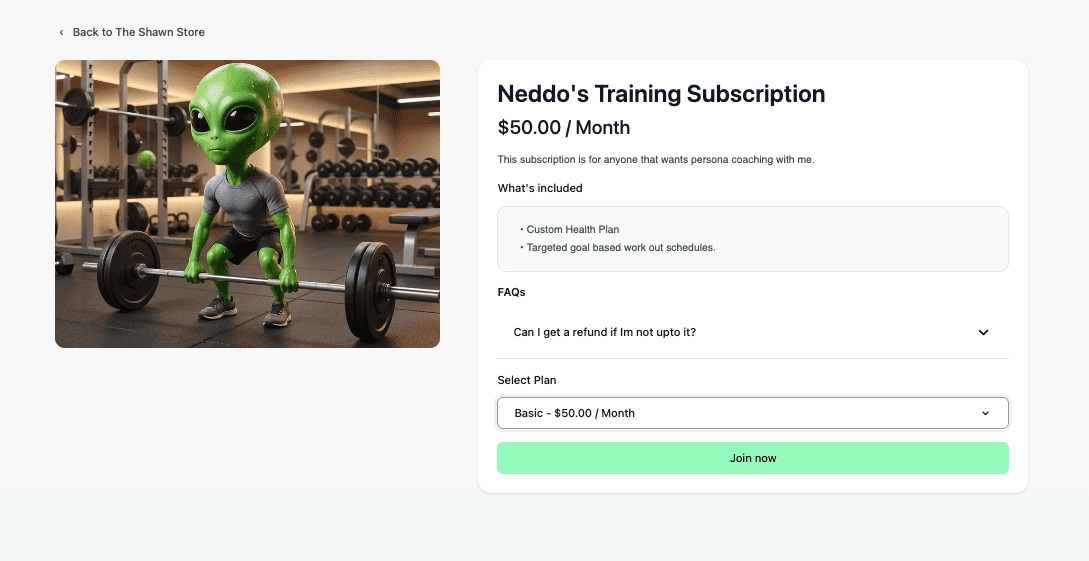
Your Subscription is now visible on your Sendd Store!
Any other questions? Get in touch