Store Setup
Add Events
This article helps you add an Event to your Sendd Store, Sell and Manage Tickets
You can add an event through two methods within your own Sendd Store
Method 1: Click on Add new Product within My Products.
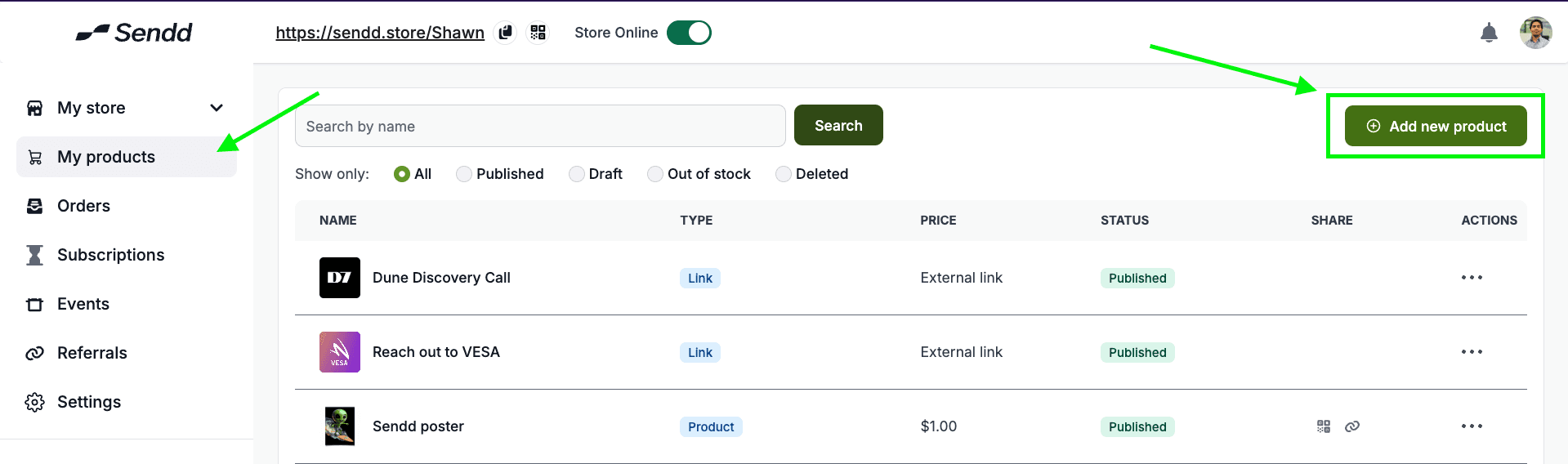
Then click on the Event product type.
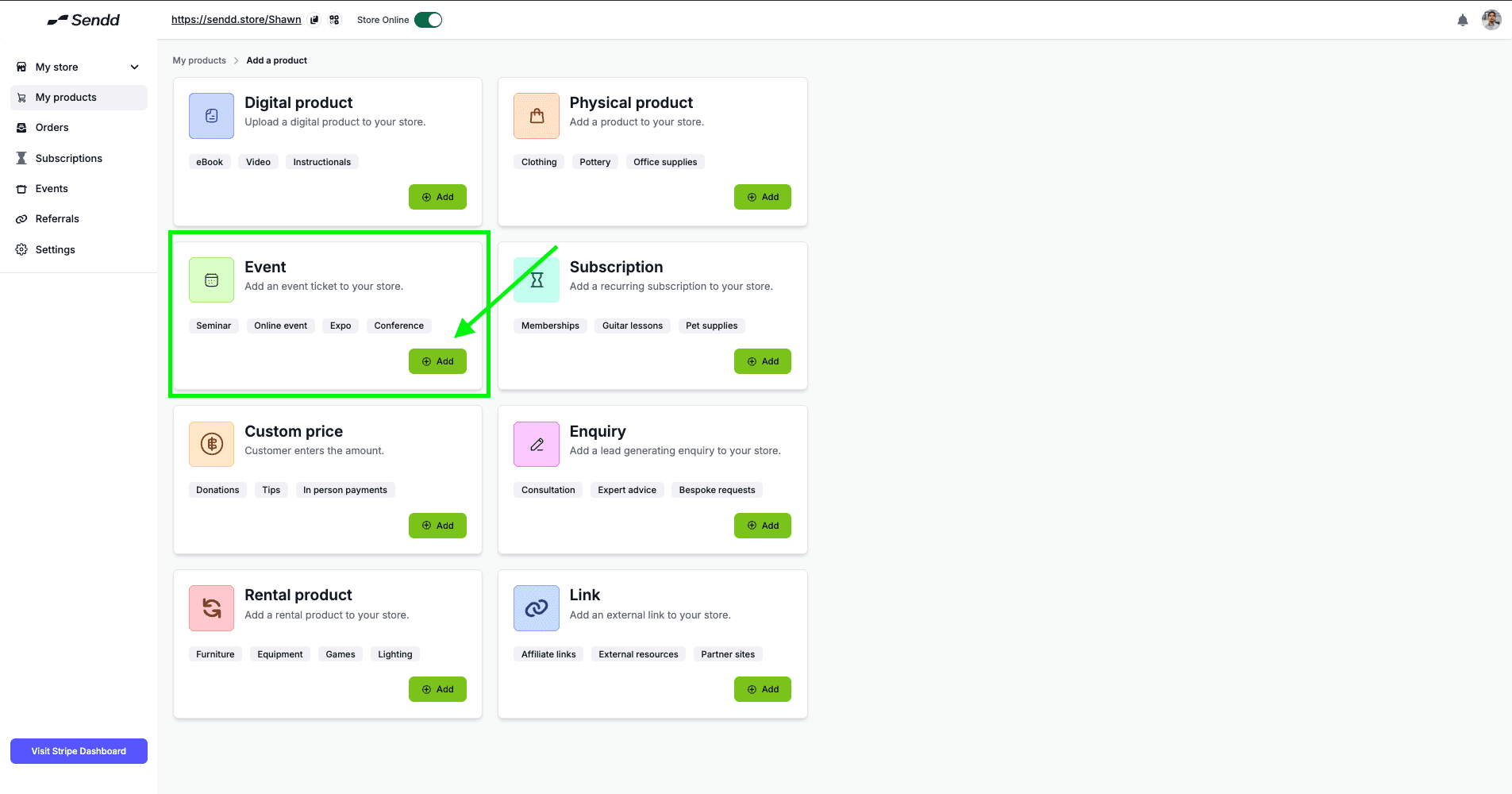
or
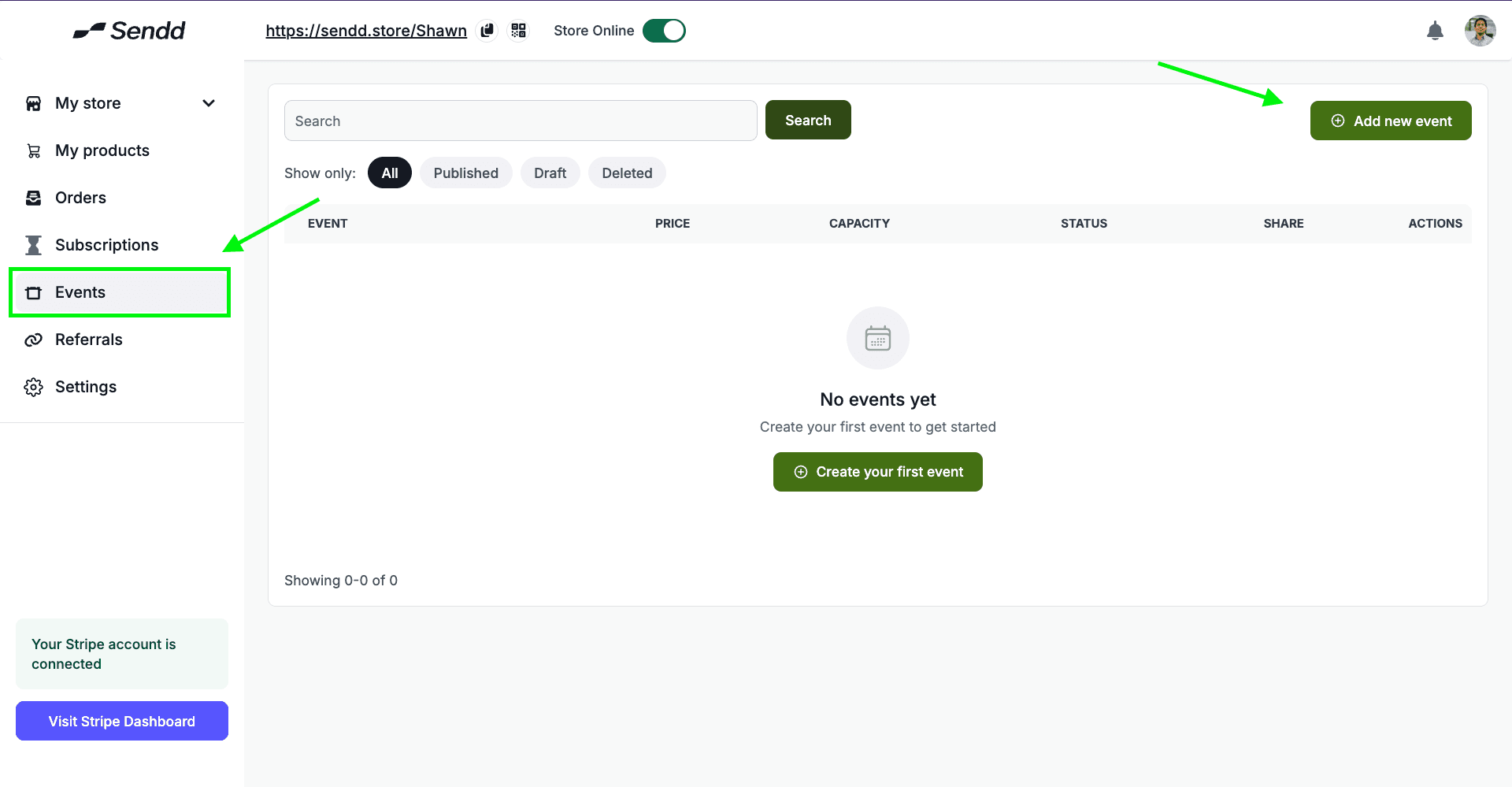
Method 2: Click on the Events button, and click on Add new event
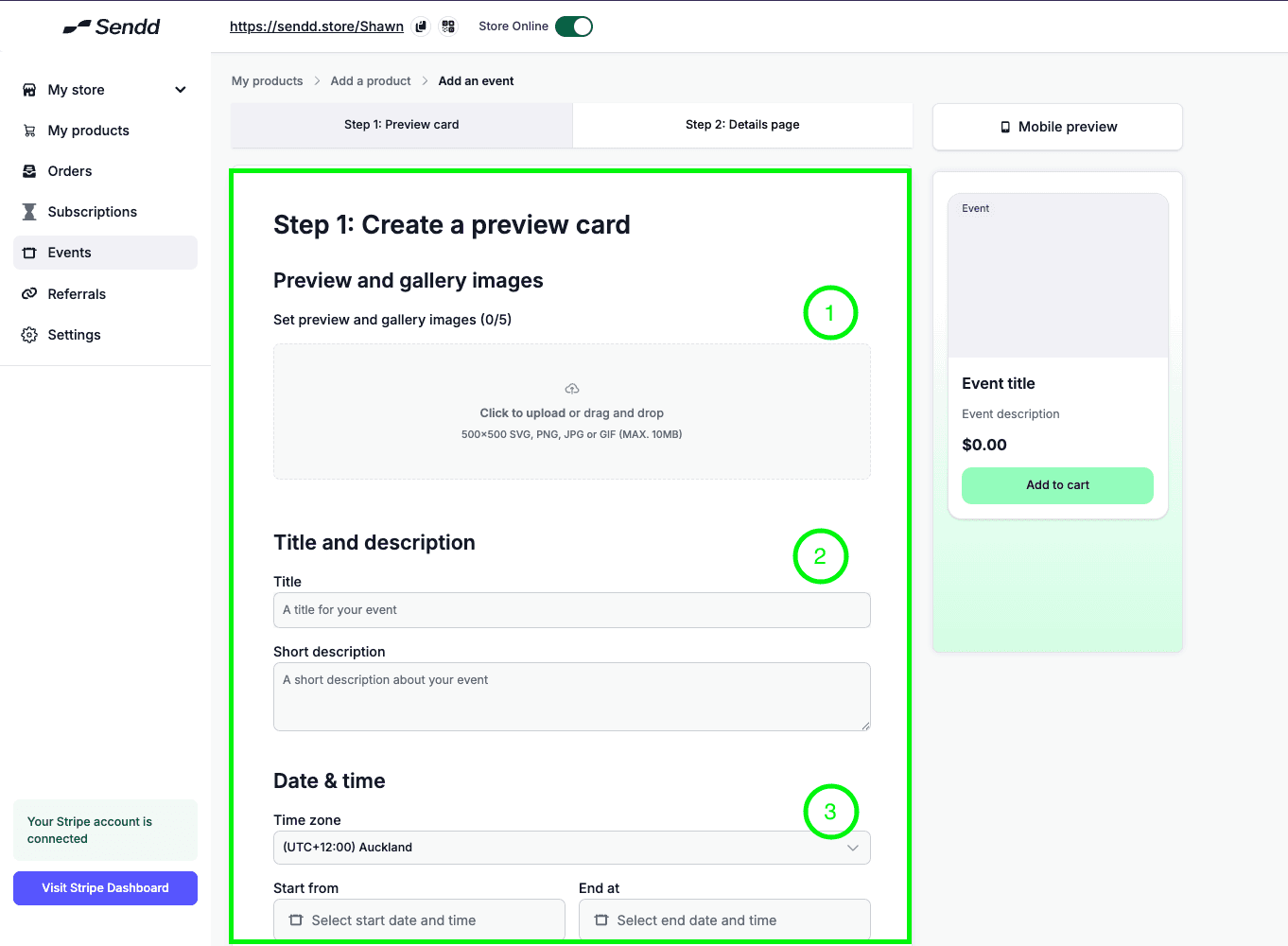
Both these methods get you to the page that helps you create an event as shown below, where you can start filling out the details of the Event as needed:
Upload an image of the event for your guests to preview.
Insert a Title and Description, for the event you want to host.
select a Time Zone for the event, and also a Start from time and End at time.
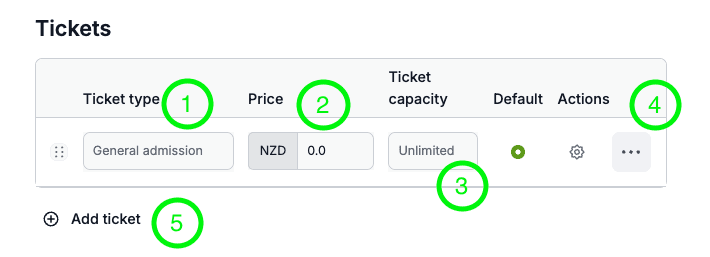
Click on tickets and as you can see below:
Ticket type: describes the type of ticket being sold (VIP, general admission etc.)
Price: enter the price of the ticket
Ticket Capacity: sell tickets within a certain capacity if you want to.
Three dots: expand in order for you to duplicate the ticket or delete it.
Add Ticket: helps you add a new ticket type.
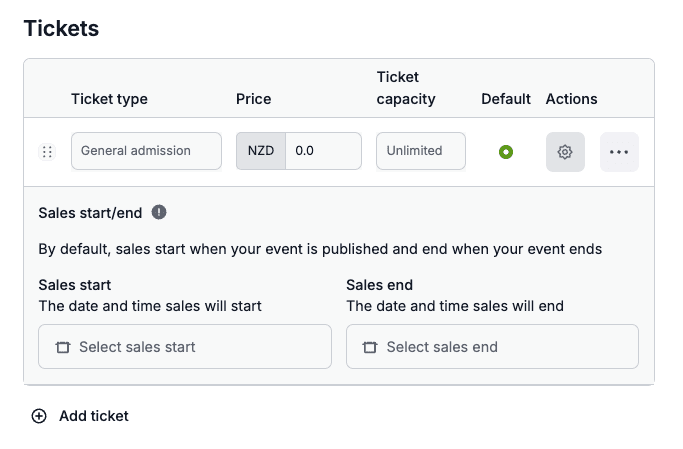
Note: The gear Icon with Actions written above it, shows when to start the ticket sales and when to end the ticket sales. The default start of the ticket is when the event is published, and end is when the event itself ends. It is recommended to end ticket sales at least a day before the event (See image below)
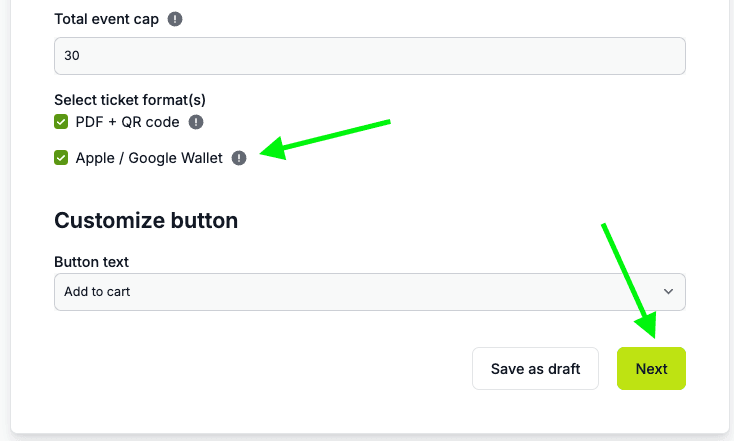
We also help customers add the event details to their apple or google wallet, while also sending it as a pdf + QR Code.
customize the button to your preference
Click Next
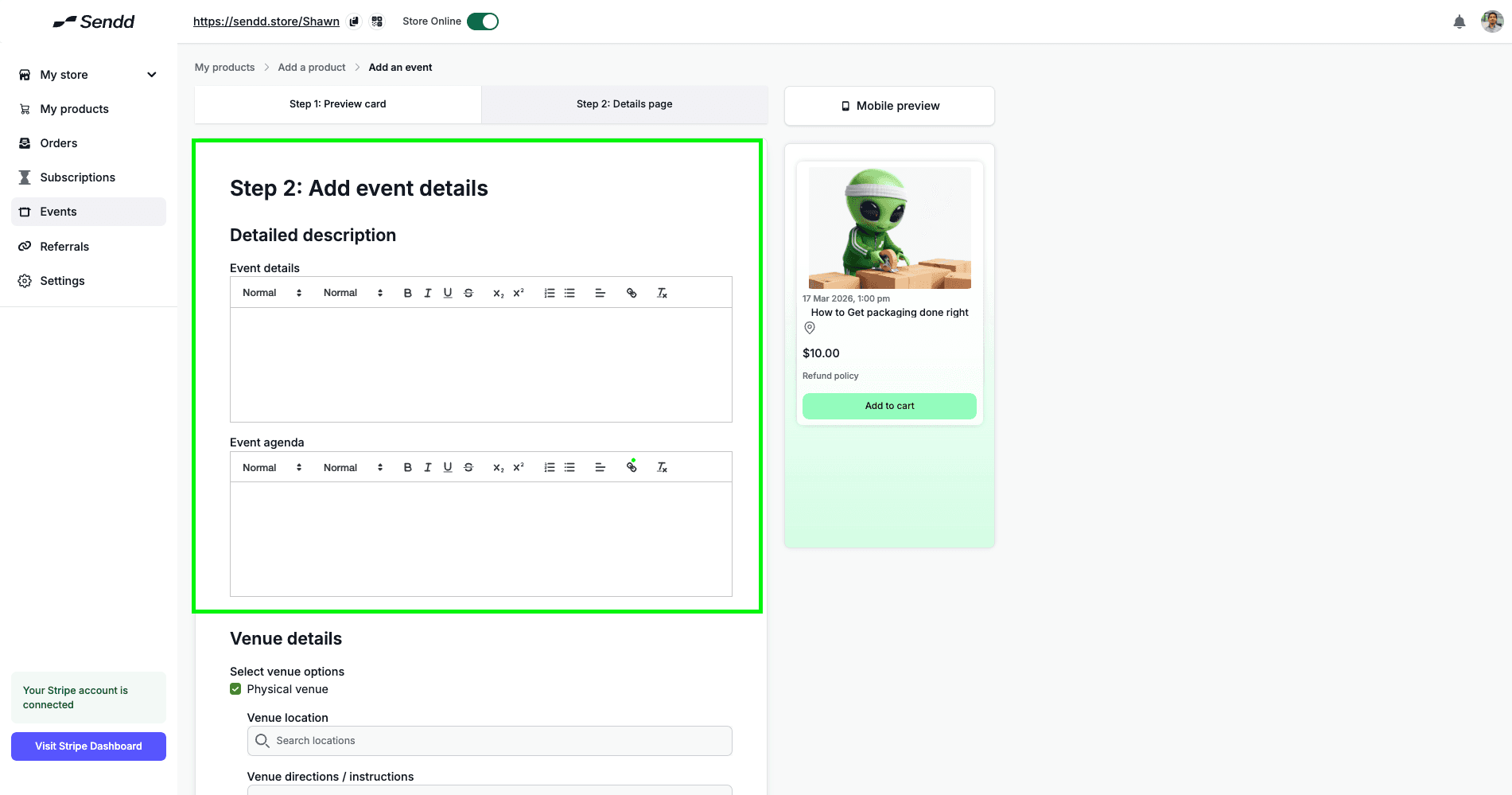
In the next page, You will add more details into what your event is about.
Describe your event more by adding a Detailed description and Event Agenda to your event details.
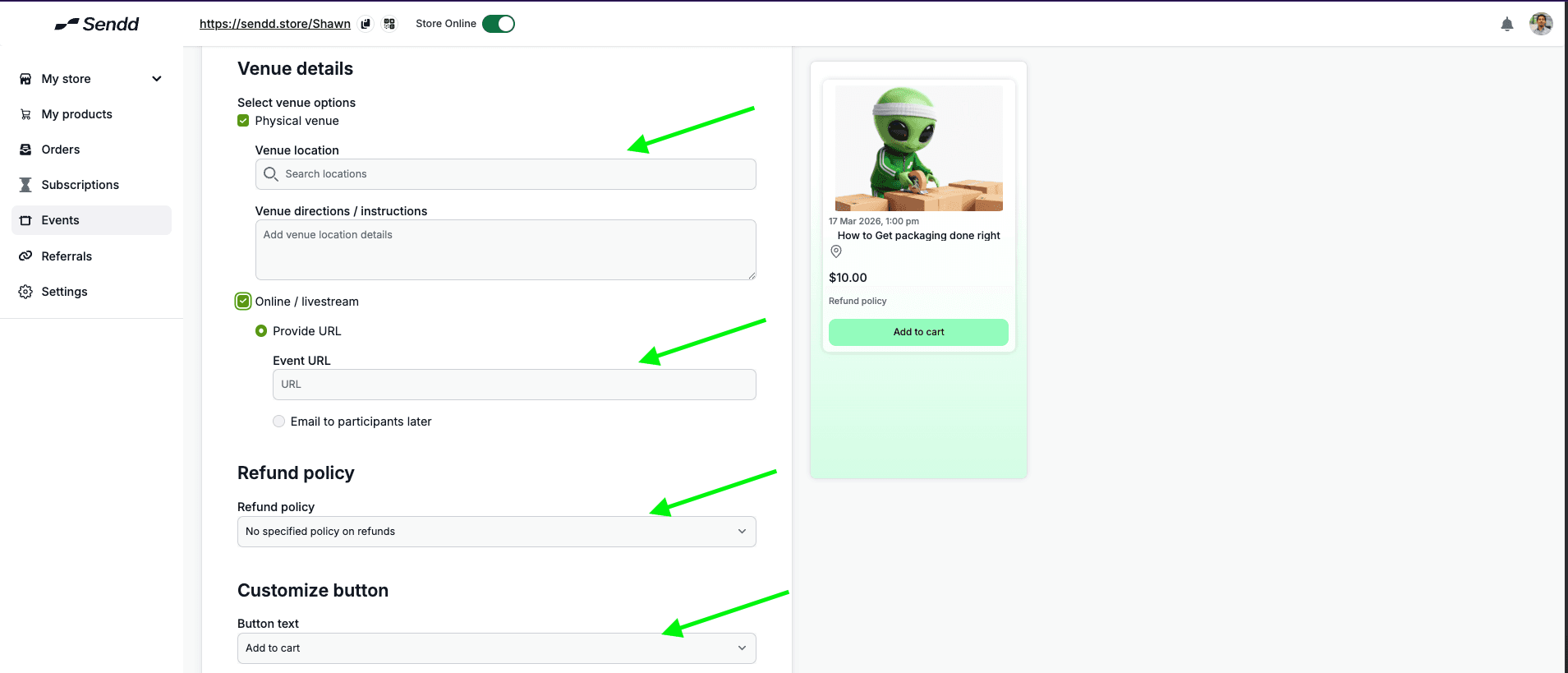
Next you go ahead and add in the Venue Details Tick the boxes whether you are running the event in a:
Physical Venue or
Online/Livestream
or tick both, but while doing so make sure to enter the details of the Physical Venue, and also add the Event URL, (Meeting link).
Add a Refund Policy by clicking on the dropdown.
Customize your button and hit publish, your event is now good to go!
Any other questions? Get in touch